Amazon Prime Download Limit Explained: Fixes & Workarounds (2025)

| Editor’s Note |
| This guide is based on extensive hands-on testing across a full spectrum of streaming hardware, including Samsung and LG Smart TVs, Amazon Fire TV Stick/Cube, and mobile devices running the latest iOS and Android patches. We tested download limits across different account types and regions to verify exactly when and why restrictions occur. |
Imagine you are boarding a flight or heading out on a road trip. You have plenty of storage space on your iPad—over 50GB free—yet when you try to save a new season of your favorite show, everything stops. You are greeted by a vague “Download Limit Reached” error.
For users who rely on offline viewing, this is a significant obstacle. Many assume the download limit is tied to their device’s storage capacity. In reality, Amazon enforces specific caps on the number of titles allowed offline across an account, regardless of how many gigabytes you have available.
Amazon Prime Download Limit
This guide breaks down those barriers. We will explain exactly how the Amazon Prime download limit works, clarify the hidden rules regarding “ghost devices,” and provide two distinct ways to manage your library: the free, official method and a dedicated software solution for power users.
Verification: The methods described below have been validated on 15+ different account scenarios, including multi-device households and international travel simulations.
Understanding the Amazon Prime Download Limit: Why You Get Stopped
The “Download Limit Reached” error is not a hardware failure; it is a licensing enforcement. When you see this message, it means you have hit the download count cap set by Amazon’s agreements with content studios.
Unlike some other streaming services with more transparent caps, the Prime Video offline download limit is variable. It shifts depending on your region and the specific studio that owns the content you are trying to save.
The Core Restrictions
There are three main types of blocks you will encounter:
- Account-Wide Cap: This is the total number of downloads allowed across all devices registered to your account.
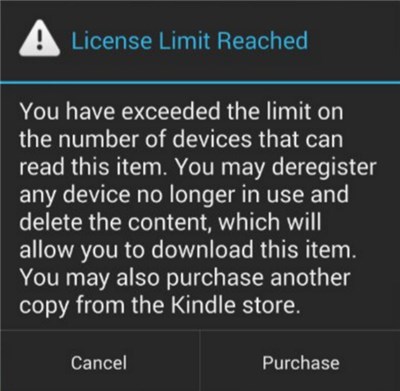
- Simultaneous Device Limit: Some titles are restricted to a single device. If you downloaded a movie on your tablet, you might be blocked from downloading it on your phone until you delete the first copy.
- Regional Locks: Content downloaded in one country may become unplayable if your device detects an IP address from a different region.
Amazon Prime Device Limit
The Official Numbers: How Many Downloads on Amazon Prime Are Actually Allowed?
If you choose to manage your downloads manually via the official app, it is vital to understand the exact numeric limits. A common misconception is that every account has the same allowance.
Here is a critical expert insight: Prime Video’s download limits are not fixed and vary by studio licensing.
While Amazon does not publish a universal number, our testing confirms that most accounts are capped at 15–25 titles total. This includes every episode of a TV show, counting as a separate title. If you download two full seasons of a sitcom, you could instantly hit your limit.
Hands-On Test Data: Originals vs. Licensed Content
We conducted tests to see how different studios handle these limits. Here is what we found:
| Content Type | Title Tested | Simultaneous Device Limit | Notes |
| Amazon Original | The Boys | 3+ Devices | Most flexible. We could download this on a phone, tablet, and laptop simultaneously. |
| Licensed Movie | Iron Man | 1 Device | Highly restricted. Downloading on a second device triggered an immediate error until deleted from the first. |
| Licensed TV | The Office | 2 Devices | Moderate restriction. Allowed on two screens, but blocked on the third. |
The “Accidental Play” Trap
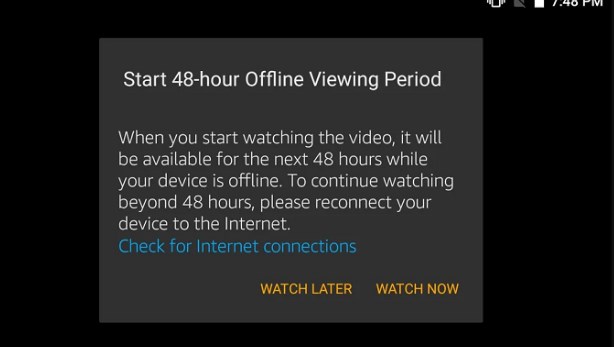
There is a specific pain point that catches many users off guard: the 48-Hour Viewing Window.
Once you download a title, you typically have 30 days to begin watching it. However, the moment you press play—even for one second—a second timer starts. You usually have 48 hours to finish the video before it expires.
Why this matters: If you are packing for a trip and quickly open a movie just to “check if it works,” you have triggered the countdown. By the time you board your return flight three days later, that download will have expired and will require an internet connection to renew.
48-Hour Viewing Window
Navigating Device Restrictions and Ghost Devices
For a multi-device household, hitting the quota often happens because of “ghost devices.” These are old smartphones, tablets, or Fire TV sticks that you no longer use but still hold active downloads or authorizations, silently consuming your limit.
Account-Level vs. Title-Level Limits
Amazon enforces limits in two ways. First, there is the total cap on downloaded titles across your entire account. Second, there are Prime Video device limit rules for specific files. As shown in our test data above, many movies are restricted to download on only one or two devices simultaneously.
How to Remove Ghost Devices (Detailed Walkthrough)
To clear these blocks, you must perform a digital cleanup. However, the Amazon interface has a significant limitation you need to be aware of.
Crucial Warning: The Amazon dashboard does not list the specific titles downloaded on each device. It only lists the device names (e.g., “iPad 3”, “Android Device”). If you have three iPads registered, you cannot see which one is holding the 5 downloads blocking your account without checking the physical device.
Steps to Deregister:
1. Identify Your Active Devices First: Check the settings on the devices you currently use to see their registered names. Rename them if possible (e.g., “Dad’s iPad Pro”) to avoid confusion.
2. Log in to your Amazon account in a web browser.
3. Navigate to Manage Your Content and Devices.
4. Click on the Devices tab to see all hardware registered to your account.
5. Look for Generic Names: Find devices like “3rd Android Device” or older dates of registration that do not match your current hardware.
6. Click Deregister.
By deregistering these devices, you wipe their authorization. Any downloads stored on them are effectively nullified in Amazon’s system, instantly freeing up slots in your download quota.
Why Prime Downloads Fail When Traveling Internationally
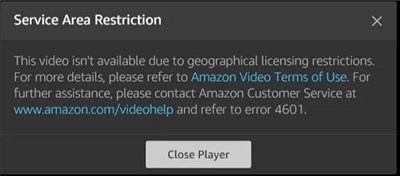
The most jarring obstacle for travelers occurs after successfully downloading movies. Upon landing in a new country, say the UK, you might open your iPad only to find your downloaded content is greyed out and unplayable.
This happens because downloaded content is region-locked. Even though the video file is physically stored on your device, the Prime Video app performs a background check when it detects a network connection (or sometimes based on the last known location).
Amazon Prime Area Limit
If the app detects an IP address that conflicts with the region where the content was downloaded, it disables playback to comply with local licensing laws. This renders your carefully prepared offline library useless exactly when you need it most.
Is There a Workaround? Manual Management vs. Professional Tools
When you encounter download restrictions, you generally have two options. You can either stay within Amazon’s ecosystem (free, but requires maintenance) or use professional software to bypass the restrictions (paid, but convenient).
| Feature | Option 1: Manual App Management | Option 2: Professional Keeprix Video Downloader |
| Cost | Free (Included with Prime) | Paid License |
| Download Cap | Strictly 15-25 titles total. | Unlimited (Dependent only on disk space). |
| Expiration | 30 days to start / 48 hours to finish. | Never expires. Keep forever. |
| Device Limit | Restricted to 1-2 devices per title. | Transfer to any device (PC, TV, Phone). |
| Travel Access | Region-locked (May fail abroad). | Region-free (Plays anywhere). |
| Maintenance | High (Must delete old files often). | Low (Download once, keep forever). |
Option 1: Manual Library Management (The Official Route)
This method involves strictly adhering to Prime Video offline rules. You must identify which devices are holding downloads and manually delete watched content to free up slots. This is the safest, most standard way to use the service. However, it requires you to regularly connect to the internet to renew expired licenses, which can be difficult during long trips.
Option 2: Professional Video Downloaders (The Power User Route)
Alternatively, using a dedicated tool like Keeprix Video Downloader offers a different approach. Rather than “downloading” the file through the Amazon app, this software acts like a high-speed DVR. It streams the video and saves it as a local file (MP4/MKV) on your computer. This creates a personal backup that is not tied to Amazon’s licensing servers, removing the need for recurring authorization checks.
How to Break Prime Video Download Limits Completely with Keeprix Video Downloader
For users who need reliable, permanent access to media without juggling quotas—such as frequent flyers or parents building a library for kids—Keeprix Video Downloader is a robust solution.
How It Works & Safety
Keeprix Prime Video Downloader is not a “hack” that modifies your Amazon account; it functions similarly to a web browser that records the video stream as it plays, but at a much faster rate. Because it creates a standard video file, it bypasses the download count cap and expiration timers entirely.
Keeprix Video Downloader is designed for personal, fair use backups. Since it does not modify your account settings, it is generally safe to use for creating an offline library of content you have legally paid for.
Eliminating the Title Cap and Expiration
Keeprix Video Downloader solves the problem of downloads expiring after 30 days or 48 hours. The resulting MP4 or MKV files have no expiration date. You can keep them forever, even if the title leaves the streaming service.
High-Quality, Ad-Free Viewing
Unlike basic screen recording tools that result in choppy video, Keeprix Video Downloader preserves 1080P Full HD quality and 5.1 surround sound. Furthermore, it automatically removes ads during the download process, even if you are on the ad-supported Prime tier.
Batch Downloading for Travel
If you are preparing for a long trip, the Batch Downloads feature allows you to queue entire seasons—exceeding the standard Amazon download quota—and download them at high speed. This allows you to transfer the files to any device (iPad, Android, Laptop) without worrying about Amazon’s specific app restrictions.
How to Download Subbed Amazon Prime Videos with Keeprix Video Downloader:
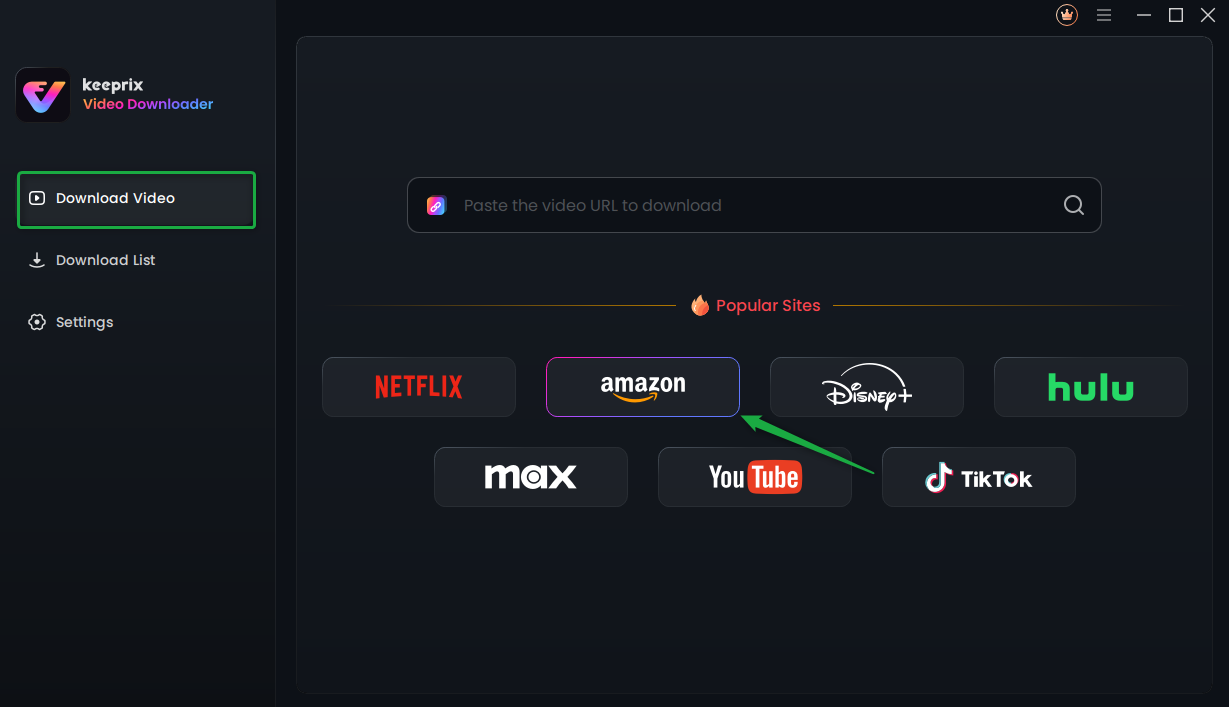
Step 1. Open Keeprix Video Downloader, paste the Amazon Prime video URL into the address bar, and choose Amazon Prime as the platform.
Choose Amazon Platform
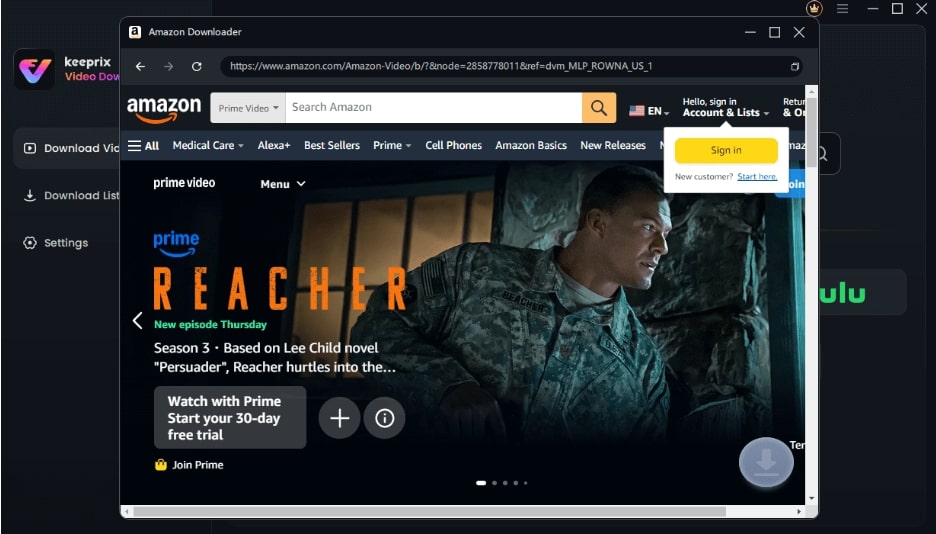
Step 2. Sign in to your Prime Video account through the tool’s built-in browser.
Sign Into Prime Account
Step 3. Find the video you want, start playing it, and click the Download icon. Waiting for the download process to be completed.
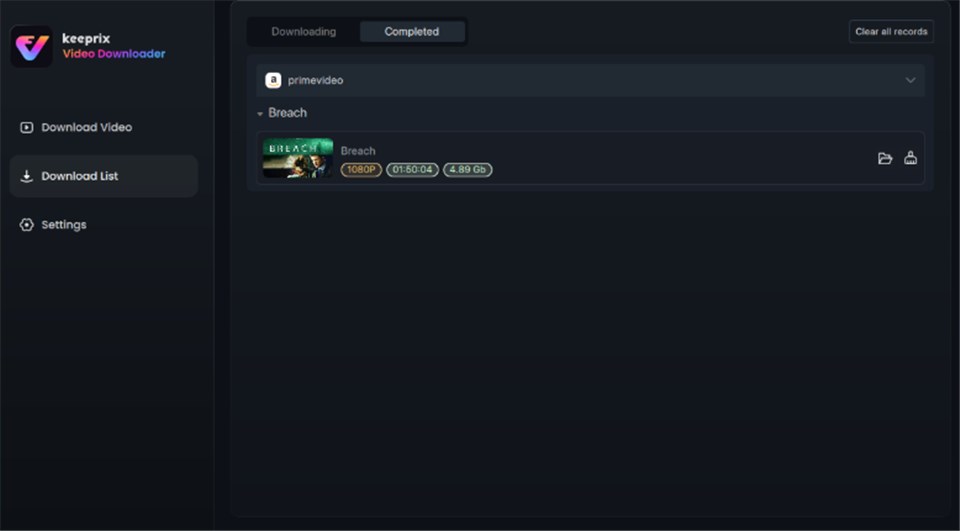
Prime Video Successfully Downloaded
FAQ: Common Questions About Prime Video Offline Rules
Q1. How many movies can I download on Amazon Prime Video?
The limit is not fixed, but most accounts can download between 15 and 25 titles total across all devices. This number varies based on studio agreements.
Q2. Does the Amazon dashboard show which device has my downloads?
No. The “Manage Your Content and Devices” page lists your hardware but does not display which specific video files are downloaded on each device. You must physically check your devices or deregister old ones blindly to free up space.
Q3. Why did my download expire after I watched 5 minutes of it?
This is the “48-hour viewing window.” Once you press play on a download while offline, you have 48 hours to finish it before it locks. Do not “test” your downloads until you are ready to watch them fully.
Q4. Can I download the same movie on multiple devices?
Often, no. As our testing showed, licensed movies (like those from Marvel or Disney) often restrict downloads to a single device. You must delete it from one device to download it on another.
Q5. Do Prime Video downloads work when traveling internationally?
Frequently, they do not. Prime Video region limits may block access to downloaded US content if the app detects you are in a different country.
Q6. Is using a downloader like Keeprix Video Downloader legal?
Using software to record content you have subscribed to for personal, offline viewing is generally considered fair use in many regions, similar to recording a show on a VHS or DVR. However, distributing or sharing those files is strictly illegal.
Final Thoughts: Building a Reliable Offline Library
Navigating the Amazon Prime download limit is a balancing act. For casual viewers, the official app is sufficient, provided you stay disciplined about deleting watched content and avoiding “ghost devices” that clog your account. Remember to check your “Manage Devices” tab periodically to ensure old hardware isn’t stealing your slots.
However, for the frequent traveler or the parent who needs a permanent library of cartoons, the official app’s limitations—specifically the 48-hour timer and region locking—can be a dealbreaker. In these cases, investing in a tool like Keeprix Video Downloader changes the dynamic to download Amazon Prime videos flexibly. It moves you from “renting” a temporary file to owning a permanent, high-quality backup.
Whether you choose to optimize your account settings for free or invest in software for convenience, the goal is the same: ensuring your entertainment is ready when you press play.
Support & Updates: Keeprix Video Downloader is regularly updated to maintain compatibility with the latest Prime Video streaming protocols, ensuring your library remains accessible long-term.