How to Share Amazon Prime with Family: The 2025 Household Guide

For the “Family Organizer,” few things are more frustrating than paying for a premium subscription that feels locked to a single device. You likely bought Amazon Prime, assuming your spouse could order gifts independently or your children could watch cartoons on their tablets during a road trip. Instead, you find them blocked by login screens or confused by a lack of free shipping options.
Share Amazon Prime with Family
Many users assume that simply creating “profiles” inside the Prime Video app solves this. It does not. Profiles merely separate watch history; they do not grant shipping perks or independent account access. To share Amazon Prime with family effectively, you must navigate a specific system that links distinct accounts together. This guide explains the correct Amazon Household settings, the strict limitations on sharing, and how to bypass Amazon Prime download limit when too many people are watching at once.
The Only Official Method: Amazon Household Setup Guide
If your goal is to share Amazon Prime with family legally—retaining your own order history while granting them full benefits—you must utilize the Amazon Household feature. Unlike streaming services that encourage password sharing, Amazon requires two unique accounts to be formally linked.
This distinction is vital for security. By linking accounts rather than sharing a password, you ensure your spouse sees their own recommendations and, crucially, does not see the surprise gift you just ordered for them.
How to Add an Adult to Amazon Household:
Follow this procedure to link a second adult account. Note that this process is most reliable on a desktop browser rather than the mobile shopping app.
Step 1. Log In: Access your primary Amazon account on a web browser.
Step 2. Navigate to Settings: Go to Account & Lists and select Amazon Household from the “Shopping programs and rentals” section.
Step 3. Start the Invite: Locate the “Manage Your Household” section and click Add Adult.
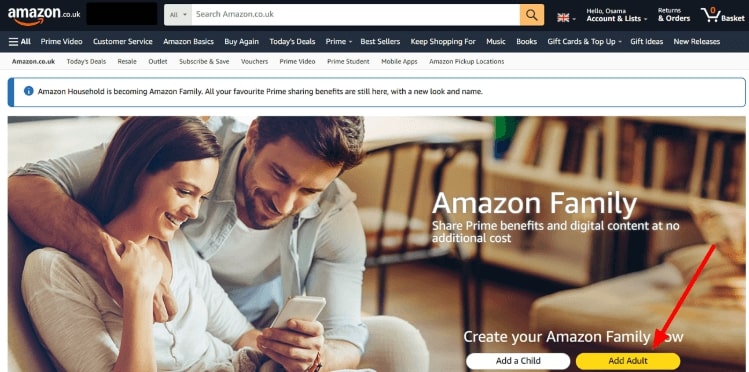
Tap on Add Adult
Step 4. Verify Credentials: Enter the name and email address of the second adult. They must accept the invite within 14 days.
Step 5. Mandatory Wallet Sharing: Amazon requires both adults to agree to share valid payment methods. This is a security measure to prevent fraud and verify that you are indeed a household.
Once the second user accepts, they gain immediate access to Prime shipping sharing, Prime Video, and Prime Reading using their own email and password.
The “Two-Adult” Rule and Amazon Prime Family Limit
A major source of friction for users is the strict Amazon Prime family limit. Before you attempt to add a roommate, grandmother, or adult child to your plan, you must understand the rules.
The Rule of Two
Amazon Household strictly permits only two adults (ages 18+) per Household. You cannot split a subscription among three or four roommates. If you attempt to add an adult to Amazon Household when two are already present, the system will block you.
Warning: If you remove an adult to make room for someone else, both the removed account and the primary account may be barred from joining a new Household for 180 days. This “cooling-off” period is Amazon’s way of preventing subscription jumping.
Profiles vs. Accounts
Do not confuse Prime Video profiles with actual household members.
- Household Members: Have their own login, own shipping benefits, and own payment wallet. (Max 2 Adults).
- Profiles: Are simply viewing filters within one account. They do not get shipping benefits or a unique login. (Max 6 Profiles).
Adding Teens and Children: Step-by-Step
Beyond the two adults, Amazon Household allows you to invite family member Amazon account for up to four teens (ages 13-17) and four children (ages 12 and under). This structure is essential for parents who want teenagers to have independence without giving them unrestricted access to a credit card.
How to Add a Teen (Ages 13-17)
Teen accounts function as a hybrid. They get their own login credentials to shop on the Amazon app and stream content, but the “Family Organizer” retains financial control.
Step 1. Go to Amazon Household: Return to the Amazon Household page where you added the adult.
Step 2. Select Add Teen: Click the Add Teen button in the dashboard.
Step 3. Send the Invite: Enter your teen’s name and email address (or phone number).
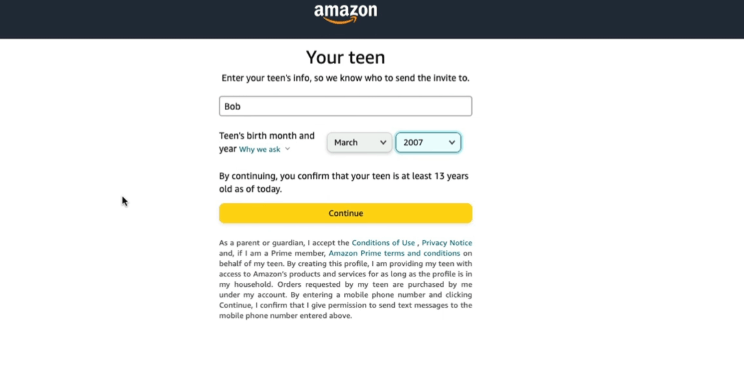
Add Details of Teen
Step 4. Teen Acceptance: Your teen will receive a link. They must create their own username and password.
Step 5. Parental Setup: Once they accept, you will be prompted to select a payment method and shipping address for them to use.
Step 6. Approval Settings: By default, Amazon sends you a text or email whenever the teen tries to buy something. The order is only processed after you reply with an approval.
Child Profiles (Ages 12 & Under)
Child profiles are more restrictive. They do not have shopping privileges or unique logins. Instead, they are used primarily for Amazon Kids+ and controlling content on Fire Tablets or Echo devices. You set these up in the same Household dashboard by clicking Add Child and selecting their age and content restrictions.
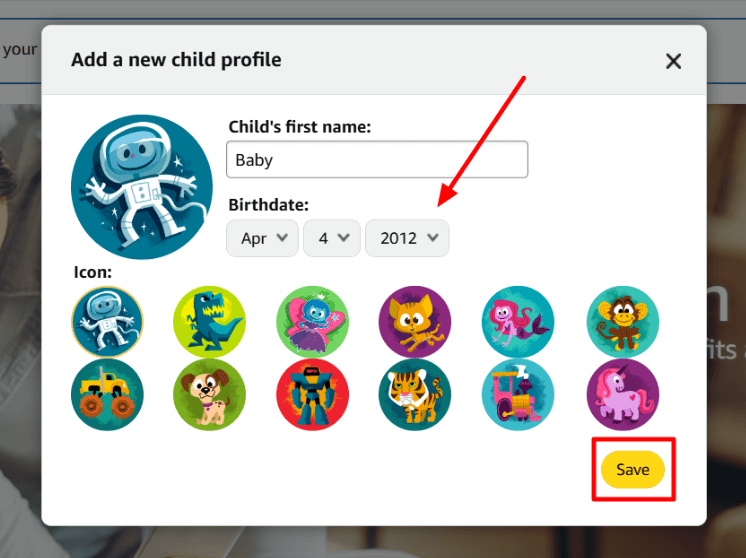
Write Name and Choose Birthday
Managing Devices and The “Streaming Wall”
Even with a correctly configured Household, large families often encounter the “Screen Limit.” Amazon imposes a cap on concurrent streams:
- 3 concurrent streams across all devices in the account.
- 2 concurrent streams of the same content.
If you see an error message stating “Maximum streams reached,” it often means an old device you forgot about is still technically “watching” something, or you simply have too many people active at once.
How to Deregister Unused Devices
Before assuming you need a new account, clean up your device list. This is the most effective way to clear “ghost” streams.
Step 1. Go to Content & Devices: In your account menu, select Content & Devices.
Step 2. Select the Devices Tab: Click on Devices in the top navigation bar.
Step 3. Filter by Amazon Video: Select Prime Video to see every TV, phone, and tablet logged into your account.
Step 4. Deregister: Locate old iPads, previous phones, or hotel TVs you may have logged into years ago. Click Deregister. This instantly kicks that device off your account and frees up your stream limit.
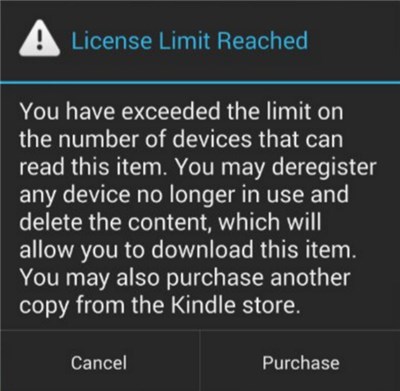
Amazon Prime Device Limit
Alternative Solution: Offline Libraries for Travel
Sometimes, deregistering devices isn’t enough. If you are a family of four heading on a vacation with poor Wi-Fi, or if everyone wants to watch a different movie at the same time, the “3 concurrent streams” rule becomes a hard stop.
In these specific scenarios—like long road trips or flights—creating an offline library can be a helpful workaround. While Amazon allows temporary downloads, they expire quickly. Some users prefer tools like Keeprix Prime Video Downloader to create permanent backups of their subscribed content, watching Prime videos on TV, laptop, and tablet.
When to Use an Offline Downloader
- Bypassing Stream Limits: Playing a video file from a USB drive or a tablet’s local storage does not count against your 3-stream Amazon limit.
- Permanent Access: Unlike Amazon’s downloads, which expire after 48 hours of viewing, backed-up files stay on your device until you delete them.
- No Internet Required: This is ideal for camping trips or flights where logging into Amazon to verify a license is impossible.
How to download Amazon Prime videos with Keeprix Video Downloader:
Step 1. Download and install Keeprix Video Downloader on your computer. Launch it and select the Amazon platform.
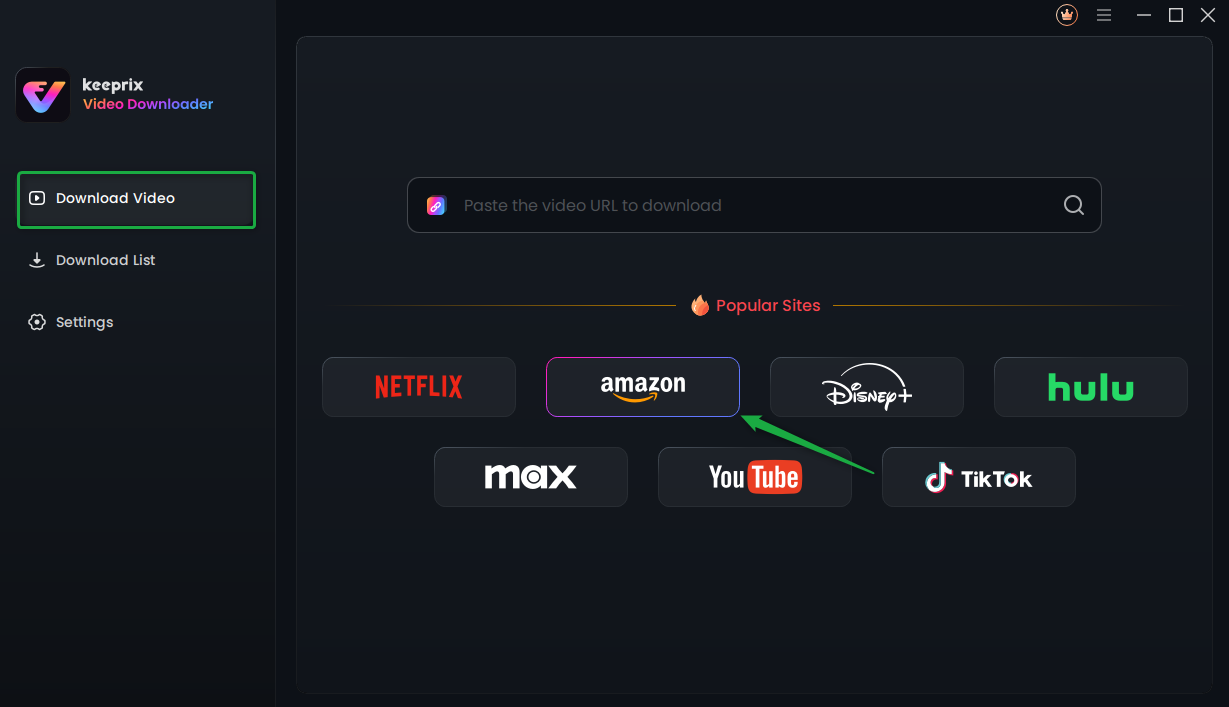
Choose Amazon Prime Platform
Step 2. Search for a video you want to download, and tap the download button.
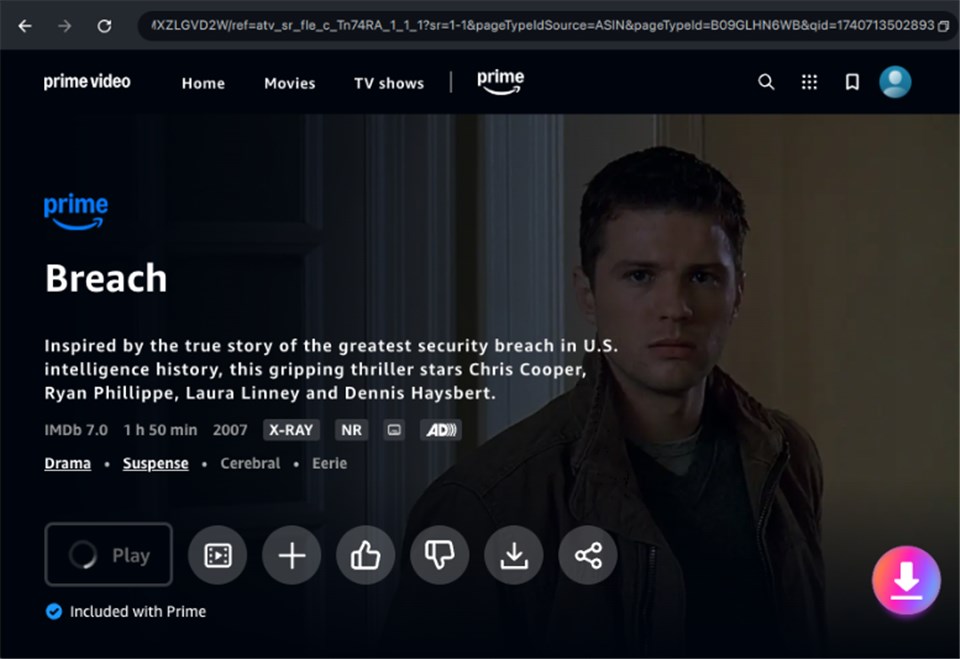
Download Amazon Videos
Step 3. After the download is completed, the video will be stored in the local file on your computer.
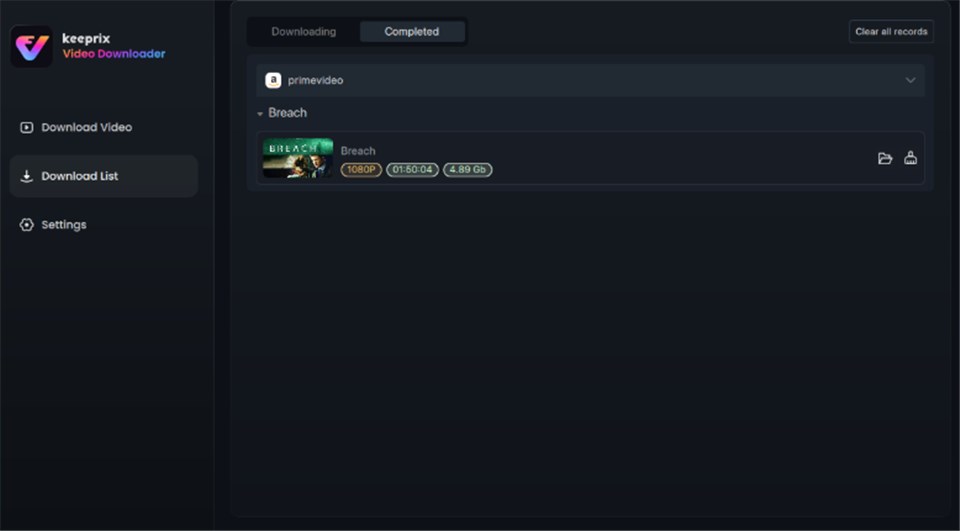
Prime Video Successfully Downloaded
Always ensure you are complying with copyright laws and terms of service when managing digital backups.
Checklist: What Benefits Are (And Aren’t) Shared
One of the most common complaints is: “I added my wife, but she can’t access my music.” It is critical to manage expectations regarding amazon shared benefits. Amazon licensing agreements prevent certain digital content from transferring between accounts, even within a Household.
What You CAN Share
- Prime Delivery: Free Two-Day, One-Day, and Same-Day delivery.
- Prime Video: Streaming of standard Prime content.
- Amazon Fresh: Grocery delivery benefits.
- Amazon Photos: Unlimited photo storage (strictly for the two adults).
- Prime Reading: Access to the rotating selection of books.
What You Usually CANNOT Share
- Amazon Music Unlimited: This requires a specific “Family Plan” subscription upgrade; the standard Prime Music benefit does not always share fully to teen logins.
- Kindle Unlimited: This subscription is individual-only.
- Purchased Video Content: Movies you bought or rented on your account generally do not appear in the other adult’s library.
- Prime Video Channels: Subscriptions to channels like Max (HBO) or Starz inside Amazon usually stay locked to the purchaser’s profile.
- Understanding these Amazon digital sharing rules upfront prevents the frustration of searching for features that simply do not exist in the sharing ecosystem.
Frequently Asked Questions (FAQ)
Q1. Why can’t my family member access Prime benefits even after adding them?
This is almost always due to the “Wallet Sharing” requirement. If the credit card on the secondary adult’s account expires or is removed, Amazon will pause shared benefits to verify the household is valid. Ensure both accounts have valid payment methods on file.
Q2. Can I share Prime with another household?
No. The query can I share Prime with another household is popular, but Amazon’s terms of service require Household members to live at the same address. Amazon may verify this by checking that your payment billing addresses match.
- College Students: If you have a child away at college, they usually cannot remain in your Household if their billing address changes. They should sign up for Prime Student, which offers a 6-month trial and discounted rates.
- Co-Parenting: In divorce situations, if parents maintain separate billing addresses, they typically cannot share a single Amazon Household.
Q3. Is it safe to share my password instead of using Household?
It is not recommended. Sharing a password gives that person full access to your order history, credit card details, and personal data. It also ruins your personalized recommendations. The Amazon Household setup guide outlined above is the only secure method.
Q4. How do I add an adult to Amazon Household if I see an error?
If you see an error saying you cannot join, you may have been part of a different Household recently. Amazon enforces a 180-day waiting period after leaving a Household before you can join a new one.
Conclusion
Successfully managing to share Amazon Prime with family requires more than just handing over a password. By setting up Amazon Household, you ensure that up to two adults and your children can enjoy shipping and streaming benefits securely.
If you find yourself frequently hitting playback errors, remember to check your Content & Devices menu to remove old hardware. And for those times when you need true independence from internet connections and stream limits, consider setting up an Amazon Prime offline viewing strategy. With the right setup, you can ensure everyone gets to watch what they want, when they want.