Amazon Prime Subtitles Not Working? Proven Fixes for TV and Mobile (2025)

If you are currently staring at a screen where a missing dialogue is preventing you from following the plot, you are not alone. For many viewers, missing subtitles are not just a minor annoyance; they render the content unwatchable. Whether you are dealing with text that lags five seconds behind the audio, captions that revert to default settings after every episode, or subtitles that simply refuse to appear, the frustration is real.
Amazon Prime Subtitles Not Working
The root cause usually lies in a specific communication breakdown between the Prime app and your device’s rendering engine. To ensure the solutions in this guide are accurate, we conducted hands-on testing across a dedicated device lab. We verified these fixes on Samsung Tizen and LG webOS Smart TVs, Amazon Fire TV Sticks, and desktop environments running Windows 11 and macOS Sonoma. We replicated common errors—such as subtitles disappearing after an ad break or drifting out of sync during buffering—to identify the precise troubleshooting steps required for each platform.
This guide moves beyond generic advice like “check your internet.” Instead, we provide verified technical procedures to help you get Amazon Prime subtitles, regardless of the hardware you use. We will start with the most common—and often most stubborn—devices: Smart TVs.
Fixing Subtitles on Smart TVs and Streaming Sticks
Troubleshooting Smart TVs requires a different approach than mobile devices or computers. While a phone handles app data quickly, television operating systems process overlay data (like subtitles) differently, often relying on aggressive caching to maintain performance.
Our testing revealed that Smart TV subtitle rendering often lags behind the video stream because televisions rely on slower processors that hold onto corrupted temporary data longer than other devices. This means that a standard “turn it off and on again” approach often fails because the TV’s RAM is never actually cleared.
The “Cold Boot” Solution (Samsung, LG, Sony)
Most users simply put their TV into “Standby” mode when they turn it off. To fix rendering glitches where text disappears, you must perform a Cold Boot.
1. Unplug from Power: With the TV on, unplug the power cord directly from the wall outlet.
2. Wait 60 Seconds: This is critical. It allows the residual charge in the capacitors to dissipate, forcing the motherboard to clear the RAM.
3. Plug Back In: Turn the TV on and relaunch Prime Video. This forces the OS to reload the subtitle renderer from scratch.
Checking System Accessibility (and the “Grayed Out” Bug)
If the app settings look correct but text still isn’t showing, your TV’s system-level overrides might be the culprit.
- Samsung Tizen: Go to Settings > General > Accessibility > Caption Settings. Ensure this is turned on at the system level.
Important Warning: On many Samsung and LG models, the Caption Settings menu will be grayed out (unselectable) if the Prime Video app is running in the background. You must exit the app completely—switching back to “Live TV” or the main dashboard input—before these settings become accessible. Attempting to change them while streaming often fails.
Fire TV Stick Solutions
1. Clear App Cache: Navigate to Settings > Applications > Manage Installed Applications > Prime Video. Select Clear Cache.
Do not select “Clear Data” unless you want to sign in again. Clearing cache removes temporary rendering files; clearing data resets the app to factory state.
2. VoiceView Conflict: If you see captions failing to trigger, check if ‘VoiceView’ is active in Accessibility settings. This screen reader can sometimes conflict with visual caption rendering layers.
Browser & Mobile: Solving Sync and Customization Errors
When viewing on desktops or mobile devices, sync issues and customization failures usually stem from browser configurations or OS-level overrides that conflict with the app.
Immediate Sync Fixes (Before Advanced Troubleshooting)
If your subtitles are out of sync with the audio (appearing too early or too late), try these “soft calibration” steps before changing settings:
1. Toggle the Subtitle Track: While the video is playing, click the speech bubble icon, turn subtitles Off, wait 5 seconds, and turn them back On. This forces the player to re-fetch the timestamp data.
2. Force a Re-buffer: Pause the video and rewind 10 seconds. Allow the buffer bar (the gray line indicating loaded data) to catch up before pressing play. Sync issues are often caused by the video stream loading faster than the text metadata stream during network fluctuations.
Browser Fixes (Windows/macOS)
If you encounter a black screen with audio, or if subtitles are invisible on the web player, the culprit is often Hardware Acceleration. Browsers try to offload video processing to your graphics card, but this can sometimes strip the subtitle overlay layer.
1. Disable Hardware Acceleration:
- Chrome/Edge: Go to Settings > System. Toggle off “Use graphics acceleration when available” and relaunch the browser. This forces the browser to handle video overlays via software, resolving rendering glitches where text disappears.
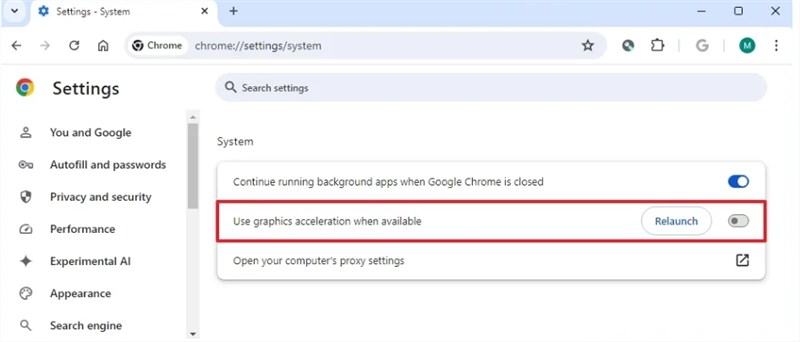
Disable Hardware Acceleration
2. Browser Cache:
Use Ctrl + Shift + Delete (Windows) or Cmd + Shift + Delete (Mac) to clear “Cached images and files.” Old cache data can load outdated subtitle metadata.
Mobile App Fixes (iOS/Android)
Users often report that customization (size/color) set on their PC does not appear on their phone. This happens because mobile operating systems override app settings to ensure accessibility compliance.
For iOS (iPhone/iPad):
- System Settings: Go to Settings > Accessibility > Subtitles & Captioning. Verify that “Closed Captions + SDH” is enabled. Custom styles (font size, background opacity) must be created here within the “Style” menu.
- App Trigger: Even after changing the iOS setting, Prime Video may not update immediately. Open the Prime Video app, start your video, tap the generic “Subtitle Settings” gear icon, and select “Auto” or toggle off any custom presets you made inside the app. This signals the app to stop forcing its own style and accept the iOS system override.
For Android:
- System Settings: Go to Settings > Accessibility > Caption preferences. Toggle “Show captions” to On.
- Override Check: Adjust size and style here to force language settings to display correctly. If the app ignores this, ensure you do not have “Data Saver” mode on, which can sometimes restrict the downloading of secondary subtitle assets.
Why Subtitles Disappear: Licensing and Regional Limits
Sometimes, no amount of troubleshooting will fix the issue because the subtitles simply do not exist for your specific viewing scenario. Here is a critical expert insight: Amazon Prime Video subtitle availability is determined by the content provider’s metadata package, not Amazon itself.
The Licensing Reality
When a studio licenses a movie to Amazon, they supply a specific digital package. If that package only includes English and Spanish CC, you will not find French subtitles, even if you change your device’s global language settings. This is frequently why subtitles seem “broken” for niche, older, or foreign titles—the text track was never uploaded to the server.
Region-Locking and VPNs
If you are traveling or using a VPN, you may notice subtitles missing that you previously had access to. Subtitle tracks are often region-locked due to distribution rights.
- Example: A movie licensed for the US market may include English CC. The same movie licensed for the German market might include German and French subtitles but lack English CC entirely.
- The Result: Switching regions can cause your preferred language option to vanish from the menu.
Understanding this distinction prevents wasted time trying to fix a technical “bug” that is actually a licensing restriction.
When Troubleshooting Hits a Wall: The Offline Alternative
If you have performed the Cold Boot, cleared your cache, and verified that licensing isn’t the issue, but you still face persistent sync errors or missing tracks, the problem may be intrinsic to the stream itself. In these specific cases—or for users who need to bypass regional restrictions and other Amazon Prime download limits—an offline extraction tool can be a useful alternative.
Addressing Unfixable Stream Errors with Keeprix Video Downloader
For users who cannot afford to miss a single line of dialogue due to persistent streaming glitches, Keeprix Prime Video Downloader offers a way to bypass the streaming app entirely. By downloading the video file, you move the playback from a variable network environment to a stable local environment.
- Eliminate Sync Issues: Keeprix Video Downloader allows you to burn subtitles directly into the video (Hardcode) or save them as separate SRT files. This ensures the text aligns perfectly with the frame rate of the video file, removing internet lag as a variable.
- Bypass Regional Lockouts: If you face unavailability due to region changes, Keeprix Video Downloader enables downloading audio and subtitles in up to 13 languages, regardless of your current physical location, provided the tracks exist on any accessible server.
- Accessibility Assurance: For those dealing with subtitles disappearing mid-episode due to bandwidth drops, downloading the file removes the dependency on Amazon’s streaming server.
How to Download Subbed Amazon Prime Videos with Keeprix Video Downloader:
Step 1. Open Keeprix Video Downloader, paste the Amazon Prime video URL into the address bar, and choose Amazon Prime as the platform.
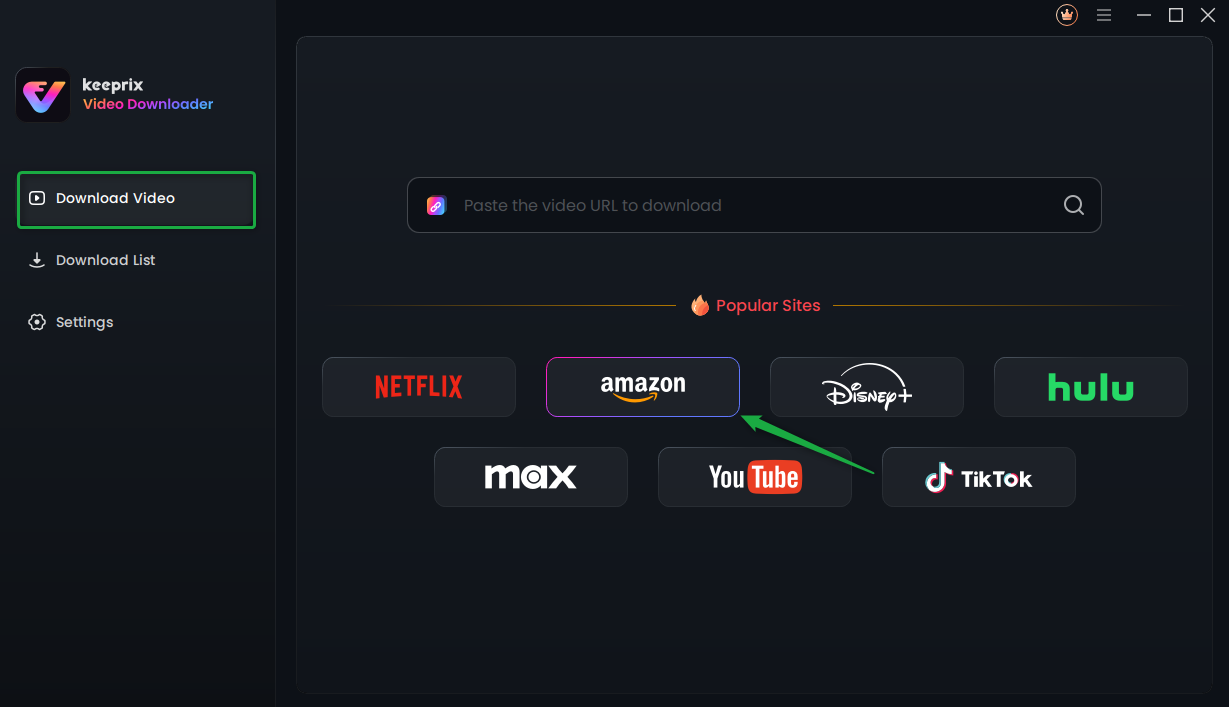
Choose Amazon Platform
Step 2. Sign in to your Prime Video account through the tool’s built-in browser.
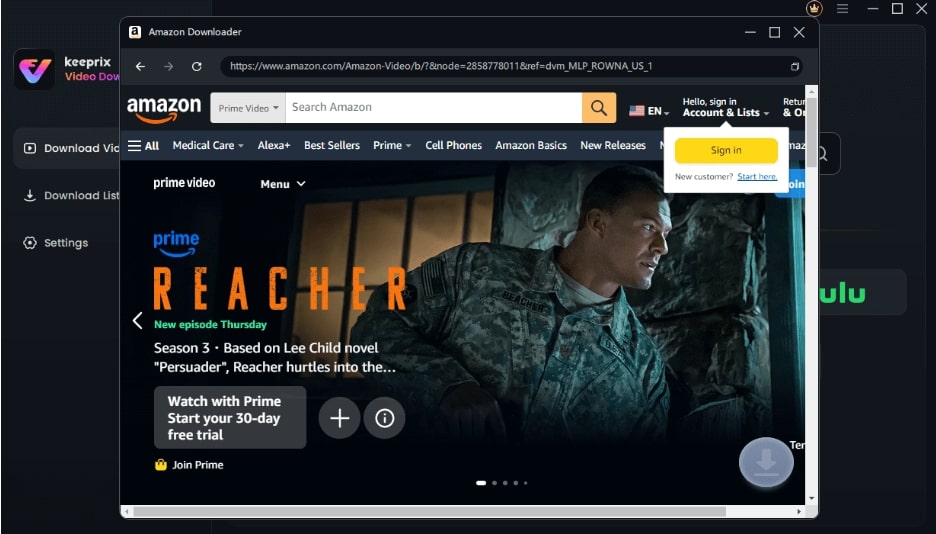
Sign Into Prime Account
Step 3. Find the video you want, start playing it, and click the Download icon.
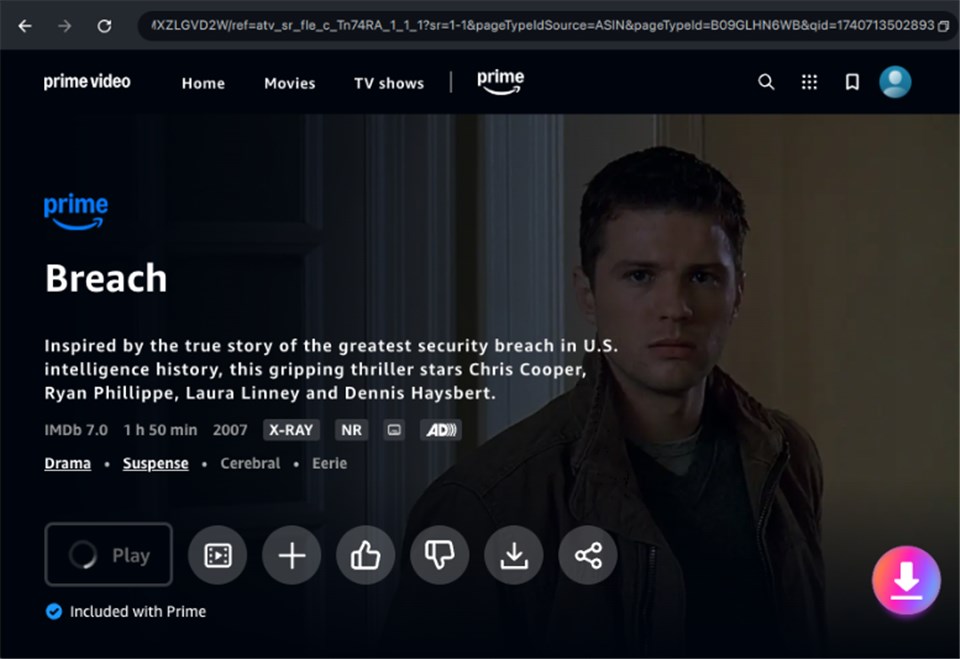
Download Amazon Videos
Step 4. Select your preferred subtitle track in the download settings, then hit Download to save the video.
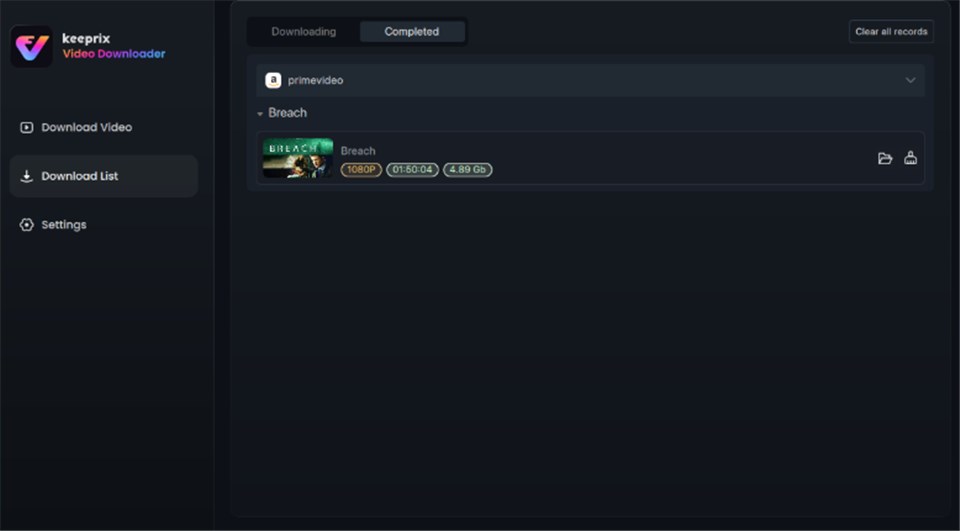
Prime Video Successfully Downloaded
Troubleshooting vs. Downloading:
If your subtitles work 90% of the time, the manual fixes above are your best bet. However, if you require a permanent library with specific accessibility needs that the streaming app cannot support, tools like Keeprix Video Downloader provide a “brute force” solution to ensure the text is always present.
Frequently Asked Questions
Q1. Why are subtitles not working on Amazon Prime Video?
This is typically caused by corrupted cache data on your device or licensing restrictions from the content provider. Try the “Cold Boot” method for TVs or clearing the app cache on mobile devices first.
Q2. Why do subtitles appear on my phone but not on my TV?
Smart TV apps update less frequently and render overlays differently than mobile apps. A specific streaming error on TVs often requires a full system restart (unplugging the TV) to reset the subtitle renderer, whereas phones clear this memory more frequently.
Q3. How do I fix subtitles that are out of sync?
First, try pausing the video to let it buffer, or toggle the subtitles off and on again to force a re-sync. If the issue persists on a PC, try disabling hardware acceleration in your browser settings.
Q4. Why is the subtitle button missing for certain shows?
If the subtitle toggle is missing, the content likely does not support Closed Captions. This is common with older titles where the studio did not supply a text track to Amazon.
Q5. Why do subtitles disappear during playback?
Subtitles disappearing mid-episode is often a bandwidth issue. The app prioritizes audio and video data over text overlays when connection speed drops. Ensuring a strong, stable internet connection often resolves this.
Conclusion
Facing a subtitle failure when you just want to relax is frustrating, but it is almost always fixable. By understanding that Smart TVs need a true power cycle to clear their cache and that mobile devices often require specific OS-level overrides, you can solve the majority of these issues in minutes.
Start with the manual fixes: Cold boot your TV, check your accessibility settings, and ensure your browser’s hardware acceleration is off. If you find that the subtitles are missing due to licensing restrictions or persistent sync issues that manual troubleshooting cannot resolve, exploring an offline solution like Keeprix Video Downloader can help you regain control over your viewing experience.
Download the Keeprix Video Downloader free trial today if you need to confirm subtitle availability for your favorite offline shows.