Amazon Prime Video Download on Mac: Official App vs. Permanent Method (2025 Guide)

It is incredibly frustrating to settle into a long flight, open your laptop, and realize you forgot to save your movies. For travelers—let’s call our frequent flyer “Ethan”—staring at a blank screen because Wi-Fi is unavailable is a major headache. If you are frantically searching for Amazon Prime Video download on Mac methods, you have likely encountered the same restriction: you logged into Safari or Chrome, but the download button is missing.
Amazon Prime Video Download on Mac
This is not a glitch; it is a feature designed by Amazon. Many users ask, “Can you download Prime Video on Mac directly from the browser?” The answer is strictly no. However, a reliable solution exists. Whether you need a quick temporary fix via the App Store or a permanent library using professional tools, this guide outlines the exact, tested procedures to ensure you never face a flight without entertainment again.
The Official Method: Using the Prime Video App for Mac
For the vast majority of users, the most direct solution is the official Prime Video macOS app. In recent years, Amazon released a dedicated application that mirrors the functionality found on iPads and iPhones, including the ability to save content for offline viewing.
Crucial Requirement: This application requires macOS Big Sur (11.0) or later. If you are running an older operating system (like Catalina or Mojave), the App Store will not allow you to install this version. Please skip to Section 4 for alternative methods.
Step-by-Step Installation and Download Procedure
Step 1. Install the App: Open the Mac App Store and search for “Amazon Prime Video.” Click “Get” to install the application.
Step 2. Sign In: Launch the app and log in with your Amazon credentials. If you use two-factor authentication, keep your phone nearby.
Step 3. Locate Content: Browse to the movie or TV show episode you wish to watch.
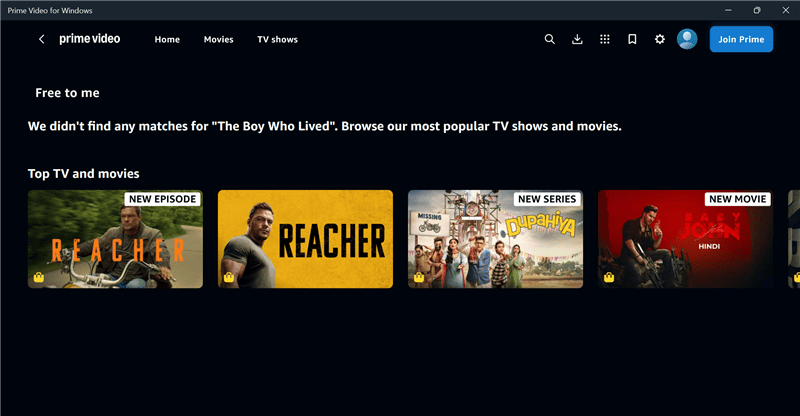
Search Title on Amazon prime
Step 4. Download: Look for the download icon (a downward arrow).
- Movies: The icon is usually located under the “Watch Now” button.
- TV Shows: You must click the icon next to each specific episode you want to save.
Managing Storage and Video Quality (Crucial for Travelers)
One common issue for MacBook Air users with 256GB hard drives is running out of space. The official app defaults to “Best” quality, which consumes significant storage. To fit more movies on your drive, you must adjust the settings before you download.
Step 1. Click on the “My Stuff” icon in the bottom right corner.
Step 2. Click the Gear Icon (Settings) in the top right.
Step 3. Select “Streaming & Downloading” > “Download Quality.”
Step 4. Choose your preference:
- Best: Uses approx. 2.9GB per hour (Great for Retina displays).
- Better: Uses approx. 1.4GB per hour.
- Good (Data Saver): Uses approx. 0.8GB per hour.
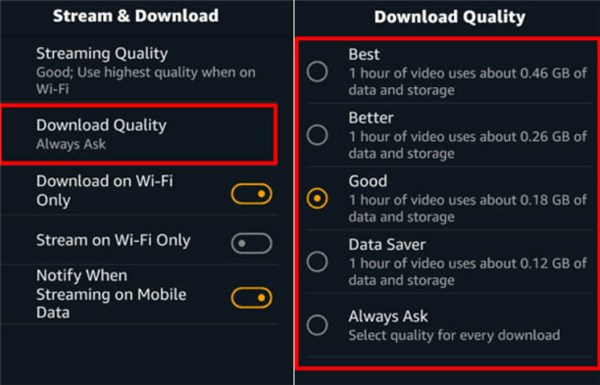
Select Download Quality
Pro Tip: Selecting “Good” allows you to store nearly three times as many movies as “Best,” which is vital for long trips. Additionally, using the official app for playback is significantly more battery-efficient than streaming via Chrome, as the app is optimized for Apple Silicon efficiency.
Once the download completes, your content will appear in the “Downloads” tab at the bottom of the interface. This method effectively solves the problem for offline downloads macOS users who need temporary access. Be aware that these downloads come with expiration timers—usually 30 days to start watching, and 48 hours to finish once you press play.
Why You Can’t Download Prime Video via Safari or Chrome
A frequent source of confusion is why Amazon Video download not working Mac occurs specifically in web browsers. If you access Amazon Prime via Safari, Chrome, Firefox, or Brave, you will notice the download button is completely absent.
Understanding DRM Restrictions
Amazon blocks all offline downloading through browsers on macOS due to Digital Rights Management (DRM) protocols, specifically Widevine and FairPlay compatibility limitations. Browsers are designed to stream cached data, not to save permanent video files to your local drive. Allowing browser-based downloads would make piracy significantly easier, which Amazon prevents to protect licensing agreements.
Expert Insight: Only the official Prime Video macOS app supports downloading because the app stores encrypted offline files within a protected library. These files are hidden deep within the system folders and cannot be moved or exported. This technical architecture ensures that even when you download a file officially, you cannot access the raw video file (MP4) to play it on a different player like VLC. This explains the rigid Prime Video browser limitations—the browser simply cannot create the secure, encrypted container required by Amazon.
Official App vs. Keeprix Video Downloader: Which Do You Need?
When deciding how to download movies on MacBook for offline viewing, your choice depends on whether you need temporary, licensed access or a permanent personal archive. The official app is excellent for casual viewing, but professional tools like Keeprix Prime Video Downloader offer an alternative for users who need to move files between devices or bypass the 48-hour expiration window.
Here is a balanced breakdown of how the two methods compare:
| Feature | Official Prime Video App | Keeprix Video Downloader |
| Best For | Casual viewers & Short trips | Archivers & Long-term travel |
| File Type | Encrypted Cache (In-App Only) | MP4 / MKV (Universal) |
| Expiration | 30 Days (48 Hours once started) | Forever (No Expiry) |
| Player Compatibility | Prime Video App Only | QuickTime, VLC, Any Player |
| Device Limit | Max 4 devices / 2 concurrent streams | Unlimited devices |
| Security | Native Amazon Login | In-App Browser Login |
| Quality | Variable (Auto-adjusts) | 1080p Full HD (Fixed) |
The official app’s Prime Video offline playback works perfectly for most people. However, if you are traveling for a month or more, or if you want to watch your movies on a device that doesn’t support the Prime app (like an older projector or a specialized media server), the official app’s restrictions will block you. Keeprix Video Downloader solves this by converting the stream into a standard file.
How to Download Prime Video to MacBook Forever (No Expiry)
For users who need to bypass the 15-25 title download cap or who fear downloads expiring mid-flight, Keeprix Video Downloader provides a robust solution. It essentially acts as a specialized browser that records the stream directly to your hard drive at high speed.
Addressing Security Concerns
You might feel skeptical about logging into your Amazon account through a third-party tool. Keeprix Video Downloader uses a built-in secure browser window (similar to how you log into Google on other sites) to access the content. The software does not store your credentials; it simply passes the session token required to access the video library you have legally paid for.
Turning Streams into Permanent Files
Keeprix Video Downloader addresses the pain point of DRM restrictions preventing screen recording or offline export by converting content directly into 1080p MP4 or MKV files. This ensures high-definition playback on any media player.
Step-by-Step Guide with Keeprix Video Downloader
Step 1. Launch Keeprix Video Downloader: Open the software and select the “Amazon Prime Video” icon from the main interface.
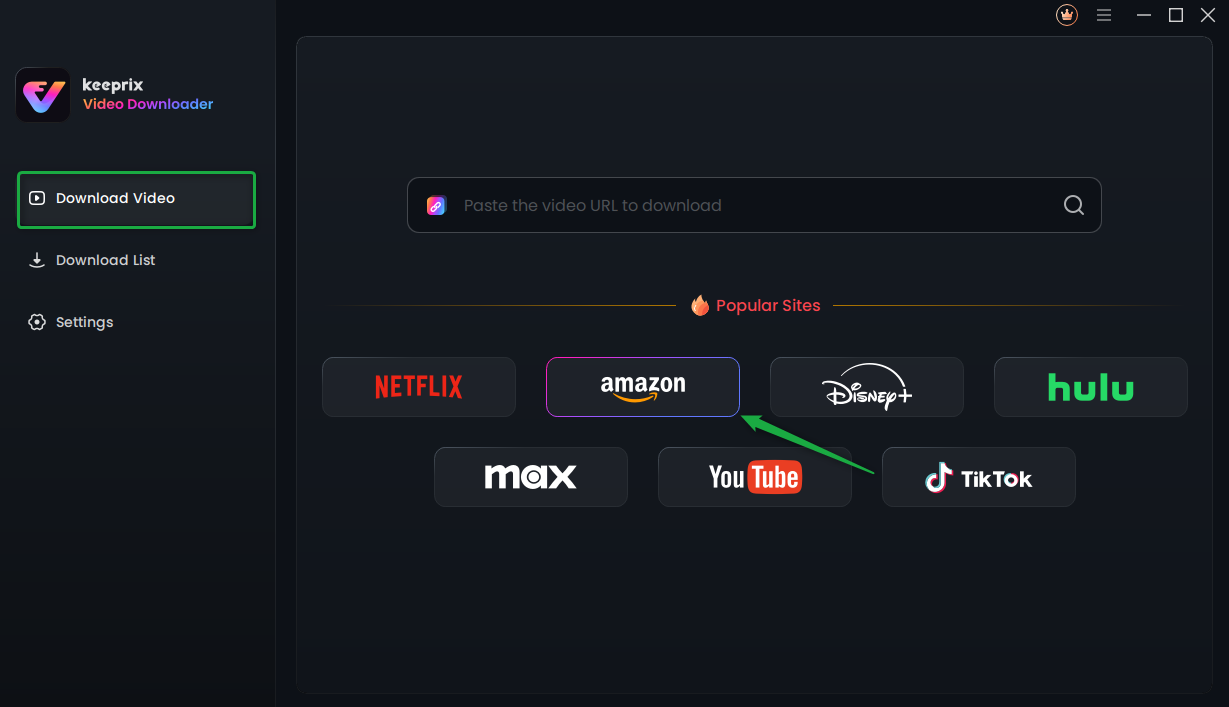
Choose Amazon Prime Platform
Step 2. Log In: Use the built-in secure browser to sign into your Prime account. This allows the software to detect the video URL and access your subscription library.
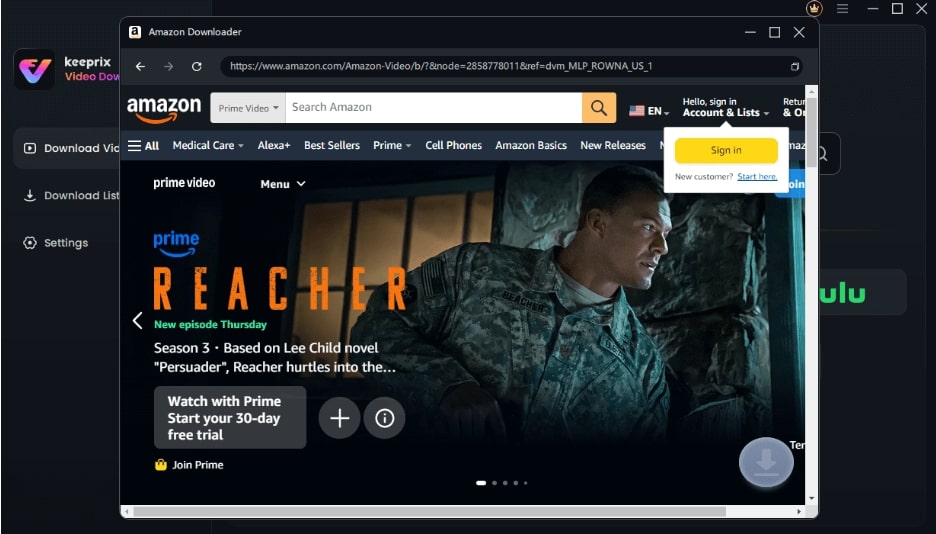
Sign Into Prime Account
Step 3. Customize Settings: Choose your preferred subtitles and audio tracks. Keeprix Video Downloader supports up to 13 languages, solving the issue of losing subtitle preferences during offline play. You can also select 1080p resolution to ensure crisp quality on Retina displays.
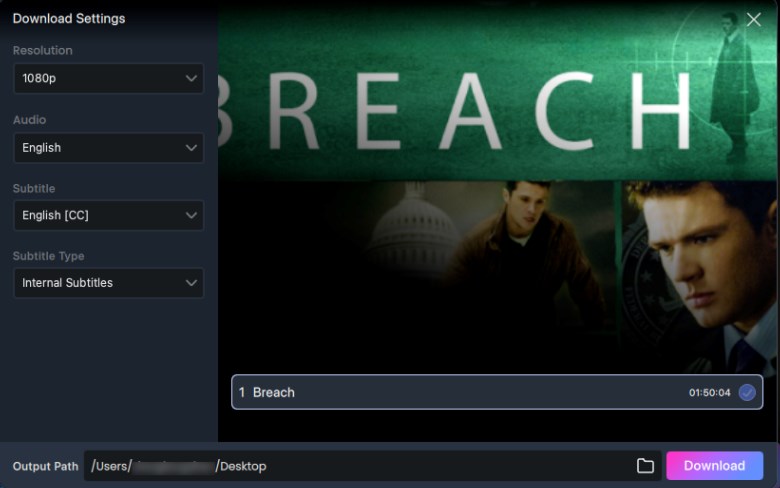
Adjust Download Settings
Step 4. Prime Video Download: Select an entire season of a TV show or multiple movies. Keeprix Video Downloader downloads at 10x speed using hardware acceleration, saving you time before a trip.
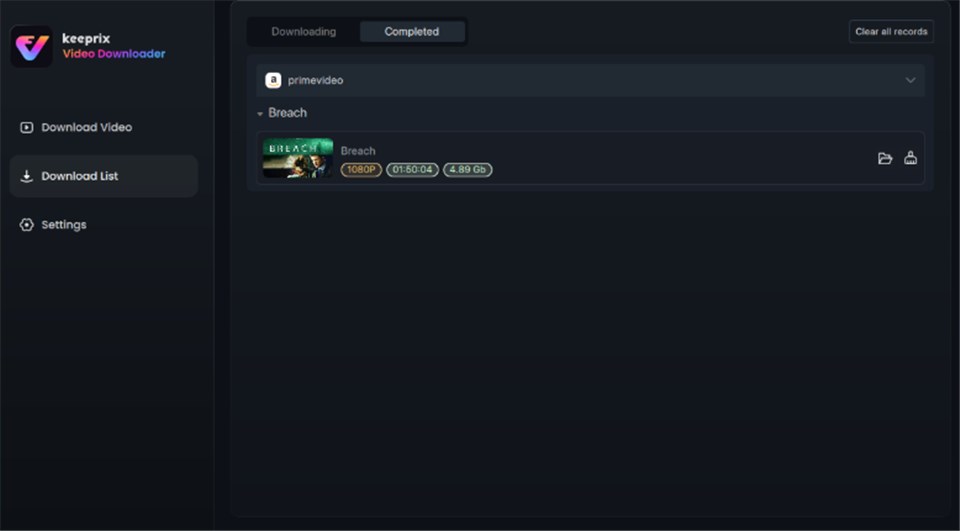
Prime Video Successfully Downloaded
By using this method, you can build a personal media library that travels with you. You can transfer these files to an iPad, an Android tablet, or even a USB drive for a smart TV, bypassing the “download limit reached” error common with the official app.
Troubleshooting: Prime Video Mac App Not Working?
Even with the official app, users often encounter obstacles where Amazon Prime Video offline Mac features fail. Here are the most common solutions to technical glitches.
1. App Not Available in App Store
If you cannot find the Prime Video Mac app, it is likely restricted in your Apple ID region (common in parts of Southeast Asia or Eastern Europe).
Warning regarding Region Switching: Some guides suggest changing your Apple ID region to “fix” this. Proceed with extreme caution. Changing your region requires you to cancel all active subscriptions (like Apple Music or iCloud+), spend all remaining store credit, and potentially lose access to past purchases. For most users, this is not worth the risk. If the app is unavailable in your region, using a tool like Keeprix Video Downloader (discussed above) is a safer alternative than disrupting your Apple ecosystem.
2. Downloads Failing or Stuck
If your offline downloads are failing or stuck at 0%, the issue is often insufficient disk space or a corrupted cache. To fix this issue, go to the App Settings > Streaming & Downloading > Clear Download Cache. Ensure you have at least 5GB of free space for HD content.
3. HDCP Errors with External Monitors
A common error occurs when connecting a MacBook to an external monitor or projector via HDMI. Because the official app enforces HDCP (High-bandwidth Digital Content Protection), it may block playback if the cable or monitor is not compliant. Disconnecting the external display usually resolves the playback error immediately.
FAQ: Common Questions About Watching Prime Video Offline
To wrap up this guide, here are concise answers to the most frequent questions regarding how to download Amazon Prime movies on Mac.
Q1. Do offline downloads work on Apple Silicon MacBooks?
Yes. The Prime Video app is fully compatible with Apple Silicon mac prime video configurations (M1, M2, and M3 chips). In fact, because Apple Silicon shares architecture with the iPhone/iPad chips, the app runs exceptionally well on these newer Macs, generating less heat and using less battery than streaming via a browser.
Q2. Can I transfer downloaded movies from my iPhone to my Mac?
No. The files downloaded on an iPhone use a proprietary, encrypted format that is locked to that specific device. You cannot AirDrop or copy these files to your Mac for playback. You must download the content again directly on the Mac using the desktop app.
Q3. Where do downloaded Prime Video movies go on Mac?
Official downloads are stored in a hidden, encrypted system folder intended only for the Prime Video app. You cannot access these files via Finder to move or play them elsewhere. If you need accessible files, refer to the method involving Keeprix Video Downloader in Section 5.
Q4. Why is the “Download” button greyed out?
This usually happens if you have reached the maximum number of allowed downloads on your account (usually 15-25 titles across all devices) or if the specific title’s licensing agreement does not allow offline viewing.
Conclusion: Take Control of Your Offline Library
We have all faced that moment of panic before a long disconnect from the internet—wondering if our entertainment is actually saved. While the confusion around Amazon Prime Video download on Mac is understandable due to browser limitations, the solutions are straightforward.
For 90% of users, the Official Mac App Store application is the best route. It is free, high-quality, and integrates perfectly with macOS. Just remember to check your storage settings and download your content well before you leave Wi-Fi range.
However, if you need to break free from expiration dates, overcome regional blocks without risking your Apple ID, or archive your favorites permanently, Keeprix Video Downloader is the superior choice for power users. It empowers you to build a permanent, high-quality library that works on your terms. Choose the method that fits your travel style, secure your movies today, and enjoy Prime Video offline anywhere.