How to Get Subtitles on Amazon Prime: The Complete Device Guide (2025)

Understanding dialogue in a movie should never require a struggle. When you settle in to watch a film, discovering that the actors are unintelligible—or that the interface has changed since the last time you logged in—can quickly turn a relaxing evening into a troubleshooting session.
This frustration is often compounded by inconsistent designs. The button you use on your iPad vanishes when you switch to your Samsung TV. Whether you are dealing with a sleeping household, a language barrier, or hearing difficulties, you need a reliable method to enable Prime Video closed captions. This guide bypasses the confusion, moving you straight to the solution with verified steps to locate and activate subtitles across your entire device ecosystem.
Turn on Subtitles on Amazon Prime
How to Turn On Subtitles on Prime Video (Device-by-Device)
Navigating the interface to turn on subtitles on Prime Video can be disorienting because Amazon applies different user interfaces (UI) to different hardware. A common point of confusion is that muscle memory from using a tablet app does not translate to a Smart TV remote. Below is the unified procedure to ensure you find the Prime Video closed captions menu on your specific platform.
Smart TVs and Gaming Consoles
For users on Samsung, LG, Sony, Vizio, or Hisense TVs, as well as PlayStation or Xbox consoles, the interface relies entirely on remote control navigation. This is where most users get stuck because the overlay often disappears too quickly.
Pro Tip: Always press Pause before trying to change settings. This keeps the playback bar on the screen, giving you time to navigate without the menu fading away after three seconds.
1. Start or Resume playback of your title.
2. Press Pause.
3. Access the Playback Menu:
- Samsung/LG/Sony (Newer Models): Press the “Up” arrow on your directional pad to highlight the menu icons.
- Older Smart TVs & Consoles: You may need to press the central “Enter” or “OK” button once to wake the overlay, then use the arrow keys.
4. Navigate to the “Closed Caption” (CC) or “Speech Bubble” icon.
On most modern TV interfaces, this is in the top-right or bottom-right corner of the player window.
5. Select your preferred language under the “Subtitles” column.
Streaming Players (Fire TV, Roku, Apple TV)
Devices like the Fire TV Stick, Roku, and Apple TV use a distinct overlay system that integrates with their specific remotes.
1. Press the “Menu” button (often represented by three lines on Fire TV/Roku) or swipe down (Apple TV) during playback.
2. If your remote lacks a menu button, press the “Down” directional button to open the top-screen options.
3. Select the “Subtitles” or “Audio & Subtitles” option.
4. Choose “On” and select the specific language track.
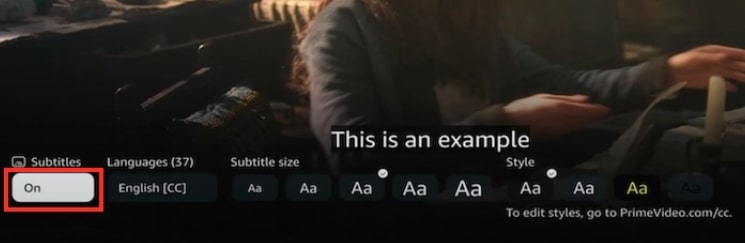
Toggle on Smart TV
Mobile (iOS and Android)
1. Tap the screen once to reveal the overlay controls.
2. Tap the “Speech Bubble” icon (usually in the top-right corner).
3. Select the subtitle track.
Desktop (PC/Mac Browsers)
When watching via Chrome, Firefox, or Safari:
1. Move your mouse cursor over the video player to reveal the playback controls.
2. Click the “Speech Bubble” icon located in the top-right corner of the window.
3. Select your desired subtitle language from the dropdown list.
Customizing Subtitle Look and Feel for Accessibility
For many viewers, simply turning on text is not enough; the text must be readable. Standard white text often disappears against bright backgrounds or white scenery, making subtitle customization essential for accessibility. While changing the look of subtitles is straightforward on a web browser, Smart TV users often encounter a technical hurdle that most guides overlook.
The Smart TV Limitation: Where the Menu Hides
If you are watching on a Roku, Apple TV, or Fire Stick, you have likely searched the Prime Video app settings for font size or color options, only to find they do not exist.
This is not a user error. Prime Video accessibility on these devices defers to the system-level settings. The app inherits the font preferences from the hardware itself. To change subtitle size or color on a TV, you must leave the Prime Video app entirely.
How to adjust global TV subtitles:
1. Exit the Prime Video app and go to your device’s Home Screen.
2. Navigate to the main device Settings (usually a gear icon).
3. Select Accessibility (sometimes found under “System” or “Display”).
4. Select Captions or Subtitle Style.
5. Adjust the font size, color, opacity, or background box here.
Once you save these changes, relaunch Prime Video. The app will automatically apply your new high-contrast or large-text settings.
Web and Mobile Customization
On a computer or smartphone, these settings are contained within the player:
1. Click the “Speech Bubble” icon.
2. Select “Subtitle Settings.”
3. Here you can modify size, color (e.g., yellow for high contrast), and add a black background box to improve legibility.
Troubleshooting: Why Prime Video Subtitles Are Missing or Out of Sync
Even with the correct settings, you may encounter scenarios where Prime subtitles do not appear or fall out of sync, disrupting your viewing. If you select “English CC” but no text appears, or if the text lags five seconds behind the audio, follow these diagnostic steps.
1. The “Forced” Subtitle Conflict
Sometimes, a movie includes “forced” subtitles—text that appears only when a character speaks a foreign language (e.g., Elvish in The Lord of the Rings). If you turn on standard CC, the player might get confused between the hard-coded forced track and your selected track.
The Fix: Turn subtitles Off completely, resume playback for 10 seconds, then turn them back On. This forces the player to reload the correct text stream.
2. Licensing Limitations (Missing Languages)
Expert Insight: Subtitle availability on Prime Video is controlled by each title’s licensing provider—not Amazon. If you are looking for Spanish subtitles but only see English and French, it is because the studio did not include the Spanish track for your specific region’s license. This is not a technical bug you can fix by restarting the app.
3. Sync Drift and Cache Issues
If subtitles are present but behaving erratically—lagging behind audio or flickering—it is usually a cache issue.
The Fix: Clear the App Cache:
- Fire TV/Android TV: Go to Settings > Applications > Prime Video > Clear Cache.
- Roku/Apple TV: These devices do not have a clear cache button. You must Restart the System (Settings > System > Restart) to clear temporary memory.
Getting Subtitles for Offline Downloads
A frequent frustration occurs when users download a movie for a flight, only to realize mid-air that the subtitles are missing. This happens because the Prime Video app does not automatically download every language track to save storage space.
The Native Fix (Before You Download)
To ensure your downloaded content has the correct text:
1. Open the Prime Video App.
2. Go to Settings > Streaming & Downloading.
3. Tap Download Language.
4. Select your required languages (e.g., English and Spanish).
You must do this before you hit the download button on the movie. If you have already downloaded the file, you must delete it, change this setting, and download it again.
The Archival Solution: Keeprix Video Downloader
If you need to guarantee that subtitle language settings never disappear due to app glitches or licensing expirations, building a personal offline library is a reliable alternative for advanced users.
Tools like Keeprix Prime Video Downloader are designed for archiving. Unlike the native app, which locks downloads inside the player, Keeprix allows you to extract the video and subtitle files separately.
- Multi-Language Backup: You can download Subtitles & Audio in 13 Languages simultaneously, ensuring you always have the track you need.
- Universal Compatibility: It saves Amazon files as MP4 or MKV with SRT subtitles, meaning you can play them on any device without relying on the Prime Video app interface.
For casual viewing, the native app settings are sufficient. But for users building a permanent collection or language learners who need specific tracks guaranteed, dedicated software offers total control.
How to download subbed videos using Keeprix Video Downloader:
Step 1. Open Keeprix Video Downloader, copy the link of your Amazon Prime video, and paste it into the downloader’s address bar.
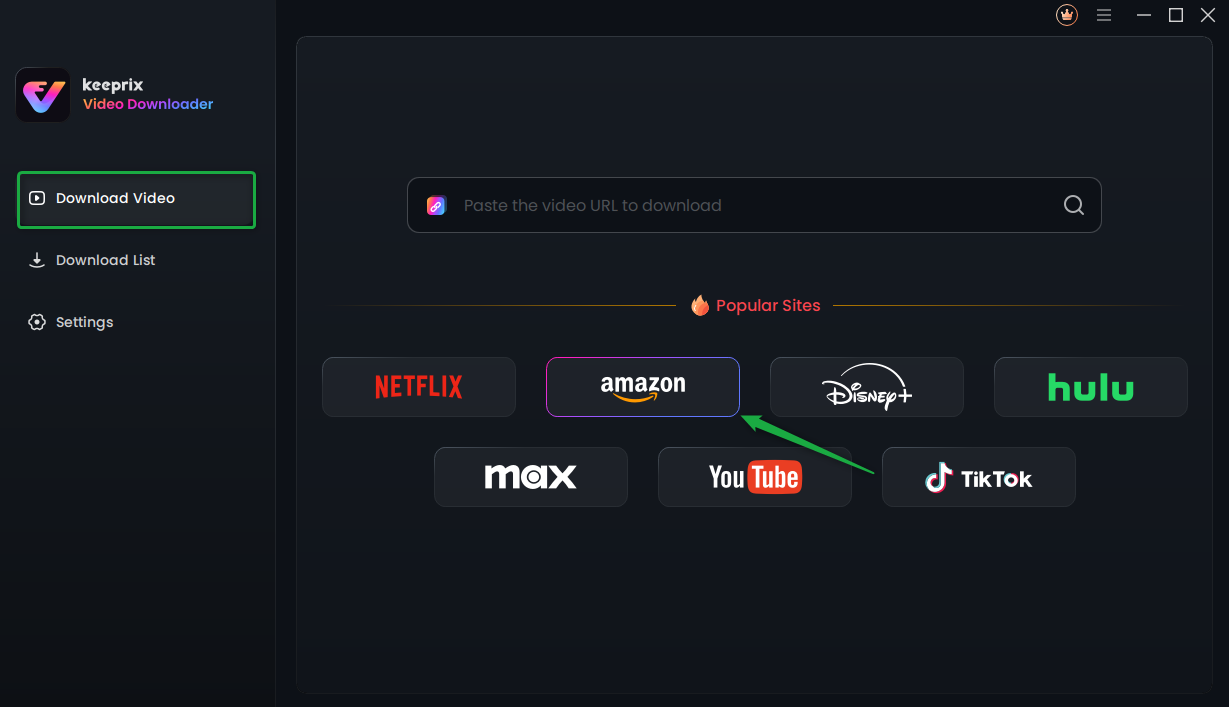
Choose Amazon Platform
Step 2. Enter your Amazon Prime account details in the built-in browser of the tool. Proceed with the on-screen instructions for successful login.
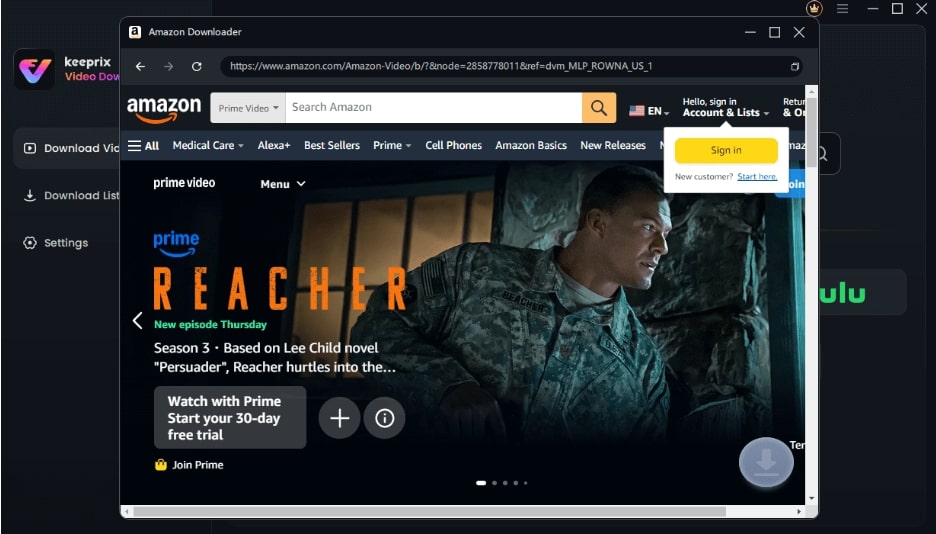
Sign Into Prime Account
Step 3. Search for the video you want to save with subtitles and play it. The tool will take you to the playback interface of the video, where you can select the “Download” icon.
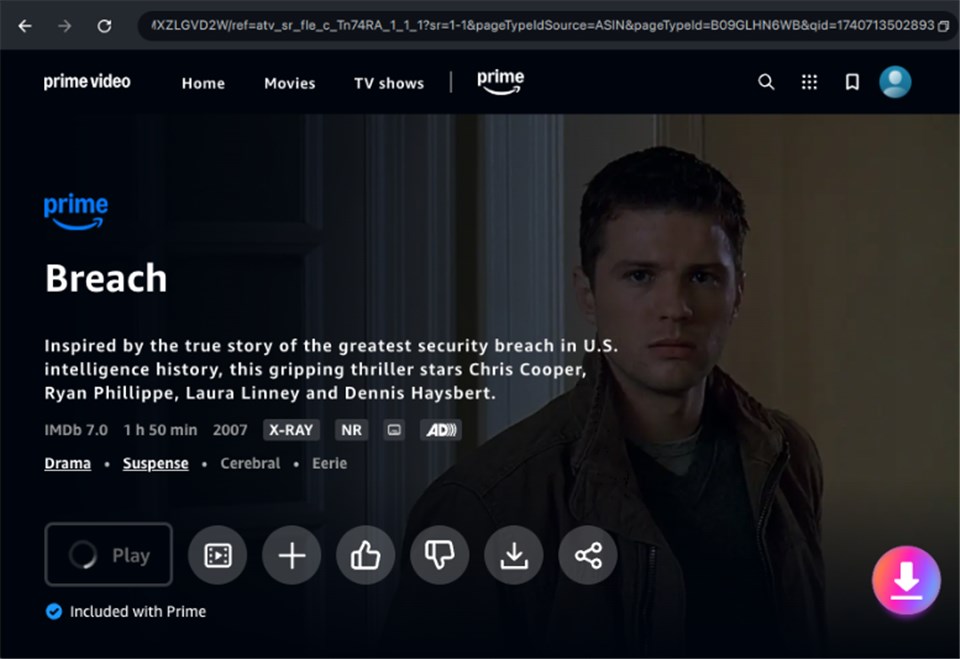
Download Amazon Videos
Step 4. Make sure to select the desired subtitles and hit the “Download” button. Then, just waiting for the download process.
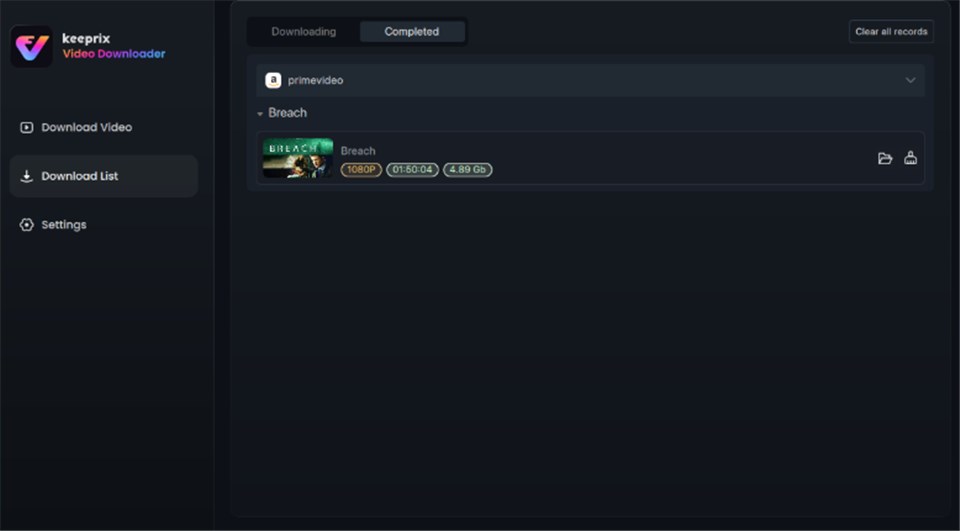
Prime Video Successfully Downloaded
Frequently Asked Questions About Prime Video Captions
Q1. How do I change subtitle language in Prime Video?
To change the language, pause the video and select the “Speech Bubble” or “CC” icon in the player controls. A menu will appear listing all available languages. If your desired language is not listed, it is likely not licensed for that specific title in your region.
Q2. How do I turn off subtitles on Prime Video?
If you need to turn off subtitles on Prime Video, pause the video, navigate to the subtitle menu (CC icon), and select “Off.” If they persist, check your device’s global accessibility settings (common on Apple TV and Roku) to ensure closed captions aren’t forced on at the system level.
Q3. Why are my Prime Video audio and subtitle options not matching?
Some titles default to the original audio track. Access the “Audio & Subtitles” menu during playback. Ensure your Audio is set to your primary language (e.g., English) and your Subtitles are set to your target language.
Q4. Why can’t I change the font size on my TV?
The Prime Video app on Smart TVs does not have an internal font menu. You must go to your TV’s main Settings > Accessibility menu to change the size and color. These changes will then reflect in the Prime app.
Final Thoughts: Enhancing Your Prime Video Experience
Mastering how to get subtitles on Amazon Prime requires knowing where to look and understanding the limitations of your specific hardware. Whether you are adjusting the Prime Video closed captions settings on a new Smart TV or troubleshooting sync issues on a tablet, the solution is usually just a few clicks away in the playback menu or system accessibility settings.
By applying these methods—and knowing when to check your system settings versus the app settings—you can regain control over your media, ensuring that language barriers never prevent you from enjoying Amazon Prime content offline. Verify your device settings today and enjoy your movie.