How to Watch Amazon Prime Video on Apple TV: Setup, 4K Fixes & Offline Guide (2025)

It is infuriating when you have invested in a premium 4K TV and a high-end Apple TV 4K, only to have Amazon Prime Video look like a low-resolution YouTube clip from 2010. You expect a cinematic experience, but instead, you are often met with a spinning loading wheel, audio syncing issues, or a picture that refuses to switch from HD to Ultra HD.
If you have encountered Prime Video not working in the Apple TV App Store, or if you are struggling with Prime Video streaming only in HD instead of 4K, it is rarely a defect in your hardware. More often, it is a conflict between Apple’s video processing settings and Amazon’s app coding.
Watch Amazon Prime Video on Apple TV
This guide moves beyond basic installation. We will cover the specific, often hidden settings required to force your Apple TV to negotiate the correct resolution, how to troubleshoot the frustrating activation code loops, and—for those who need to watch offline—how to manage your library permanently.
Hardware Compatibility: Will It Work on Your Model?
Before attempting to install the app, it is crucial to identify which Apple TV generation you own. Amazon Prime Video functions very differently depending on the age of your device. Many users struggle because they are trying to force modern features onto legacy hardware.
Here is the breakdown of support across generations:
| Apple TV Model | App Store Support | Video Quality | Profiles & Live Sports |
| Apple TV 4K (All Gens) | Full App Support | Up to 4K HDR / Dolby Vision | Yes |
| Apple TV HD (4th Gen) | Full App Support | Up to 1080p HDR | Yes |
| Apple TV (3rd Gen) | Pre-installed “Channel” Only | 1080p (Compressed) | No / Limited |
| Apple TV (1st & 2nd Gen) | Unsupported | N/A | No |
If you are using a Gen 3 model, you cannot download the app from a store; you must look for the pre-installed Amazon icon on the main menu. It runs significantly slower and lacks the interface updates found on tvOS 12.0+.
Installation & Login: Getting Prime Video on Apple TV 4K and HD
For Apple TV HD and 4K users, the first step is to install Prime Video on Apple TV directly through the ecosystem’s native store. Even if the app appears on your home screen, we recommend checking for updates manually to ensure compatibility with the latest tvOS audio codecs.
Step-by-Step Installation Procedure
1. Access the App Store: Navigate to the blue App Store icon on your Apple TV home screen.
2. Search: Use the search function (or hold the microphone button for Siri) and say “Amazon Prime Video.”
3. Download: Click the “Get” button (or the cloud icon if you have downloaded it in the past).
Mastering the Activation Process (And Avoiding Loops)
This is where many users hit a wall. You select “Sign In,” get a 6-character code, enter it on your phone, and… nothing happens. Or the TV screen never updates.
The Prime Video Apple TV login handshake relies on a clean browser session. If you are stuck in a loop, follow these specific steps:
1. Select “Register on the Amazon website” on your TV to generate the Prime Video activation code.
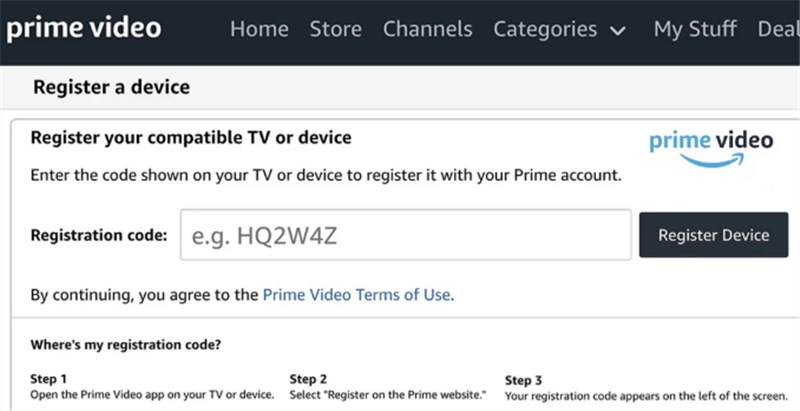
Generate Prime Video Activation Code
2. Crucial Step: On your phone or computer, open your web browser in Incognito or Private Mode. This prevents old cookies or ad-blockers from interfering with the script.
3. Navigate to the Amazon MyTV website.
4. Log in and enter the code.
5. Wait for the “Success” message in your browser. Your TV should refresh within 5 seconds.
If the TV still does not refresh, check your phone’s Wi-Fi. Ensure your phone and Apple TV are on the same network band (e.g., both on 5GHz) during the activation process to assist with the handshake.
You may also like: 4K Videos on Amazon Prime: How to Watch & Download >
Optimizing Playback: Fixing 4K, HDR, and Audio Sync
If your subscription includes 4K content but you are seeing Prime Video streaming only in HD, the issue often lies within the Apple TV’s global video settings. By default, the Apple TV tries to make the menu look smooth, which can inadvertently force video apps to play at the wrong frame rate or dynamic range.
The “Match Content” Fix
This is the most critical setting for video quality on tvOS. You must tell the Apple TV to stop processing the video and let the Prime Video app dictate the quality.
1. Go to Settings > Video and Audio > Match Content.
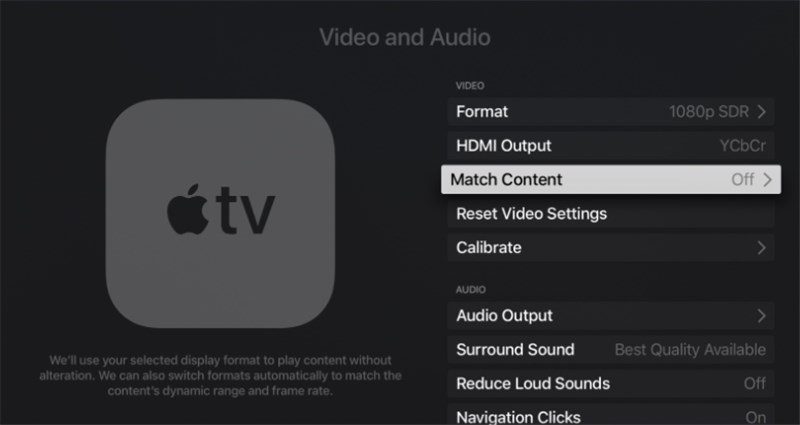
Choose Match Content
2. Turn ON “Match Dynamic Range.”
3. Turn ON “Match Frame Rate.”
Why this works: When enabled, your TV screen will briefly go black when you start a movie. This is good—it means the Apple TV is switching its signal to match the movie’s native 24fps frame rate and HDR standard (like HDR10+ or Dolby Vision), preventing the “soap opera effect” and washed-out colors.
Check Your HDMI Connection
Prime Video 4K on Apple TV demands high bandwidth. If you experience intermittent black screens or audio dropouts (especially with Dolby Atmos):
- Ensure you are using an Ultra High-Speed HDMI cable (48Gbps) or at least a High-Speed Premium cable (18Gbps).
- Verify the HDMI port on your TV is set to “Enhanced” or “Deep Color” mode (this varies by TV manufacturer, e.g., Sony, LG, Samsung). Without this enabled on the TV side, the Apple TV cannot send the 4K HDR signal.
Network Troubleshooting: Stopping the Buffering
You might have fast internet, yet face Prime Video buffering or pixelated quality. The Apple TV is notoriously sensitive to network fluctuations. “Fast” Wi-Fi isn’t always “stable” Wi-Fi.
Advanced Network Tweaks for tvOS
If your video quality dips frequently, try these targeted fixes:
1. Prioritize Ethernet: If at all possible, hardwire your Apple TV to your router. This eliminates interference entirely.
2. Change DNS Settings: Sometimes your ISP’s default server is slow to resolve Amazon’s content delivery networks.
- Go to Settings > Network > [Your Connection] > Configure DNS.
- Change from “Automatic” to “Manual.”
- Enter 1.1.1.1 (Cloudflare) or 8.8.8.8 (Google). This often speeds up the initial buffering phase.
3. Separate WiFi Bands: Ensure your Apple TV is connected to your router’s 5GHz band, not the slower 2.4GHz band. 2.4GHz is prone to interference from microwaves and other smart home devices.
Alternative Viewing: The Offline & Travel Solution
There are scenarios where the native app simply cannot deliver. Perhaps you are traveling and the hotel Wi-Fi blocks streaming services, or you want to build a permanent library of movies that won’t disappear when licensing deals expire.
In these specific cases—archiving and travel—Keeprix Prime Video Downloader serves as a powerful companion tool to your Apple TV setup.
When to Choose Downloading Over Streaming
While the Keeprix Video Downloader workflow involves a computer (PC/Mac), it solves the two biggest complaints of the streaming era: expiration dates and offline limits.
- The “Flight” Scenario: The native Prime Video app limits how many titles you can download and deletes them 48 hours after you press play. Keeprix Video Downloader downloads are permanent files (MP4/MKV). You can load an entire season onto your laptop or iPad for a long trip without checking in online.
- The Home Media Server: If you use Plex or Infuse on your Apple TV, Keeprix Video Downloader allows you to download 1080p content from Prime Video and store it on your local server. You can then stream these files to your Apple TV via the Plex app in full quality, completely bypassing your internet connection during playback.
This is not a direct replacement for the “click and play” convenience of the streaming app, but it is the superior method for collectors and frequent travelers who need guaranteed access to their media.
How to download Amazon Prime videos with Keeprix Video Downloader:
Step 1. Download and install Keeprix Video Downloader on your computer. Launch it and select the Amazon platform.
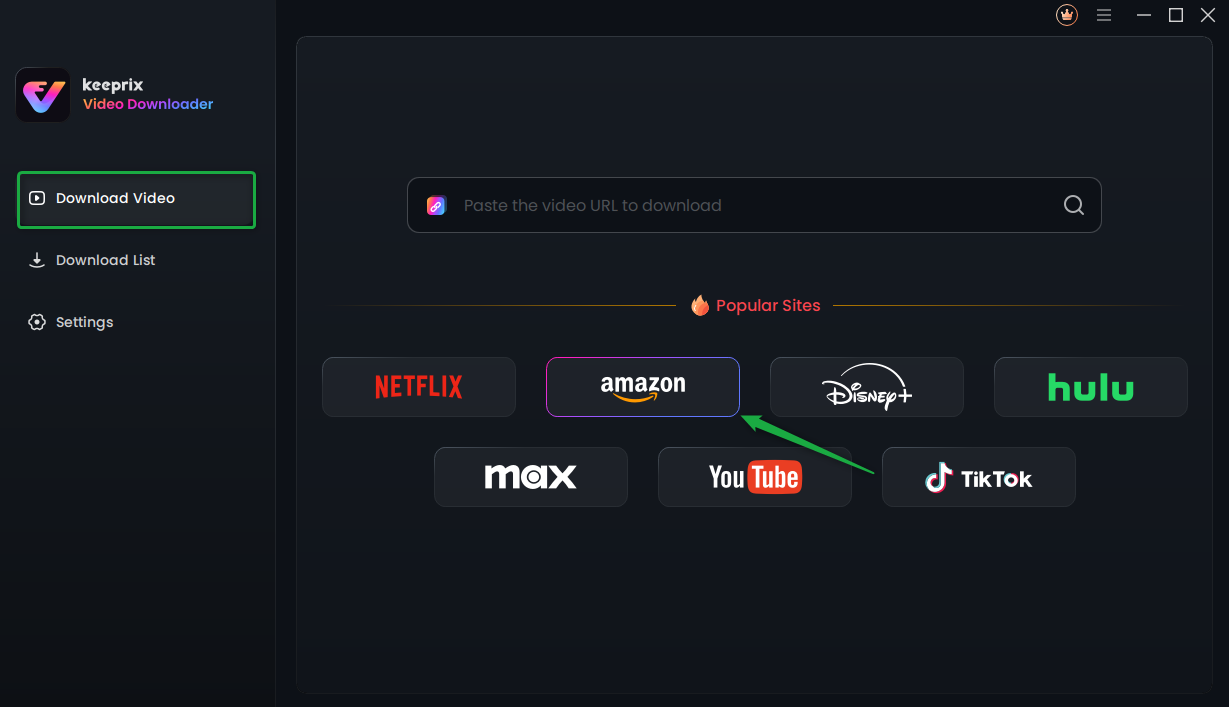
Choose Amazon Platform
Step 2. Search for a video you want to download, and tap the download button.
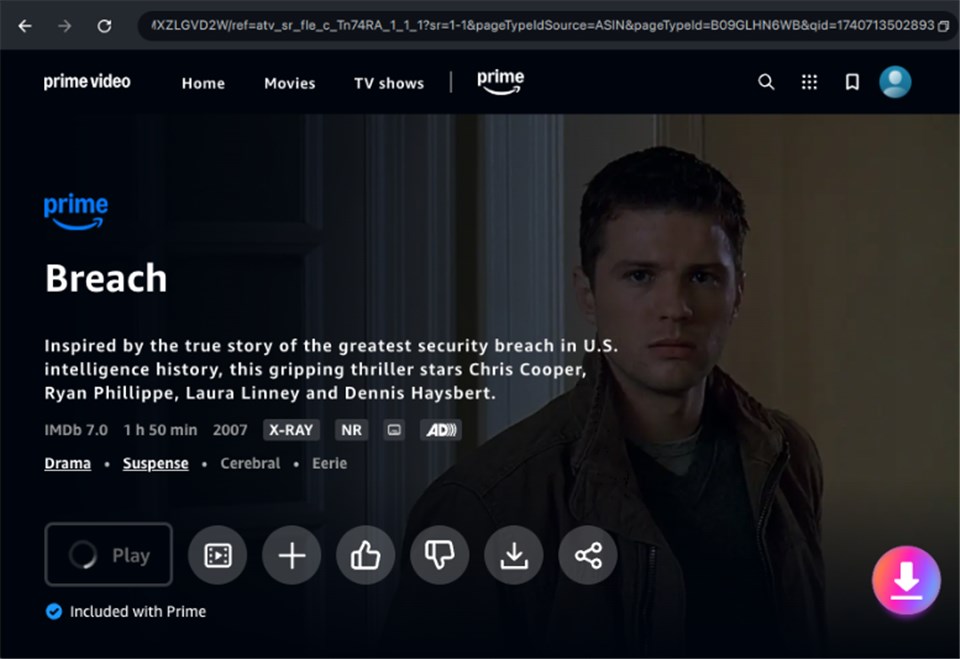
Download Amazon Videos
Step 3. After the download is completed, the video will be stored in the local file on your computer. Then you can transfer the downloads to Apple TV and watch them smoothly.
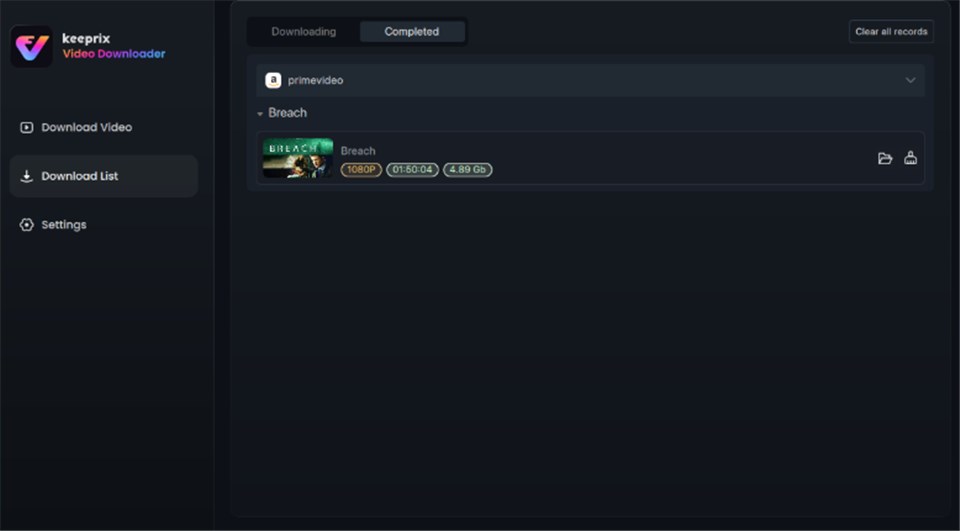
Prime Video Successfully Downloaded
Troubleshooting: Common App Glitches
If the app is freezing or crashing back to the home screen, avoid the headache of a full factory reset.
The “Offload App” Technique
Instead of deleting the app (which erases your login), use the “Offload” feature to clear corrupt cache files while saving your settings.
1. Go to Settings > General > Manage Storage.
2. Scroll to Prime Video and click the trash can icon/select Offload App (on supported tvOS versions) or simply delete and reinstall if Offload isn’t an option for your specific build.
Pro Tip: A “Force Quit” often works faster. Double-click the TV icon on your remote to bring up the app switcher, swipe to Prime Video, and swipe UP to toss it off the screen. Relaunching it forces a fresh data fetch.
Why Is My Watchlist Missing?
A common confusion on Apple TV is the “Profiles” feature. Prime Video on Apple TV supports up to 6 user profiles, and Watchlists are not shared between them.
If your movies are missing, check the “Who’s Watching?” icon in the top navigation bar. You may have accidentally selected the “Kids” profile or a secondary user. Simply switch back to your main profile to restore your library.
Frequently Asked Questions
Q1. Why does Prime Video keep switching between 4K and HD?
This is adaptive streaming in action. It usually indicates network instability. Try changing your Apple TV’s DNS settings to 1.1.1.1 or hardwiring the device via Ethernet. Also, ensure “Match Content” is enabled in video settings.
Q2. How do I install Amazon Prime Video on Apple TV Gen 3?
You cannot install the app manually. The Gen 3 model uses a pre-loaded “channel.” If it is missing, check Settings > General > Restrictions to ensure it hasn’t been hidden. Note that Gen 3 supports limited features compared to newer models.
Q3. Can I watch downloads from Keeprix Video Downloader on my Apple TV?
Yes, but via a local network. You can store the downloaded files on a computer or NAS and use an app like Plex, Infuse, or VLC for Apple TV to play them on your big screen. Alternatively, you can AirPlay the file from your Mac to the Apple TV.
Q4. What should I do if the activation code doesn’t work?
Open your mobile browser in Incognito/Private mode to enter the code. This disables extensions and cache that often block the handshake. Also, ensure both devices are on the same Wi-Fi network band.
Q5. Why is the audio out of sync?
This is often an HDMI handshake issue. Go to Settings > Video and Audio > Wireless Audio Sync and follow the on-screen calibration using your iPhone. This measures the delay and adjusts the audio timing perfectly.
Final Verdict: Streaming vs. Owning
For the daily user, the Amazon Prime Video app on Apple TV is the best way to watch, provided you configure the “Match Content” settings and ensure your HDMI pipeline is solid. It delivers the stunning 4K HDR experience your hardware was built for.
However, if you are tired of the “rental” feel of streaming—where titles disappear or expire after 48 hours—or if you need a reliable solution for offline viewing during travel, Keeprix Video Downloader offers the control you are missing. It allows you to step outside the streaming ecosystem and curate a permanent, high-quality library that works on your terms.