Why Is Amazon Prime Video Not Working on TV? (2025 Troubleshooting Guide)

You settle in for the evening, ready to stream the latest series, but instead of the opening credits, you are met with a spinning wheel or a bleak error message. Whether it is Prime Video not loading on TV, crashing mid-movie, or refusing to open entirely, facing a locked device when you need it most is a significant barrier to relaxation.
If you are facing issues where Amazon Prime Video is not working on TV, you are not alone. These playback failures are common, but they are rarely permanent. The problem is often not your internet speed, but specific cached data conflicts or hidden account limits. By following the steps in this guide, most users move from frustration to a working stream in under ten minutes. Below, we outline the exact methods to resolve Prime Video app not opening on TV and other common streaming errors for all major TV brands, helping you watch Amazon Prime videos on Roku and others effortlessly.
Fix Amazon Prime Not Working on TV
The “Golden Triangle” Fix: Solves 60% of Smart TV Errors
Before diving into complex settings, you should start with what experts call the “Golden Triangle” of fixes. Here is a critical expert insight: Prime Video issues on Smart TVs often come from outdated firmware or cached app data—not the Prime Video service itself.
Smart TV apps store temporary files that are frequently corrupted after updates. Consequently, simply restarting the app rarely works because the corrupt data remains. You must clear it.
Follow this three-step cycle to resolve the majority of Prime Video app not opening on tv errors:
Step 1. Full Power Cycle (Cold Boot):
Do not just turn the TV off with the remote. Unplug the TV from the wall outlet for at least 60 seconds. While unplugged, hold the physical power button on the TV chassis for 10 seconds to discharge residual power. This forces a complete reload of the Operating System.
Step 2. Update the Prime Video App:
Navigate to your TV’s app store. If the version is outdated, the server handshake will fail. Ensure you have the latest patch installed to avoid Prime Video error codes related to version mismatches.
Step 3. Perform a Prime Video Cache Reset:
This is the most vital step. You must navigate to your TV’s application settings and select “Clear Cache” (and “Clear Data” if available). This wipes the corrupt temporary files, causing the freeze.
This sequence forces the TV to download fresh configuration files, which resolves approximately 60% of playback failures.
Device-Specific Guides: Samsung, LG, Android TV, and Roku
The menu structures for performing a Prime Video cache reset vary significantly depending on your TV’s operating system. A generic guide often fails because the “Clear Data” button is hidden in different sub-menus. Here are the specific pathways for the major brands to fix Prime Video app error instances.
Android TV / Google TV (Sony, TCL, Hisense, Philips)
Most Sony, TCL, and Hisense models run on the Android or Google TV interface. This is the most common OS where cache buildup occurs.
1. Navigate to Settings (the gear icon on the home screen or remote).
2. Select Apps > See all apps.
3. Scroll to find Prime Video.
4. Select Force Stop first, then select Clear Data (or Clear Storage). Note: This will sign you out, so have your login ready.
Samsung TV (Tizen OS)
If you are dealing with Prime Video not working Samsung TV, note that newer Tizen versions often hide the cache option. If you cannot find “Clear Cache,” you must reinstall the app:
1. Press the Home button and navigate to Apps.
2. Select the Settings icon (gear) in the top right.
3. Locate Prime Video. If “Clear Cache” is not an option in the submenu, select Reinstall or Delete, then download it again.
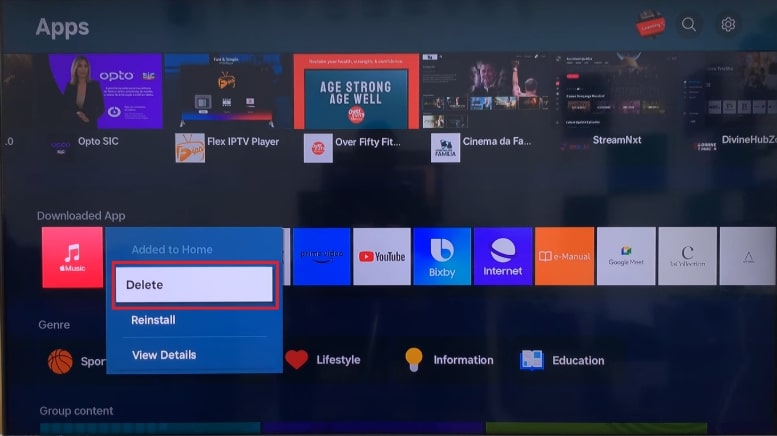
Choose to Delete the App
LG TV (webOS)
1. Press the Home button and open the LG Content Store.
2. Go to Apps > My Apps.
3. Find Prime Video. If an update is available, select Update. If not, delete the app (click the trash icon above it) and download it again to flush the data.
Roku
Roku does not have a cache-clear button in the menu. You must perform a system restart using a specific remote code sequence:
1. Press Home 5 times.
2. Press Up 1 time.
3. Press Rewind 2 times, then Fast Forward 2 times.
The Roku will freeze for a moment and then reboot. This clears the temporary cache partition.
Fire TV Stick
1. Go to Settings > Applications > Manage Installed Applications.
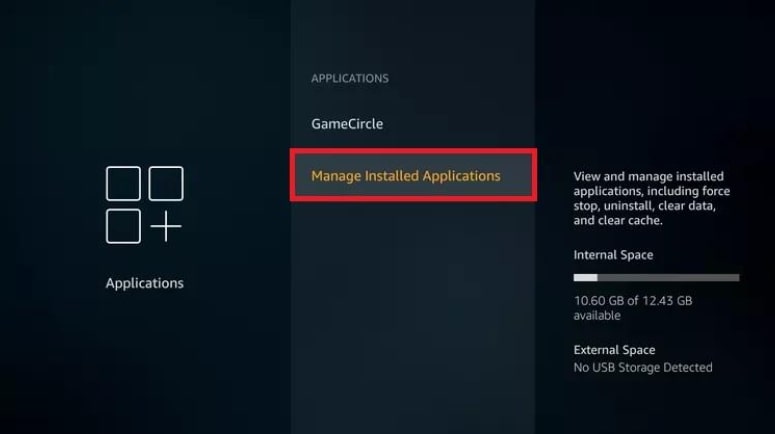
Press Managed Installed Applications
2. Select Prime Video.
3. Click Force Stop, then select Clear Cache and Clear Data.
The “Hidden” Problem: Account Conflicts and Device Limits
If the app loads but videos refuse to play (or you get Error 5004), the issue might not be your TV—it might be your Amazon account status. Amazon limits the number of simultaneous streams (usually three devices at once). Furthermore, if you simply turn off a TV without exiting the video, the Amazon server might think the stream is still active, creating a “ghost” session that blocks new streams.
If the app is frozen and you cannot navigate to the “Sign Out” button on your TV, you must reset this from a different device:
1. Use a Phone or Computer: Go to the Amazon My TV website or navigate to Account & Lists > Content & Devices on the Amazon website.
2. Select Devices: Click on the Devices tab.
3. Deregister: Find your specific Smart TV in the list and select Deregister.
This forces the TV app to reset its authentication token. When you turn the TV back on, you will be prompted to sign in again, which clears account-side conflicts.
Fixing Network & Black Screen Issues (DNS Settings)
Sometimes the TV shows Internet connected, but Prime won’t play, resulting in a persistent Prime Video black screen TV. This usually indicates a DNS (Domain Name System) lookup failure. Your ISP’s default DNS server may be struggling to connect you to the specific video delivery servers Amazon uses.
Follow these steps to change your smart TV network settings to a reliable public DNS (Google DNS):
1. Access Network Status: Go to your TV’s Settings > Network > Network Status (or Connection Status).
2. IP Settings: Select IP Settings and switch from “Auto” or “DHCP” to Manual.
3. Enter DNS: Keep the IP address and Subnet Mask numbers exactly as they are. Scroll down to DNS Server.
4. Input New Values: Enter 8.8.8.8 (Primary) and 8.8.4.4 (Secondary).
5. Save and Retest: Save the settings and immediately try to stream content.
If the black screen persists, reboot your home router. Unplug it for 30 seconds to force it to reassign IP addresses to your devices, clearing any Prime Video connection issue caused by local network conflicts.
Why Old Methods Fail: App Decay and Compatible Hardware
If you have followed all troubleshooting steps—cleared cache, changed DNS, deregistered devices—and Prime Video won’t play on TV, the issue is likely hardware limitations. This is known as “app decay.”
Streaming apps like Prime Video constantly update to support 4K HDR, Dolby Atmos, and complex graphical interfaces. A Smart TV manufactured in 2017 or earlier has a static processor that cannot expand to meet these new demands. Eventually, the hardware struggles to render the app, leading to crashes and Prime Video error on TV.
The Last Resort: Offline Viewing Workaround
When the TV hardware is simply too old to run the modern app, you have two choices: purchase an external stick (like a Fire Stick or Roku) or use an offline viewing method to bypass the streaming app entirely.
Tools like the Keeprix Prime Video Downloader allow you to download Prime Video content as MP4 files on your computer. This is not a “one-click” fix for the TV itself, but a workaround for incompatible hardware. It can help you watch Prime videos on TV.
The Workflow for Old TVs:
Step 1. Download: Use Keeprix Video Downloader on your computer to save the movie or show as an MP4/MKV file.
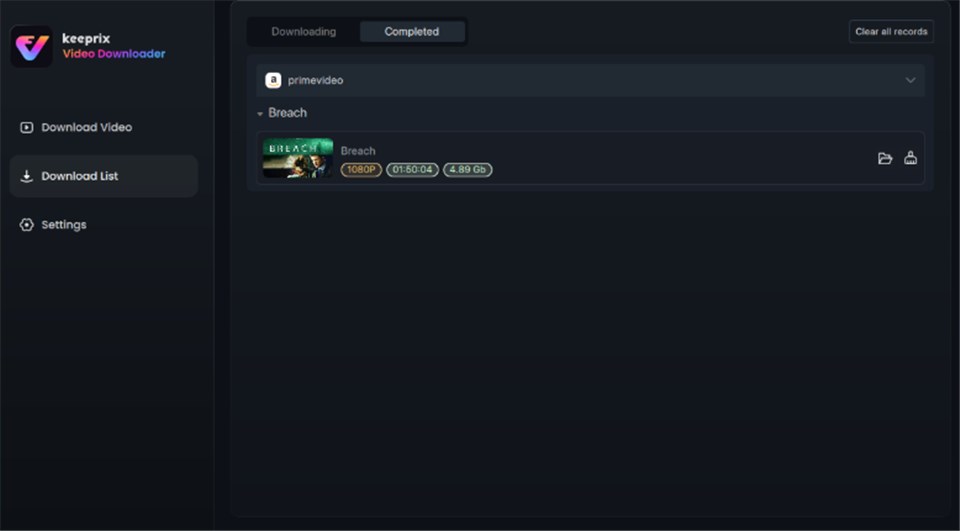
Prime Video Successfully Downloaded
Step 2. Transfer: Move the file to a USB drive or add it to a Plex media server.
Step 3. Play: Plug the USB drive into your TV’s USB port and use the TV’s native media player to watch.
This method requires more effort than simple streaming, but it provides a guaranteed fix for old TV models losing Prime Video compatibility because it removes the need for the heavy Prime Video app to run on your aging TV processor.
Prime Video TV Errors FAQ
Q1. What are the most common Prime Video error codes?
Specific codes point to specific failures. Here is a quick reference for the most common ones:
- Error 1060: Insufficient bandwidth. Your network is too slow or unstable for the video quality selected. Reboot your router.
- Error 5004: Authentication error. The login token is invalid. Use the Deregister method mentioned in the “Account Conflicts” section above.
- Error 7031 / 8020: HDMI Connection or HDCP Error. This means the cable connecting your streaming box to the TV cannot verify copyright protection. Try a new high-speed HDMI cable or switch HDMI ports.
- Error 3565: Payment setting issue. Check your 1-Click payment settings on Amazon; if a card expired, the TV app may block playback.
Q2. Why does Prime Video work on my phone but not my TV?
Mobile apps are optimized for efficiency and lower power consumption. The TV app is a “heavier” piece of software requiring more processing power to display 4K/HD content on a large screen. Additionally, your phone may be using cellular data, bypassing a Wi-Fi issue that is specifically affecting your television.
Q3. How do I fix a black screen with audio?
If you hear sound but see no picture, this is often an HDMI handshake issue or a specific resolution conflict. Turn off “HDR” or “UHD Color” in your TV’s picture settings to see if the video returns, or replace your HDMI cable.
Conclusion: Regain Control of Your Entertainment
Facing a Prime Video black screen TV is an interruption you do not need. As we explored, the issue usually stems from three main culprits: corrupt cache files, network DNS failures, or a simple account glitch that needs a remote reset. By applying the “Golden Triangle” fixes and checking for device limits, you can resolve the vast majority of these errors without calling support.
If these steps fail, remember that technology eventually ages out. If your TV is several years old, the struggle may be a hardware limitation rather than a software bug. In those cases, using an external streaming stick or a dedicated tool like Keeprix Video Downloader to play files via USB ensures you can still enjoy your library. You now have the full toolkit to diagnose the problem and get back to your show.