Is BritBox Free With Amazon Prime? Pricing, Trials, and Access Guide (2025)

Prime Video’s interface frequently makes it look like BritBox is free. You search for a show, see it listed, and click “Play”—only to be hit with a surprise paywall prompt or a trial offer. For dedicated fans of British television, this interface confusion is incredibly frustrating. You are left asking: Is BritBox free with Amazon Prime, or is this a billing error?

Is BritBox Free With Amazon Prime
The confusion stems from how Amazon mixes free Prime content with paid “Channels” in the same visual feed. This guide clarifies that distinction. We have tested the subscription process, the hidden cancellation steps, and the playback options to provide a clear answer and a solution for managing your British TV library effectively.
Editor’s Note on Testing:
To ensure accuracy, we subscribed to BritBox via Amazon Channels using a Samsung Smart TV, an Amazon Fire TV Stick 4K Max, and a Windows 11 PC.
Significant Finding: During our testing on the Fire TV Stick, we discovered that the “Unsubscribe” button is completely hidden within the TV interface. You strictly need a web browser to cancel the trial, a critical detail often missed in general guides.
Is BritBox Free With Amazon Prime? The Short Verdict
No, BritBox is not free with Amazon Prime. While Amazon Prime Video hosts the content within its app, BritBox functions as a paid “Prime Video Channel.” It requires a separate monthly subscription fee on top of your existing Prime membership.
Many subscribers ask, does Amazon Prime include BritBox automatically? The answer is a definitive no. When you search for Prime Video British shows, titles from BritBox appear alongside free Prime content because Amazon acts as an aggregator. Think of Amazon Prime as a digital cable box; it provides the equipment (the app) to watch the channel, but you still have to pay the premium channel fee to unlock the signal.
BritBox on Amazon Prime Cost: Pricing and Free Trials (2025)
Since the service is not included in the base membership, understanding the BritBox on Amazon Prime cost structure is essential for your budget.
As of 2024-2025, the standard price for the BritBox Prime Video add-on is $8.99 per month in the United States. This fee is charged to the credit card currently associated with your Amazon account.
The BritBox Free Trial on Amazon
If you are new to the service, you can activate a BritBox free trial Amazon offer. This trial typically lasts for 7 days.
Users often find this seamless integration helpful yet risky. Because the shows play directly in the Prime interface, it masks the fact that a separate billing cycle has started.
Important Billing Warning:
Once the 7-day period concludes, Amazon’s system automatically converts the trial into a paid monthly subscription. Unlike some standalone services that might send a reminder email, the charge will hit your account immediately. You must manually disable auto-renewal in your Prime Video Channel settings before the seventh day ends to avoid the charge.
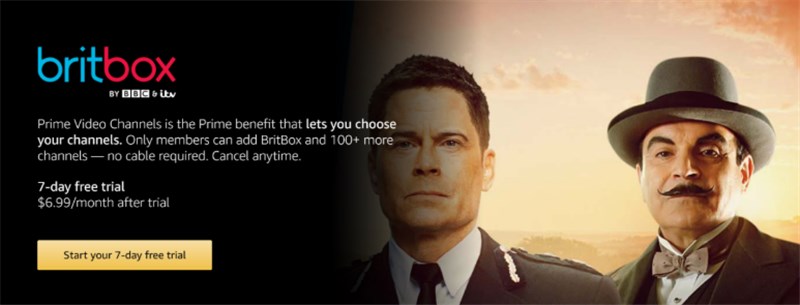
BritBox Free Trial on Amazon
You may also like: Can You Download Amazon Prime Movies for Free >
Amazon Channels vs. Standalone App: Which Membership is Better?
When deciding how to access British TV streaming, you have two primary methods: subscribing via Prime Video channels or setting up a direct BritBox membership through their standalone app.
The price is identical across both platforms. Therefore, the decision comes down to User Experience (UX) and platform preference.
Here is a critical expert insight: Your login credentials do not cross over. If you subscribe via Amazon, you cannot use those details to log into the specific BritBox app on your iPad or Roku. You are locked into the Amazon ecosystem.
Option 1: Prime Video Channels
Best for: Users who want simplicity and unified billing.
Pros:
- Unified Interface: You don’t need to switch apps or HDMI inputs.
- Consolidated Billing: One monthly bill managed by Amazon.
- Streaming Quality: Amazon’s servers are incredibly robust, often providing higher bitrates and fewer buffering issues than smaller standalone apps.
Cons: Content discovery is mixed with other Prime shows, making it hard to browse only BritBox titles.
Option 2: Standalone BritBox App
Best for: The “Purist” British TV fan.
Pros:
- Better Curation: The app is designed solely for British TV, offering “Collections” (e.g., “Best of Agatha Christie”) that are harder to find on Amazon’s cluttered menu.
- Gift Subscriptions: Easier to buy annual gift subscriptions for others.
Cons: Requires a separate login, a separate billing method, and a separate app on your TV.
For most users, the Amazon BritBox add-on offers superior convenience, but purists looking for deep-dive discovery often prefer the direct app.
How to Watch BritBox Through Prime Video on Your TV
A common question for new subscribers is: can I watch BritBox through Prime on my existing TV setup?
The answer is yes, but the procedure differs from using a standalone app. If you subscribed via the Amazon BritBox add-on, you must access the content inside the Prime Video application.
Common Mistake: Many users download the separate BritBox app on their Roku or Fire Stick, only to find their Amazon credentials do not work.
The Correct Procedure (Finding the Channel Row)
Finding your specific channel can be difficult because Amazon prioritizes content they want to rent or sell you. Follow this workflow to locate your subscription:
1. Open the Prime Video App: Launch the standard Prime Video app on your Smart TV, Roku, or game console.
2. Navigate to ‘My Subscriptions’: Do not just stay on the “Home” or “Free to me” tab. Look for the main navigation menu (usually on the far left or top of the screen).
3. Scroll Down Past Recommendations: On the main screen, you often have to scroll down past several rows of movie recommendations. Look for a row specifically labeled “Your Channels” or “My Subscriptions.”
4. Select the Logo: You will see a square BritBox logo in this row. Clicking this acts as a portal, taking you to a dedicated BritBox hub where you can see all available shows without them being mixed with American content.
Managing Your Subscription: How to Cancel BritBox on Amazon
One of the most significant pain points users face is figuring out how to cancel BritBox on Amazon Prime.
CRITICAL WARNING:
You cannot cancel this subscription via the Prime Video mobile app on your phone or tablet.
Amazon intentionally hides subscription management settings inside the mobile applications (iOS and Android) to avoid paying commission fees to Apple and Google. You must use a web browser on a computer or your phone’s mobile browser (like Safari or Chrome) to complete this process.
Step-by-Step Cancellation Procedure
1. Open a Web Browser: Go to Amazon website on your computer or mobile browser.
2. Access Memberships: Hover over the “Account & Lists” menu in the top right corner and select “Memberships & Subscriptions.
3. Locate Prime Video Channels: You will see a list of all your active subscriptions. Scroll down to the “Prime Video Channels” section. You will see BritBox listed here with its renewal date.
4. Select Cancel Channel: Click the link that says “Cancel Channel.”
5. Confirm Cancellation: Amazon will likely ask you if you want to keep the subscription or remind you three days before it renews. You must click through to confirm you want to “End Subscription.”
By following these steps, you stop the auto-renewal immediately. You will retain access to the channel until the end of your current billing period, ensuring you get the full value of any BritBox streaming cost already paid.
Frequently Asked Questions About BritBox and Prime
Q1. Is BritBox free on Prime Video for existing Prime members?
No. Even if you pay for an annual Prime membership, BritBox requires an additional monthly subscription.
Q2. Is there a difference in content between the Amazon Channel and the App?
Generally, no. The library of British TV streaming content is identical. However, the standalone app may occasionally receive updates or interface features slightly faster than the Amazon Channel integration.
Q3. Can I use my Amazon BritBox login on the BritBox website?
No. Accounts created via BritBox Prime Video add-on are linked specifically to your Amazon ID. You cannot use these credentials to log into the standalone BritBox app or website; you must watch through the Prime Video portal.
Q4. Does the BritBox free trial Amazon offer expire?
Yes, the trial is strictly limited to 7 days. If you do not cancel before the 7th day, you will be charged the full monthly rate automatically.
Pro Tip: How to Watch Offline Permanently
While watching BritBox on Amazon Prime is convenient, it relies entirely on a steady internet connection. Standard Prime Video downloads are useful for short trips, but they come with strict limitations: titles expire 30 days after downloading, or 48 hours once you press play.
For users who want to build a permanent library—perhaps you are traveling to a region where BritBox isn’t available, or you want to archive a favorite series like Vera before it leaves the service—the Keeprix Prime Video Downloader is a helpful tool.
Keeprix Video Downloader is software for your PC or Mac that allows you to download your subscribed content as standard video files.
- Permanent Offline Viewing: Unlike the temporary downloads in the Prime app, Keeprix Video Downloader saves Prime videos as MP4 or MKV files. This means they never expire.
- Travel Without Restrictions: If you are flying internationally, streaming services often block access once you leave your home country. By downloading your shows to your laptop beforehand, you ensure you can watch your British TV streaming library anywhere, regardless of Wi-Fi availability or geo-restrictions.
How to download Amazon Prime videos with Keeprix Video Downloader:
Step 1. Download and install Keeprix Video Downloader on your computer. Launch it and select the Amazon platform.
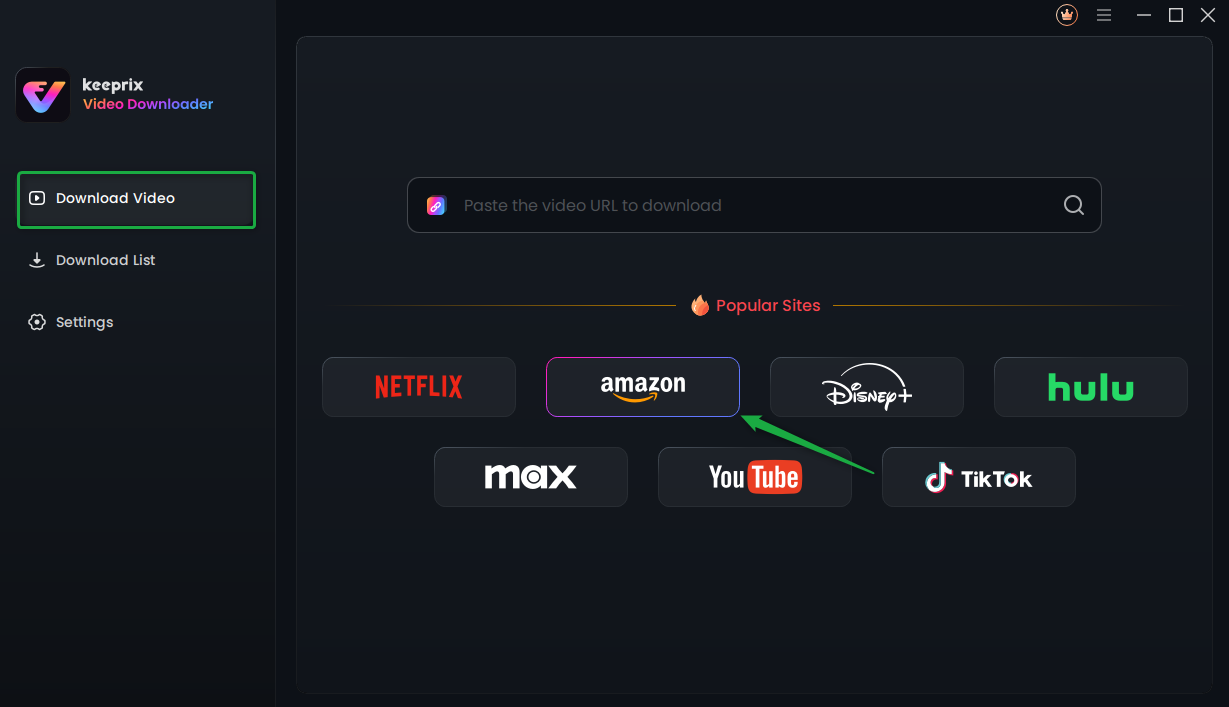
Choose Amazon Prime Platform
Step 2. Search for a video you want to download, and tap the download button.
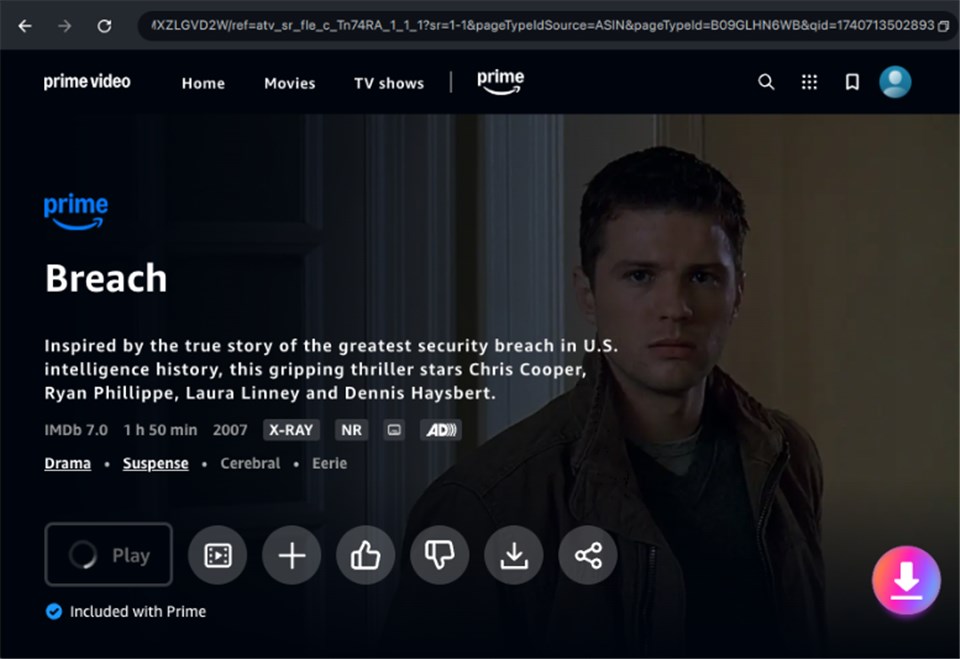
Download Amazon Videos
Step 3. After the download is completed, the video will be stored in the local file on your computer.
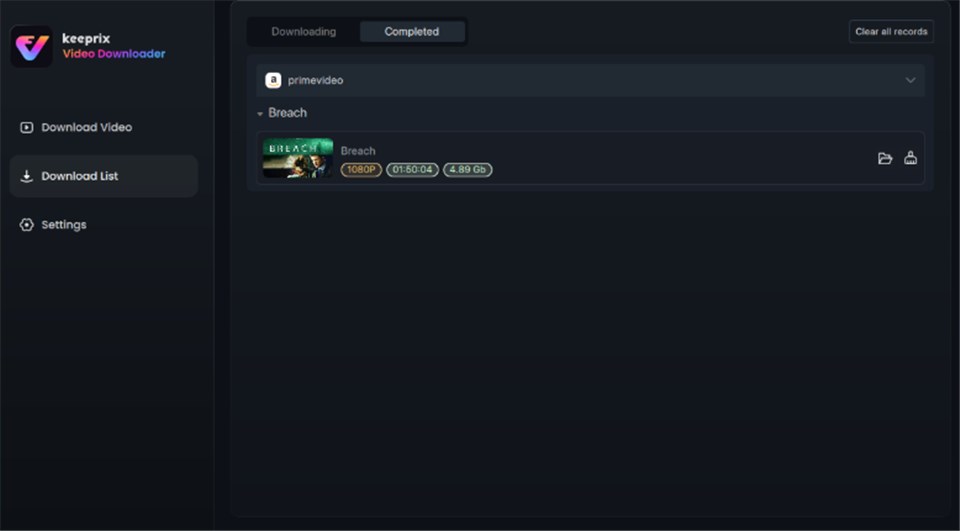
Prime Video Successfully Downloaded
Conclusion
Understanding is BritBox free with Amazon Prime is the first step to avoiding unexpected charges. While the integration offers convenience, it is strictly a paid add-on. The confusion often felt by users is understandable given the mixed search results, but clarifying the distinction between the “hosting platform” (Prime) and the “channel subscription” (BritBox) puts you back in control of your budget.
Whether you choose to subscribe for the convenience of one bill or prefer the dedicated app for better curation, you now have the knowledge to navigate the interface and manage your subscription confidently.