How to Watch Amazon Prime on TV: The Verified Setup Guide (2025)

There is nothing quite as frustrating as buying a new Smart TV, settling in to watch The Boys, and running into a technical barrier immediately. Take Sarah, a recent user who purchased a new Samsung TV. Expecting a simple “play” button, she was instead greeted by a confusing interface, a missing app icon, and a cryptic six-digit code that offered no clear instructions. If you are facing Amazon Prime Video not showing on TV, stuck on a loading screen, or confused by the login process, you are in the right place.
How to Watch Amazon Prime on TV
This guide provides a verified solution for every hardware setup. We will prioritize getting you streaming immediately using the native app or a streaming stick. We will also walk you through the Prime Video activation code process that stumped Sarah, troubleshoot common errors like the missing “Cast” icon, and offer a specialized Amazon Prime offline viewing solution for those dealing with poor internet connections.
How to Install Amazon Prime Video on Smart TV (Samsung, LG, Sony)
For 90% of users, the easiest way to watch content is through your TV’s built-in app store. However, manufacturers use different names and icons for their stores, which can be confusing. Here is how to install Amazon Prime Video on Smart TV models by brand.
1. Locate Your App Store
Grab your remote and press the “Home” button. Look for the store icon specific to your TV brand:
- Samsung TVs: Navigate to the “Apps” icon (usually a square icon with four small boxes) on the Smart Hub bar.
- LG TVs: Look for the “LG Content Store” (often a pink folder icon or a shopping bag).
- Sony & Android TVs: Navigate to the “Google Play Store” icon.
- Vizio TVs: Press the “V” button or look for the “Yahoo/Vizio Internet Apps” store.
2. Search and Install
Once inside the store, use the search function (look for the magnifying glass) and type “Prime Video.” Select the app with the blue “prime video” logo and click Install or Download.
On many 2024/2025 models, the app comes pre-installed. You may just need to find it in your main app list and open it.
3. The Activation Code Process (Crucial Step)
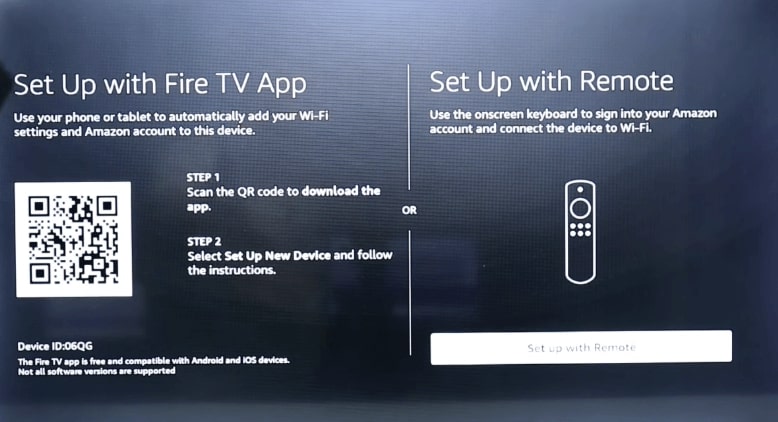
This is the specific moment where Sarah felt lost: the screen displaying a code rather than asking for a password. When you open the app for the first time, you will see two options to activate Prime Video on TV:
- Method A (The Easy QR Code): Open your phone’s camera and point it at the QR code on the TV screen. Tap the notification link that pops up. This will automatically open the Amazon app on your phone and link the device if you are already logged in.
- Method B (Manual Entry): If you are uncomfortable with QR codes, use a computer or phone browser. Go to Amazon My TV website. Log in to your Amazon account, and enter the 5-6 character Prime Video activation code displayed on your TV screen.
Once entered, your TV screen will refresh automatically within seconds, logging you in.
Using Streaming Sticks & Consoles: Fire TV vs Roku Prime Video Setup
If you are encountering the Prime Video app not appearing in the TV’s app store error, your TV model might be too old to support the current software. Don’t worry—you do not need a new TV. The standard industry solution is to use an external streaming device like a Roku, Fire Stick, or gaming console.
Hardware Setup & HDMI Inputs
Step 1. Connect the Device:
Plug your Fire Stick, Roku, or Chromecast into an open HDMI port on the back or side of your TV.
Step 2. Switch Input:
This is a common stumbling block. Use your TV remote’s “Source” or “Input” button to switch the TV channel to the corresponding HDMI port (e.g., HDMI 1 or HDMI 2). You should see the device’s logo appear.
Select the Sign-in Method
Step 3. Find the App:
- Roku: Go to “Streaming Channels,” search for Prime Video, and select “Add Channel” to learn how to watch Prime Video on Roku.
- Fire Stick: Prime Video is native to Amazon devices. It will be the first icon on the home screen.
- PlayStation/Xbox: Navigate to the “Media” tab on your dashboard. Select “All Apps,” search for Prime Video, and download.
Learning how to login to Amazon Prime Video on TV via these devices follows the exact same activation logic as Smart TVs above.
Casting and Mirroring: How to Cast Prime Video to TV
For those who prefer browsing on a phone or tablet, learning how to cast Prime Video to TV is a powerful alternative. This bypasses the TV interface entirely. You can cast using Chromecast (Android/Google) or AirPlay (iOS).
Troubleshooting the Missing Cast Icon
The most common obstacle users face is the “Cast” icon missing from the Prime Video mobile app. If you do not see the rectangular icon with WiFi waves in the corner of your player, check these two specific settings:
- Network Match (Critical): Your phone and TV must be on the exact same WiFi network. A frequent issue occurs when the TV is connected to your router’s 2.4GHz band (often labeled MyWiFi-2.4) and your phone is on the 5GHz band (MyWiFi-5). They must match for the devices to see each other.
- Local Network Permissions (iOS Users): On iPhones and iPads, go to Settings > Prime Video. Ensure the toggle for “Local Network” is switched ON. Without this permission, Apple blocks the app from communicating with your TV.
Once the icon appears, tap it and select your TV from the list.
Fixing Prime Video Not Showing on TV: Compatibility & Error Guide
Even with a correct setup, you might face technical glitches. If you find Amazon Prime Video not showing on TV, it is often a matter of hardware age or a corrupted cache.
Smart TV Compatibility Matrix
Support for streaming apps does not last forever. Manufacturers eventually stop updating the software for older processors.
| TV Brand | Supported Models | Legacy/Unsupported Models |
| Samsung | 2016 – Present (Tizen OS) | 2012 or older often lose support. |
| LG | WebOS 3.0 or higher (2016+) | NetCast models (pre-2015). |
| Sony | Android TV / Google TV models | Older Bravia Internet Video models. |
| Roku | Roku 2 (newer gen) and up | Roku 1 and legacy sticks (3500X). |
Audio and Profile Glitches
- No Sound: If you have video but no audio, go to your TV’s audio settings and switch the output from “Dolby Digital” to “PCM” or “Stereo.” This resolves handshake issues with older soundbars.
- Profile Switching Lag: Users often ask how to switch profiles on Prime Video on my TV and why it feels slow. Navigate to the silhouette icon at the top of the side menu. If this menu is sluggish, it is usually because the TV’s memory is full. Go to your TV settings > Apps > Prime Video and select “Clear Cache” (not Clear Data) to speed up the interface.
The Offline Alternative: When Streaming Isn’t an Option
For most users with high-speed internet, the methods above are perfect. However, if you live in a rural area with slow satellite internet, travel frequently in an RV, or simply want to archive your favorite movies before they leave the streaming service, streaming apps can be unreliable.
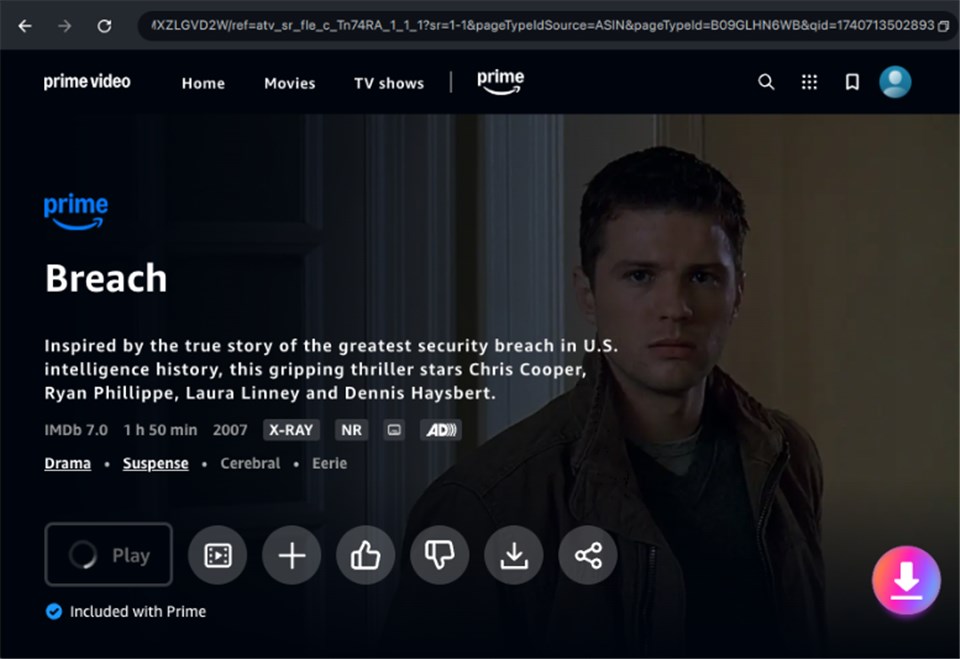
In these specific scenarios, Keeprix Amazon Video Downloader acts as a professional backup tool. Unlike the mobile app’s download feature, which expires after 48 hours, Keeprix allows you to download Prime Video content as permanent MP4 files on your computer.
If you choose this method to avoid buffering or data caps, here is how to view the files on your big screen:
Step 1. Download: Use Keeprix Video Downloader on your PC/Mac to download the movie or show.
Download Amazon Videos
Step 2. Transfer: Copy the MP4 file to a standard USB flash drive.
Step 3. Connect: Plug the USB drive into the USB port on the back of your TV.
Step 4. Play: Press the “Source” or “Input” button on your TV remote and select “USB Device” or “Media Player.” Navigate to the file and press play.
This method guarantees 1080p quality without a single second of buffering, as the file is playing locally from the stick rather than streaming over the internet.
Frequently Asked Questions About Prime Video on TV
Q1. Do I need a Prime subscription or just an Amazon account?
You do not need a full Prime membership to rent or buy movies; a standard Amazon account works for that. However, to access the “Included with Prime” free streaming library, you must have an active Prime membership or a standalone Prime Video subscription.
Q2. Why can’t I find the Prime Video app on my older TV?
If your TV is over 7-8 years old, the manufacturer likely stopped updating the app store. The hardware inside older TVs cannot run the modern encryption required for HD streaming. In this case, a $30 Fire TV Stick is the cheapest and most effective fix.
Q3. How do I fix the ‘Bandwidth Error’ message?
This error means your internet speed has dropped below the requirement for playback (usually 5 Mbps for HD). Pause downloads on other devices (like game consoles or laptops) to free up bandwidth. If the problem persists, consider the offline USB method described in the section above.
Q4. Where do I enter the code on my TV?
You don’t! This is the most common confusion. You cannot type the code into the TV itself. You must go to Amazon My TV website on a secondary device (phone or laptop) to enter the code displayed on your TV screen.
Conclusion
Getting set up should be a five-minute process, not an evening-long project. Remember Sarah from the start of our guide? Once she realized she needed to use her phone to scan the QR code rather than searching for a password field on her TV, she was connected instantly.
By following the steps to install Amazon Prime Video on Smart TV tailored to your specific brand, or by using the casting trick to bypass the TV interface entirely, you can resolve these setup blocks quickly. And for those times when the internet just won’t cooperate, tools like Keeprix Video Downloader can bypass Amazon Prime download limits and ensure you always have a permanent, buffer-free backup ready to play.