How to Watch Amazon Prime Video Offline in 2025: A Tested Guide to Bypassing Limits

There is nothing worse than settling into your seat for a long-haul flight, putting on your headphones, and hitting play, only to see a “Playback Error” flash across the screen. For frequent travelers, this isn’t a hypothetical scenario; it is a frustrating reality caused by hidden expiration timers, storage limits, and strict region locks.
While Amazon Prime Video offline capabilities are robust, they come with complex rules that can trip up even the most prepared user. Whether you are facing storage limits on your iPad, confusing 48-hour viewing windows, or simply want to ensure your library works when you cross international borders, this guide clarifies the process.
Watch Amazon Prime Video Offline
We have stress-tested every method—from maximizing the official app to using archival tools—to help you regain control of your media. By the end of this article, you will know exactly how to manage the Prime Video download restrictions and ensure your content is ready the moment you disconnect.
Quick Decision Guide: Official App vs. Archival Method
Before you start downloading, you need to choose the method that aligns with your specific travel plans. Most users simply want their subscription to work on their tablet for a weekend trip, while others need a permanent library on a laptop for extended remote work.
There are two distinct approaches to Prime Video offline viewing: the Standard Method (using the official app) and the Archival Method (using third-party software).
Which Method Suits You?
- Standard Method (Official App): Best for 90% of users. It is perfect for casual viewing on a phone, tablet, or Windows laptop. However, you are bound by device download rules, which typically limit you to 15-25 titles across all devices combined.
- Archival Method (Keeprix Video Downloader): Best for “Power Users” who need files to last longer than 30 days or who need to play content on devices that don’t support the Prime app (like playing from a USB drive plugged into a hotel TV).
Snapshot Comparison
| Feature | Standard Method (Official App) | Archival Method (Keeprix Video Downloader) |
| Primary Use | Primary Use Vacation / Commuting |
Archiving / Long-term Travel |
| Expiration | 30 days (48 hours once played) | Never (Permanent file) |
| File Type | Encrypted (App-only playback) | MP4 / MKV (Universal playback) |
| Device Limit | ~25 Titles (Account-wide) | Unlimited (Depends on hard drive space) |
| Geo-Blocking | High Risk (Content may lock if you cross borders) | No Risk (Files are region-free) |
| Cost | Free with Prime Subscription | Paid Software License |
Method 1: The Standard Way (Official App)
Best for: iPads, Android Tablets, Fire Tablets, and Windows Laptops.
If you prefer the official ecosystem, the Prime Video app is the most straightforward way to get temporary offline access. It is critical to note that you cannot watch Amazon Prime offline through a web browser like Chrome or Safari; you must install the dedicated application.
Step-by-Step Download Procedure
1. Open the App: Launch the Prime Video app on your device and sign in.
2. Check Eligibility: Navigate to the movie or show you wish to view. Note that downloaded titles Prime eligibility varies by region. If the download icon is missing, the studio has not licensed that title for offline viewing.
3. Initiate Download: Tap the “Download” icon (a downward arrow). For TV shows, you can download individual episodes or the entire season at once.
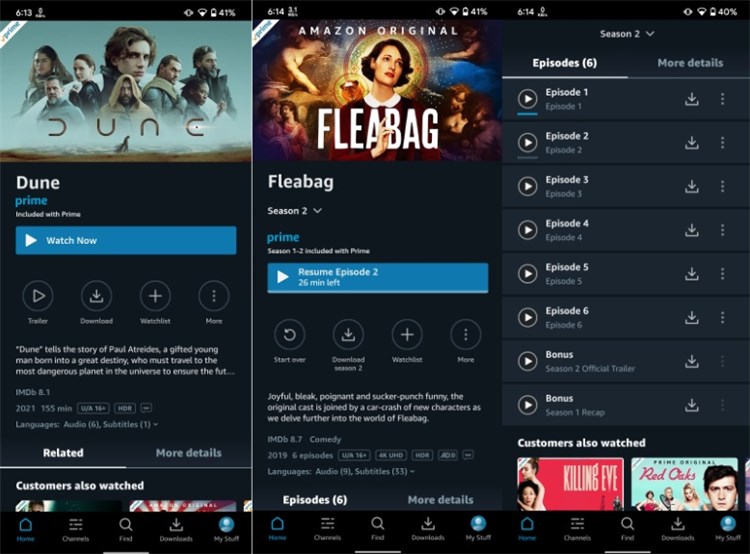
Download Amazon Prime Video Officially
Managing Storage and Quality
To avoid running out of space, you should adjust your Prime Video storage settings before downloading. Navigate to Settings > Streaming & Downloading > Download Quality.
- Best: Uses ~0.9GB per hour (1080p/4K where available). Great for Retina displays but fills storage fast.
- Better: Uses ~0.5GB per hour. A balanced choice for most tablets.
- Good: Uses ~0.3GB per hour. Ideal for maximizing storage on 64GB devices.
Pro-Tip: Selecting “Good” quality allows you to store significantly more content—roughly three movies for every 1GB of space. This is vital for long trips where you cannot offload data to an external drive.
Method 2: The Archival Way (Keeprix Video Downloader)
Best for: Building a permanent library, watching on non-smart TVs via USB, or bypassing the 30-day limit.
For users who require a permanent offline library, relying on the official app can be limiting due to expiration timers. Keeprix Prime Video Downloader addresses the specific pain points of downloads expiring after 30 days and storage space issues on mobile devices by converting streams into flexible files.
Breaking the Limits
While the official app restricts you to a rented, temporary file, Keeprix Video Downloader allows you to Prime Video download offline content as MP4 or MKV files. This effectively removes the title cap, allowing you to build a massive library on an external hard drive rather than clogging your laptop’s internal memory.
Key Technical Advantages
- Universal Compatibility: By saving Prime files in MP4 format, you solve the issue of compatibility. You can transfer the file to any laptop, TV via USB, or tablet without logging into an account.
- Batch Efficiency: Instead of downloading titles one by one, you can queue an entire series season. This high-speed process is essential if you are rushing to pack before a trip.
- Audio & Subtitle Preservation: Keeprix Video Downloader extracts the raw data streams, allowing you to keep multi-language subtitles and audio tracks intact, rather than just recording the screen.
How to Use Keeprix Video Downloader:
1. Install and Launch: Download the Keeprix Video Downloader software to your Windows or macOS computer. Choose Amazon platform.
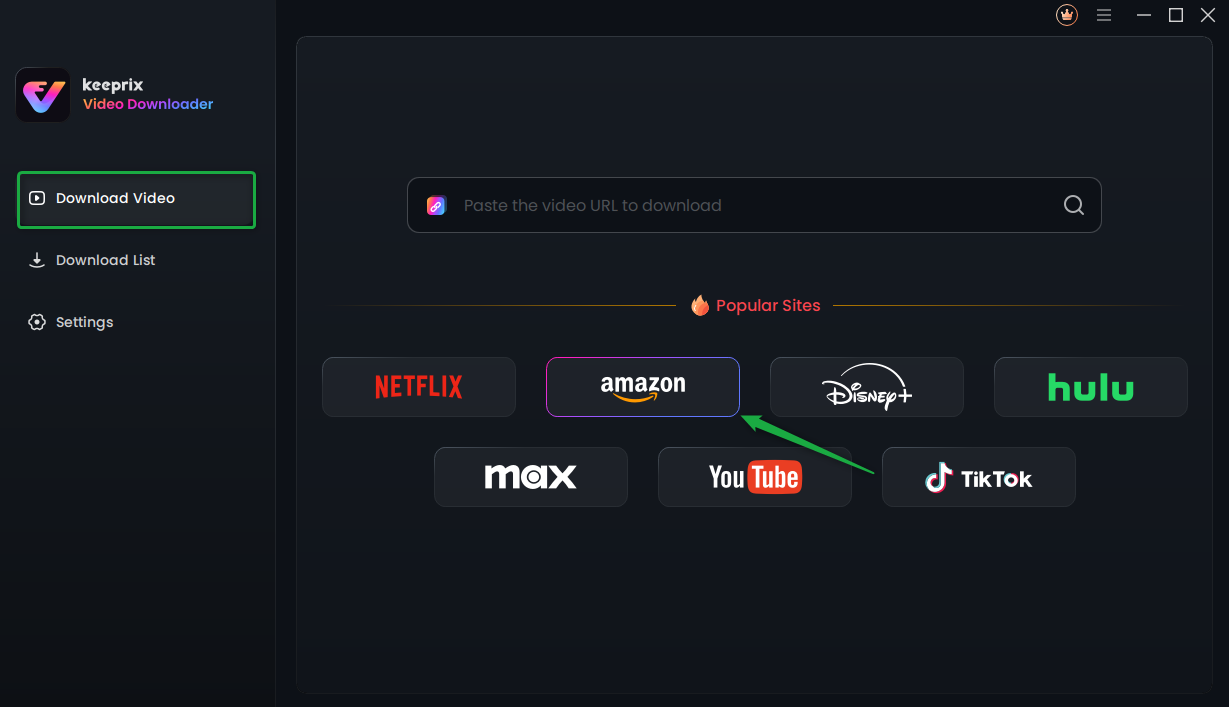
Choose Amazon Platform
2. Log In Securely: Use the built-in browser to log in to your Amazon Prime Video account.
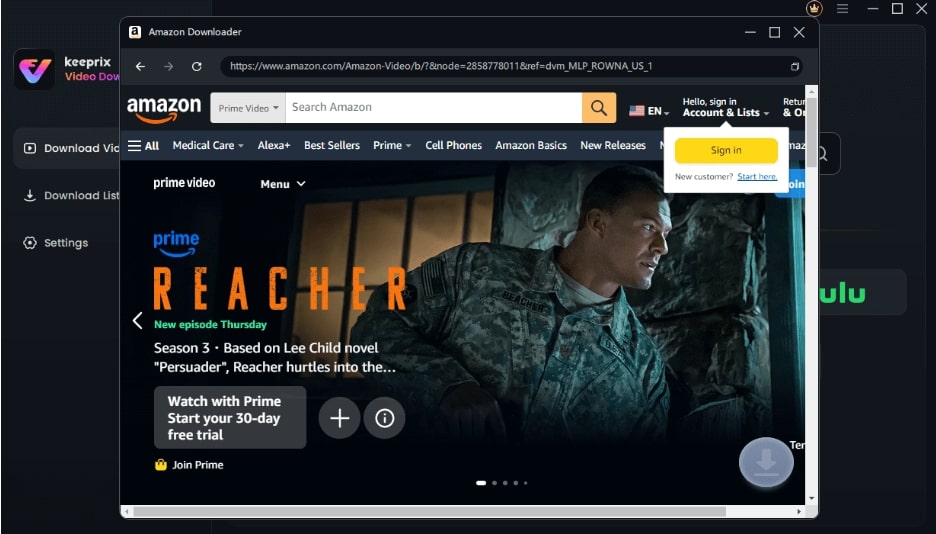
Sign Into Prime Account
3. Select Your Content: Browse for the movie or show. You will see a “Download” button that is not present in standard browsers.
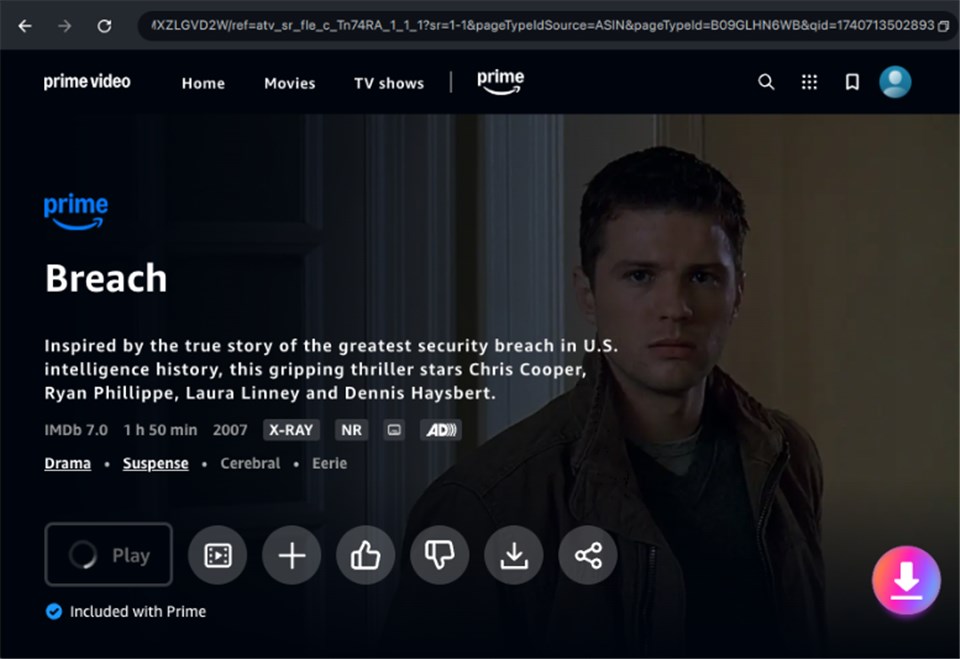
Download Amazon Videos
4. Start Download: Click “Download Now.” The file will be saved permanently to your local drive.
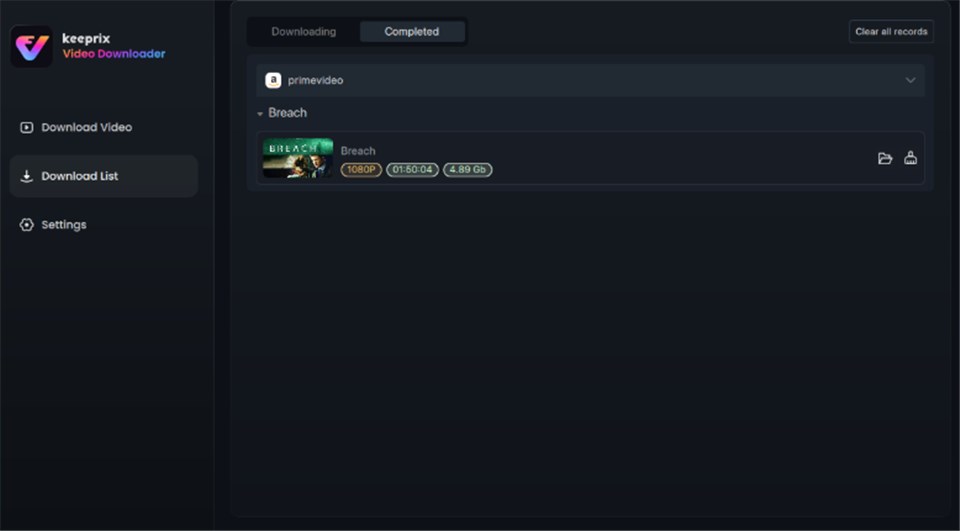
Prime Video Successfully Downloaded
Crucial Rule: Understanding Prime’s Expiration Timers
Here is the single most important tip in this guide, and it is where most travelers fail. Prime Video’s offline rules are governed by title-by-title licensing agreements. Understanding the difference between storage time and viewing time is the only way to avoid a Prime Video offline error mid-flight.
The 30-Day vs. 48-Hour Rule
- Storage Limit (30 Days): Generally, you have 30 days to keep a file on your device once you download it.
- Playback Window (48 Hours): The moment you press “Play” while offline, a new 48-hour timer begins. If you do not finish the movie within that window, it will expire and require an internet
connection to refresh the license.
Warning: Do Not Press Play Until You Are On The Plane. Never “test” a movie by playing the first few seconds while you are still packing at home. This starts the 48-hour countdown immediately. If your flight is three days away, your movie will expire before you board.
Geo-Blocking Risks
If you download a movie in the US and try to play it in a region where Amazon doesn’t hold the license, the DRM may block playback entirely—even if it is already downloaded. This is why many frequent flyers prefer the Archival Method (Keeprix Video Downloader) mentioned above, as it strips these region checks.
Platform Compatibility Chart
Not all devices are created equal when it comes to offline viewing. Use this chart to see what your specific device can do.
| Feature | iOS (iPhone/iPad) | Android Mobile/Tablet | Windows 10/11 App | macOS App |
| Offline Download | Yes | Yes | Yes | Yes |
| SD Card Support | No | Yes (See below) | No | No |
| Video Out (HDMI) | Yes (Requires adapter) | Depends on Phone Model | Yes | Yes |
| Max Resolution | 1080p | 1080p (Hardware dependent) | 1080p | 1080p |
| Expiration Rules | Standard | Standard | Standard | Standard |
Troubleshooting: When Downloads Fail
Technical glitches can ruin a planned movie night. If you are struggling with offline playback failing with DRM error messages or downloads that won’t start, check these specific settings first.
1. SD Card Formatting (Android Users)
Many users run into errors because their SD card is not formatted correctly for encrypted media files.
The Fix: Do not format the card on your computer. Insert the card into your Android device and navigate to Settings > Storage > Format as Internal Storage (or Portable, depending on your OS version, but let the phone do the formatting). This ensures the file system (usually exFAT) is compatible with the Prime Video app’s encryption keys.
Setting the Path: Inside the Prime Video App, go to Settings > Streaming & Downloading and toggle “Download to SD Card” to ON.
2. The “Missing Subtitles” Trap
A frequent frustration is opening a downloaded movie only to find the subtitles are missing.
The Fix: You must select your audio and subtitle preferences before you hit the download button. The app downloads only the language packs selected in your default settings to save space. If you are already offline and the subtitles are missing, you cannot retrieve them without reconnecting to the internet.
3. Download Refused over Cellular
If the app refuses to download over cellular data, it is a safety default. Go to Settings > Streaming & Downloading and toggle “Download on Wi-Fi only” to OFF. Be aware this consumes significant data (approx 1GB per movie).
Frequently Asked Questions
Q1. How do I watch Amazon Prime Video offline?
To watch Amazon Prime offline, you must download the title using the Prime Video app on iOS, Android, Fire Tablet, or Windows/macOS. Alternatively, you can use a tool like Keeprix Video Downloader to save permanent video files to your computer.
Q2. Can I watch offline Prime Video content while traveling internationally?
Yes, but with caveats. Prime Video offline viewing via the app is subject to “Geo-Blocking.” If you move to a region where the title is not licensed, the downloaded content may become unplayable. Permanent downloads (via Keeprix Video Downloader) do not suffer from region locks.
Q3. Why do my downloaded videos expire so quickly?
This is usually due to the 48-hour playback rule. Once you press play on a Prime Video offline download, the DRM timer starts. If you don’t finish watching within 48 hours, the video expires.
Q4. Which devices support Prime Video offline mode?
Amazon Prime offline movies can be saved on Android phones/tablets, iPhones, iPads, Fire Tablets, and the Windows 10/11 desktop app. Offline viewing is not supported on Smart TVs, game consoles, or web browsers.
Q5. Why are some titles unavailable for offline download?
Not all content is available for Prime Video download offline due to studio licensing agreements. If the download icon is missing, the rights holder has restricted offline access for that specific title.
Conclusion
Don’t let technical restrictions dictate your entertainment schedule. By understanding the strict rules of the official app—specifically the 48-hour countdown and the “don’t press play” rule—you can navigate the standard system effectively for most trips.
However, if you need absolute certainty that your movies will play on unauthorized devices, or you want to build a collection that never expires, the standard app may not suffice. In those cases, the Keeprix Video Downloader offers a robust archival alternative. Whether you choose the official app or a permanent downloader, you now have the knowledge to ensure your next flight is frustration-free.