Can I Download Movies from Amazon Prime to My Computer? (The 2025 Guide)

Imagine sitting in an airport lounge, ten minutes before boarding a twelve-hour flight. You open your laptop, log into Amazon Prime to save a season of your favorite show, and suddenly realize the “Download” button is missing. This is the exact frustration faced by Hannah, a frequent flyer who recently found herself staring at a Safari window, realizing her entertainment plan had failed before the plane even took off. Facing a disconnected device when you need it most is a significant obstacle for travelers and commuters alike.
Download Movies from Amazon Prime to Computer
The answer to “can I download movies from Amazon Prime to my computer” is yes, but it is not as straightforward as clicking a button in Chrome or Safari. If you attempt to save content directly through a web browser, you will face a hard stop. To successfully save content for offline viewing, you must use specific applications designed to handle secure files.
This guide provides verified solutions for Windows 10/11 and macOS Sonoma, tested specifically to solve the “missing button” issue. Whether you need a temporary rental for a trip or a permanent file for your library, we outline the exact steps to get your media offline.
Why Is There No Download Button? (Browser vs. App Explained)
If you are frantically searching for a solution because you cannot find the option in Chrome, Firefox, Edge, or Safari, it is important to understand that this is not a glitch. It is a calculated security feature.
Amazon Prime DRM restrictions intentionally block all downloading capabilities through web browsers on both Windows and macOS. Browsers are designed to stream data packets for immediate display, not to store them securely.
Expert Insight: To allow a browser download, Amazon would have to save a file to your local hard drive. Because browser-based files are difficult to encrypt securely, Amazon restricts offline viewing exclusively to its official apps. These apps create a secure “sandbox” where video files are stored in protected locations, preventing users from copying or sharing the content.
If you are using a browser, the absence of a download button is the intended behavior. You must switch to an app-based environment to proceed.
Official App vs. Professional Tools: Choosing Your Method
Before installing software, you need to decide which method matches your viewing habits. There are two distinct ways to achieve Prime Video downloads on a PC, and they serve very different purposes.
1. The Official Method (Prime Video App)
Use this if you only need to watch a movie once within the next few days. This method is included with your subscription but comes with strict limitations. The content is encrypted, meaning you can only watch it inside the Prime app. Once you press play, you typically have 48 hours to finish watching before the download expires.
2. The Professional Tool (Keeprix Video Downloader)
Use this if you want to build a permanent library or watch on devices that don’t support the Prime app (like an older smart TV, a projector, or a Linux machine). Keeprix Prime Video Downloader allows you to save files as standard MP4s. This is the superior option if you need to keep a series for months without reconnecting to the internet.
Here is a quick breakdown to help you decide:
| Feature | Official Prime Video App | Keeprix Video Downloader |
| Expiration | 30 days (48 hours after play) | Forever (No Expiry) |
| File Format | Encrypted Cache (Unplayable outside app) | MP4 / MKV (Universally playable) |
| Device Limits | Max 4 devices | Unlimited devices |
| Ads | Included in Ad-supported tier | Removed automatically |
| Speed | Standard | up to 10x Hardware Accelerated |
How to Download Amazon Prime Movies on Computer: Windows 10 & 11 Guide
If you prefer the official method and can work within the viewing windows, you must use the specific Prime Video app available from the Microsoft Store.
Step-by-Step Installation
1. Install the App: Open the Microsoft Store on your PC. Search for “Amazon Prime Video for Windows” and click “Get” or “Install.”
2. Sign In: Launch the application and log in with your active Amazon credentials.
3. Filter Content: To avoid scrolling through titles that require additional payment, toggle the “Free to me” switch in the upper right corner.
4. Download: Click on a movie or TV episode. You will now see the “Download” icon (a downward arrow). Click it to begin saving the video to your local storage.
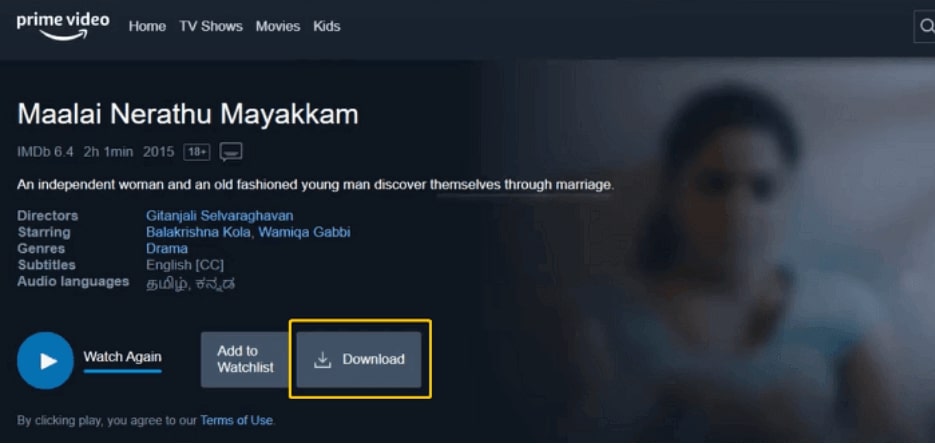
Click Download Button
Troubleshooting Stuck Downloads
A frequent issue users encounter is downloads getting stuck at 0%. If this happens, do not simply restart the computer.
1. Go to Windows Settings > Apps > Installed Apps.
2. Find Prime Video and click the three dots.
3. Select Advanced Options and click Reset.
This clears the corrupted cache without uninstalling the app, a fix that often resolves persistent offline errors instantly.
Can You Download Prime Video on Laptop? The macOS Solution
The question “can I download Prime movies on Mac” has a positive answer, but it comes with stricter hardware requirements than Windows. You must be running macOS Big Sur (11.0) or later to install the native application.
Finding the Right App
To solve the problem Hannah faced—stuck in Safari with no options—she had to close the browser and open the Mac App Store.
1. Open the Mac App Store.
2. Search for “Amazon Prime Video.”
3. Ensure the developer is listed as “AMZN Mobile LLC.” There are several third-party “wrapper” apps that do not support offline viewing; avoid these.
What If the App Is Not in the App Store?
If you search for the app and cannot find it, you are likely facing a regional licensing restriction. The Prime Video macOS app is not available in every country.
- The Dead End: Unlike Netflix, Amazon restricts the availability of its desktop app strictly by region. If you are in an unsupported region, you cannot simply change your store settings without a valid credit card for that new region.
- The Workaround: Since you cannot install the official app in these regions, the official download method is impossible for you. In this specific scenario, you must use a third-party tool like Keeprix Video Downloader to save content, as it bypasses the need for the official app entirely.
Note for Apple Users: A common confusion arises when users assume their iPad downloads will sync to their Mac. They do not. The macOS app maintains a completely separate library from your iOS devices.
How to Download Prime Video Offline Files Without Expiry (The Traveler’s Choice)
For users like Hannah, “The Laptop Traveler,” the biggest frustration isn’t just finding the button—it’s the restrictions that hit after the download. Imagine being halfway through a flight when your movie expires because the 48-hour viewing window closed. This is where Keeprix Video Downloader becomes an essential tool.
Keeprix Video Downloader addresses the common complaint that downloaded videos cannot be played outside the app. By converting Prime Video content into MP4 or MKV files, it ensures your media is playable on any media player, from VLC to Windows Media Player, without requiring an internet connection to re-authenticate.
How to Use Keeprix Video Downloader (Step-by-Step)
Unlike the official app, Keeprix Video Downloader functions as a dedicated desktop software. Here is how to set it up:
Step 1. Install the Software: Download and install the Keeprix Video Downloader client for Windows or Mac.
Step 2. Log In Securely: Open Keeprix Video Downloader and select the Amazon Prime Video icon. Log in with your account.
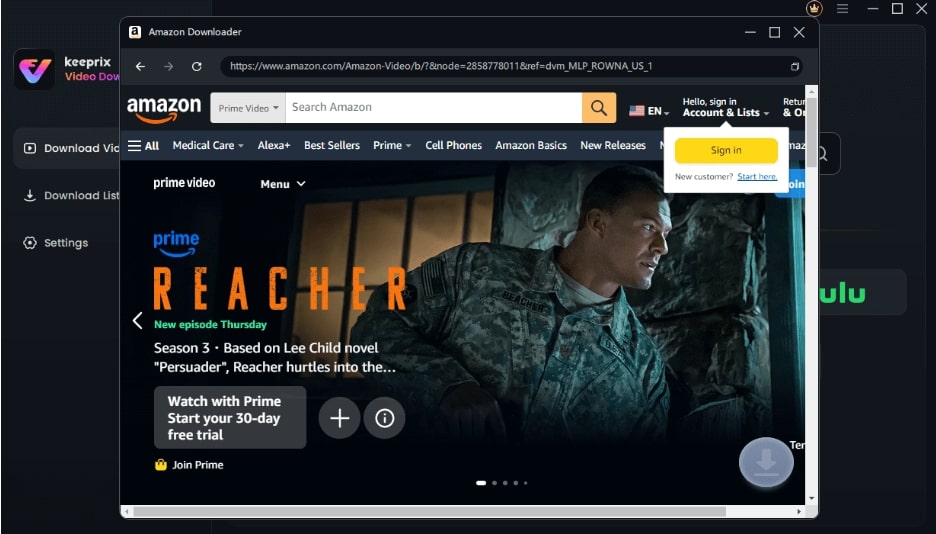
Sign Into Prime Account
Keeprix Video Downloader uses an embedded browser, so you are logging into Amazon directly.
Step 3. Search & Analyze: Search for your movie inside the tool. Keeprix Video Downloader will automatically analyze the video URL.
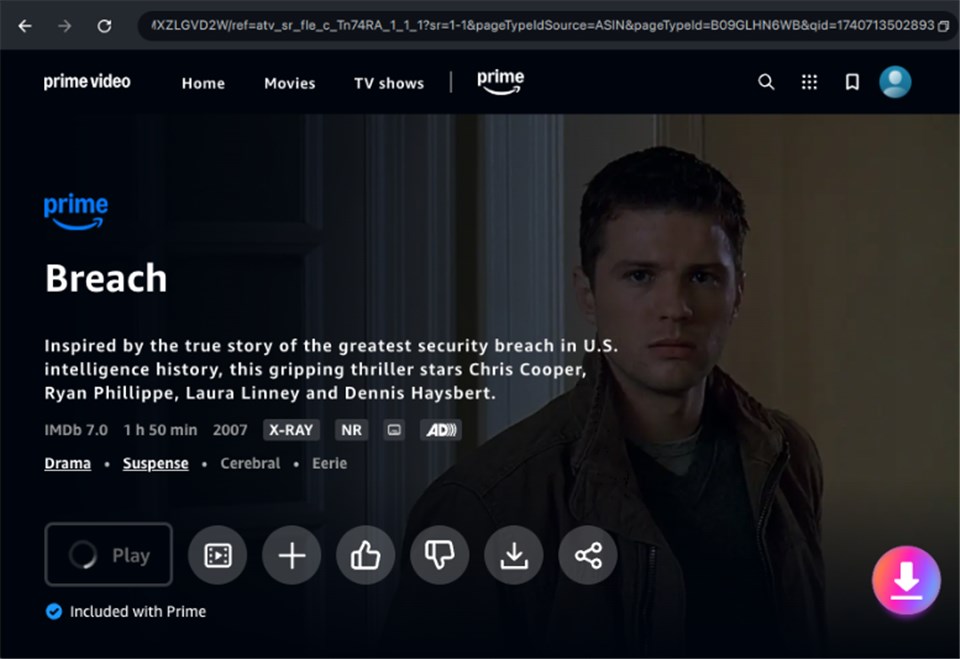
Download Amazon Videos
Step 4. Select Quality: A pop-up window will appear. Select “1080p,” choose your preferred audio language, and select subtitles.
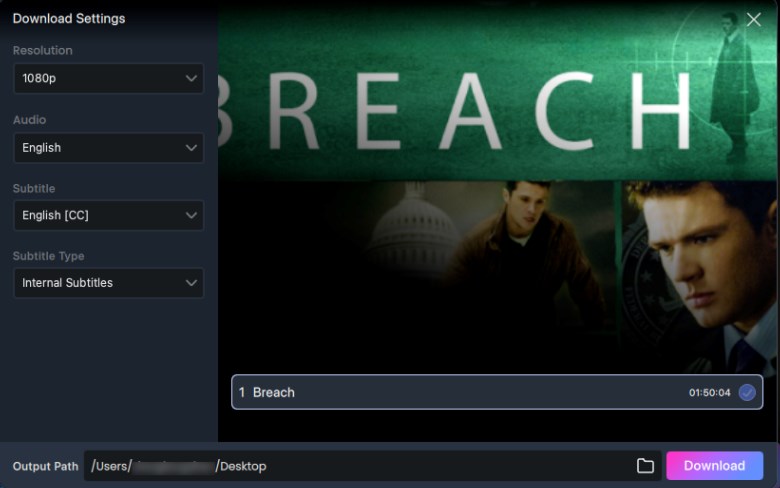
Adjust Download Settings
Step 5. Download: Click the “Download” button and wait for the download process to complete. The file will save directly to your chosen folder as an MP4.
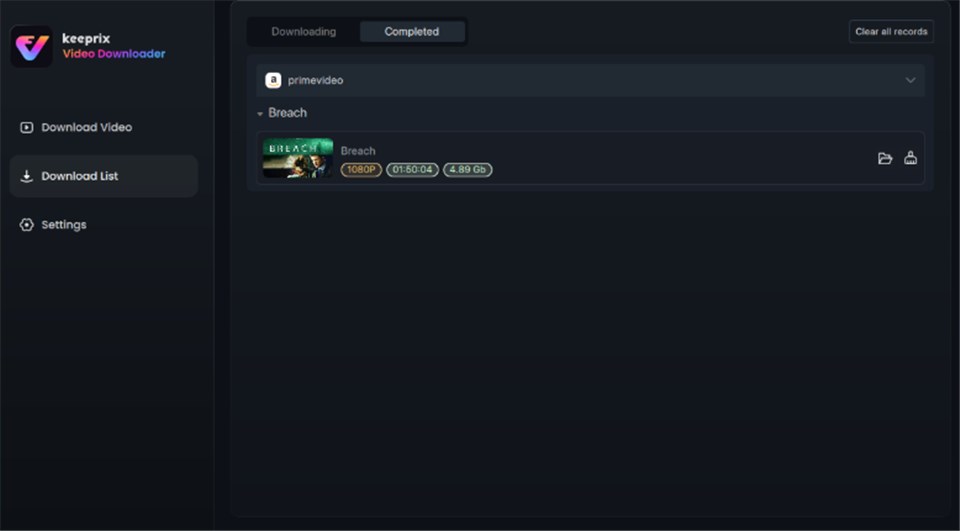
Prime Video Successfully Downloaded
Is It Safe? (The Account Ban Fear)
A common concern with third-party tools is safety. Will Amazon ban your account? Keeprix Video Downloader operates by recording the stream in a high-speed, accelerated environment rather than “hacking” Amazon’s servers. Ideally, use this for personal backup only. To be extra safe, many users prefer to limit their downloads to reasonable amounts (e.g., not downloading 500 movies in one day) to avoid triggering automated spam filters.
For those on the ad-supported tier, Keeprix Video Downloader provides a significant quality-of-life upgrade by removing ads from the offline file, ensuring an uninterrupted movie night.
Where Are Prime Video Downloads Stored? Managing Your Storage
A common question among users is: “Where are Prime Video downloads stored on my computer?” If you used the official app, the answer is frustratingly opaque. The files are stored deep within hidden system folders, but they are fragmented and encrypted.
The “Hidden” Folder Reality
You might try to find the files to move them to a USB drive, but you will be disappointed. On Windows, they are burying in a path similar to:
C:\Users\[Username]\AppData\Local\Packages\AmazonVideo.PrimeVideo_…\LocalState\Offline
However, if you open this folder, you won’t see MovieName.mp4. Instead, you will see dozens of unreadable files with names like 4a8f9-b2c3.vfs. You cannot double-click these to play them.
Managing Your Space
Since you cannot manually move these files, you must manage them through the app to clear disk space:
1. Open the Prime Video app.
2. Navigate to the Downloads tab.
3. Click “Edit” or the trash icon next to the title you watched.
This is a key area where the offline experience differs from using a tool like Keeprix Video Downloader. With Keeprix Video Downloader, you select the destination folder (e.g., your “Movies” folder or an external hard drive) before the download begins. This gives you full control over your storage, allowing you to back up your media without navigating hidden system directories or worrying about DRM restrictions locking up your hard drive space.
Frequently Asked Questions
Q1. Can I download Amazon Prime Video movies to my computer?
Yes. You can download Amazon movies using the official Prime Video app for Windows 10/11 and macOS. However, these downloads are encrypted and expire. For permanent, open-format files (MP4), you need third-party software like Keeprix Video Downloader.
Q2. Why are some movies not available for download on PC?
Even within the official app, you may see some titles not available for offline download. This is usually due to licensing agreements between Amazon and the studio that owns the content. If the studio does not permit offline viewing, the download button will be missing for that specific title.
Q3. Do offline Prime Video downloads expire on computers?
Yes. Once you download a title via the official app, you typically have 30 days to start watching it. Once you press play, you have 48 hours to finish it before it deletes itself or requires an internet connection to renew the license.
Q4. Can I watch downloaded Prime movies on a different device?
If you used the official app, no. The files are locked to the device where they were downloaded. If you used Keeprix Video Downloader to download movies, the resulting MP4 files can be transferred to and played on any device.
Conclusion: Take Control of Your Media Library
The confusion surrounding downloading movies from Amazon Prime stems from the deliberate limitations Amazon places on browser streaming. If you are stuck staring at a screen with no download button, or if you have ever lost a download due to arbitrary expiration dates, you know how frustrating these restrictions can be.
For casual viewers, the official Windows or Mac app is a functional solution for a quick trip. However, if you want true ownership of your viewing experience—free from expiration timers, device limits, ad interruptions, and other Prime download limits —Keeprix Video Downloader offers the freedom you need. It allows you to secure your entertainment library in minutes, ensuring that your movies are ready when you are, regardless of your internet connection.