Is Amazon Prime Video Down? Live Status, Fixes, and Outage Solutions (2025)

Facing a locked screen when you are ready to relax is an immediate source of stress. If you are asking, “Is Amazon Prime Video down right now?” you are likely staring at a spinning wheel, a black screen, or a cryptic error code.
You are not alone in this frustration. However, before you spend the next hour resetting every router in your house, it is vital to pause and confirm the scope of the problem. Is the entire Amazon platform offline, or is this a glitch specific to your living room?
Amazon Prime Video Down
This guide cuts through the confusion to provide immediate answers. We have replaced the standard “check your internet” advice with a structured troubleshooting protocol tested across Smart TVs, streaming sticks, and gaming consoles, helping you watch Amazon Prime offline smoothly.
Check Prime Video Server Status: Global Outage or Local Glitch?
The first step is determining if you are dealing with a widespread crash or a local connection error. Do not rely solely on Amazon’s homepage; corporate status pages often lag behind real-time events by 15 to 30 minutes.
Immediate Verification Tools
To get an accurate answer right now, look at third-party sources where users report issues in real-time:
- DownDetector: Check the spike graph. Be aware of the “lag effect.” A small baseline of reports is normal. You are looking for a vertical spike into the thousands.
- Social Media Search: Search X (formerly Twitter) for #PrimeVideoDown. This is often the fastest way to confirm a global outage. If the feed is flooded with timestamps from the last 5 minutes, the servers are down.
The Regional CDN Factor
There is a critical nuance that most guides overlook. You might find that Amazon works perfectly for a friend in another state while it is completely dead for you. This is rarely a “global” outage and more often a Content Delivery Network (CDN) failure.
Amazon uses CDNs to cache video files on servers physically closer to your location to ensure high speeds. If the specific CDN node serving your region (e.g., US-East) fails, you will experience Amazon video not loading errors, even if the main AWS servers are healthy and users in US-West are streaming fine.
How to Diagnose the Outage Type
- If reports are in the thousands: It is a global server crash. You must wait for Amazon to fix it.
- If reports are localized (e.g., “Prime Video down NYC”): It is likely a regional CDN issue or an ISP routing problem.
- If Netflix works but Prime doesn’t: The issue is specific to Amazon’s delivery pipeline to your home.
Why Is Amazon Prime Video Not Working? Isolate the Issue
If external trackers show green lights and social media is quiet, the problem is on your end. To solve this, we use the method of isolation. The fastest way to diagnose why is Amazon Prime Video not working is to rule out your home network immediately.
The Mobile Data Test
This is the single most effective test you can perform. It separates your device hardware from your internet service provider (ISP).
- Disconnect Wi-Fi: Turn off Wi-Fi on your smartphone completely.
- Enable Cellular Data: Ensure you are running on 4G/5G.
- Launch Prime Video: Attempt to stream a video.
The Results:
- If it plays on data: Your home internet (ISP) or router is blocking the connection. You need to restart your router to flush the DNS settings.
- If it fails on data AND Wi-Fi: The issue is likely with your Amazon account status (e.g., payment failure) or a specific Prime Video error today affecting your profile region.
Deciphering Common Error Codes & Fixing App Caches
When troubleshooting Prime Video connection issues, specific codes act as fingerprints for the problem.
- Error 1060: Insufficient bandwidth. Your device isn’t receiving data fast enough.
- Error 5004: Authentication failure. The server rejected your login token. Sign out and sign back in to force a new security handshake.
- Error 9074: HDMI or content protection conflicts. This is common on Fire TV Sticks and Roku devices connected to older TVs.
The “Silent” Killer: Corrupted App Cache
If you have verified your internet is working (via the Mobile Data Test) but the app on your TV still freezes or crashes, the culprit is often a corrupted cache file. Old temporary data can cause conflicts with new streams.
Since every TV interface is different, here is how to clear the cache on the most common devices:
Samsung Smart TVs
1. Press the Home button and go to Settings.
2. Navigate to Support > Device Care.
3. Select Manage Storage.
4. Select the Prime Video app and choose View Details.
5. Select Clear Cache. (Do not select Clear Data unless you want to log in again).
You may also like: How to Watch Amazon Prime on TV: The Verified Setup Guide >
LG Smart TVs (WebOS)
LG TVs do not have a specific “Clear Cache” button for individual apps. Instead, you must clear the session memory:
1. Turn the TV off.
2. Unplug the TV from the wall for 60 seconds.
3. While unplugged, hold the physical power button on the TV panel for 10 seconds to discharge residual power.
4. Plug back in and relaunch Prime Video.
Fire TV Stick / Cube
1. Go to Settings > Applications.
2. Select Manage Installed Applications.
3. Scroll to Prime Video.
4. Select Force Stop, then select Clear Cache.
Roku Devices
Roku does not offer an app-specific cache clear. You must perform a system restart:
1. Go to Settings > System.
2. Select Power (if available) > System Restart.
Simply turning the TV off with the remote does not clear the cache on a Roku; a full system restart is required.
Understanding the Technical Causes of Buffering
If you are curious about the mechanics behind Prime Video buffering issues and why they occur even on fast connections, the answer often lies in digital protocols rather than raw speed.
The HDCP Handshake Failure
One common cause of a Prime Video network error on Smart TVs is a failed High-Bandwidth Digital Content Protection (HDCP) handshake. This is a security protocol that prevents piracy by creating an encrypted connection between your streaming device (like a Fire Stick) and your TV.
If the HDMI cable is loose, or if your TV’s firmware is outdated, this handshake fails. The result is a black screen or an error message, even if your internet is working perfectly.
DNS Latency and Routing
As mentioned earlier, Amazon relies on a complex web of regional servers. When you experience Prime Video not loading while browsing works fine, it is often because your ISP is struggling to route traffic to the specific Amazon CDN node assigned to your home. This “last mile” congestion causes packet loss. The Prime Video player interprets this as a connection failure, forcing it to buffer or downgrade video quality. Restarting your router establishes a new routing path, often bypassing the congested node.
Pro Tip: Preventing Future Outages (The Offline Strategy)
If you have confirmed that the Prime Video server status is truly “Down” globally, there is unfortunately no way to restore streaming immediately. You are at the mercy of Amazon’s engineers.
However, once the service is restored, you can take steps to ensure you are never locked out again. The only way to guarantee uninterrupted viewing is to remove your dependency on the server entirely.
Moving from Streaming to Ownership
While streaming is convenient, it is fragile. A storm, a severed ISP cable, or an AWS server crash can cut off access instantly. Tools like Keeprix Prime Video Downloader are designed for users who want to build a permanent, offline library.
- How it helps: Keeprix Video Downloader allows you to download Prime Video movies and shows as compliant MP4 files to your local hard drive.
- The Logic: You cannot download files during an outage. This is a preventative measure. By securing your favorite series when the servers are active, you create a “doomsday vault” of entertainment. The next time the servers go down, you can simply open the file on your laptop or cast it to your TV, bypassing the internet entirely.
Unlike the temporary downloads on the Prime mobile app, which expire and require an internet check-in, Keeprix Video Downloader downloads are permanent files. This solves the Prime playback failure issue permanently for the content you care about most.
How to download Amazon Prime videos with Keeprix Video Downloader:
Step 1. Download and install Keeprix Video Downloader on your computer. Launch it and select the Amazon platform.
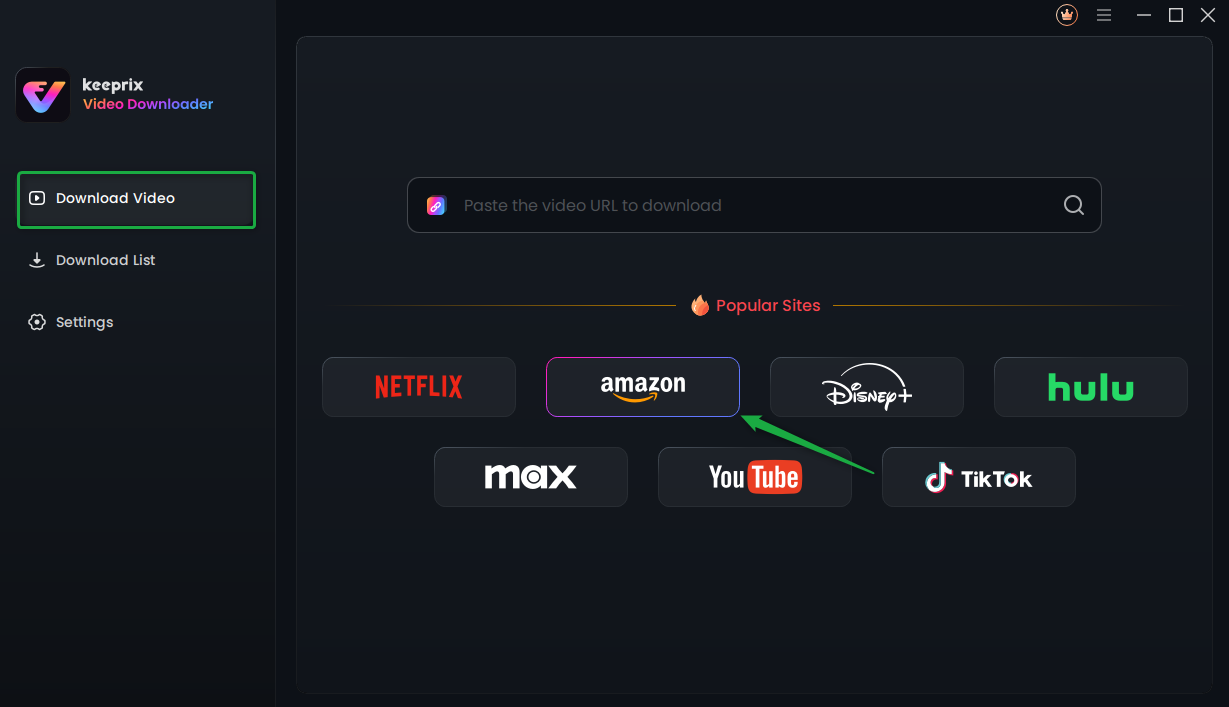
Choose Amazon Prime Platform
Step 2. Search for a video you want to download, and tap the download button.
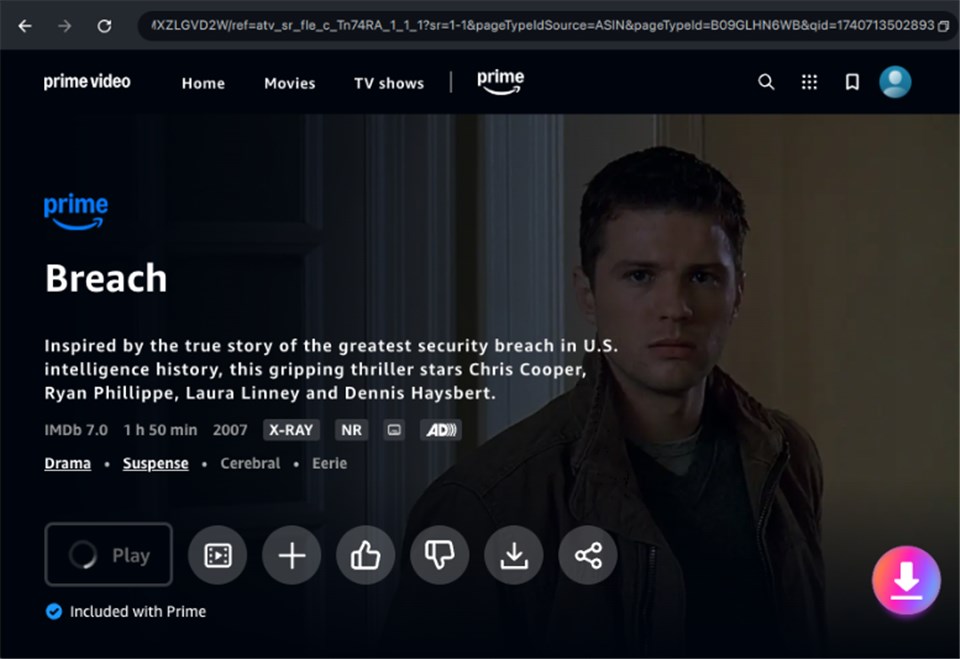
Download Amazon Videos
Step 3. After the download is completed, the video will be stored in the local file on your computer.
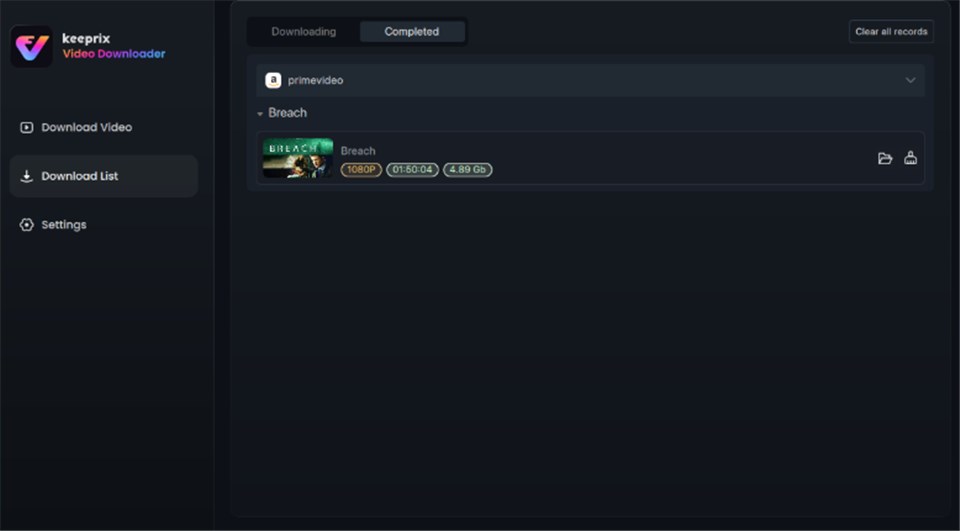
Prime Video Successfully Downloaded
Frequently Asked Questions About Prime Video Outages
Q1. Is Amazon Prime Video down right now?
You can verify this immediately by checking a dedicated Amazon downtime tracker like DownDetector. If user reports are spiking in the thousands, the service is globally down.
Q2. Why does Prime Video work on my phone but not my TV?
This usually indicates a local network restriction or a corrupted cache file on the TV. Perform the “Clear Cache” steps listed above for your specific TV brand.
Q3. How can I check if Prime Video servers are having issues?
Beyond third-party trackers, search X (Twitter) for the hashtag #PrimeVideoDown. Real-time user complaints are often faster than official status pages.
Q4. What should I do if Prime Video is stuck loading?
Restart your router and your streaming device. This refreshes your DNS settings and clears temporary data that may be causing the hang.
Q5. Do Prime Video outages affect all regions?
Not always. Regional CDN failures can cause Prime Video unavailable messages in one country or state while the service remains fully operational in others.
Q6. How long do Prime Video outages usually last?
Most server-side Prime Video server outage events are resolved within 1 to 4 hours. However, local ISP routing issues can persist longer until network traffic normalizes.
Conclusion: Take Control of Your Connection
Navigating a Prime Video outage is frustrating, but it does not have to be a mystery. By using the Mobile Data Test and checking real-time trackers, you can instantly determine if the issue is a global crash or a fixable local glitch.
If the servers are down, patience is your only option for the moment. But for the future, consider shifting your viewing strategy. By downloading Prime videos and maintaining a local library of your favorite content with tools like Keeprix Video Downloader, you ensure that your movie night happens on your schedule, regardless of the Amazon service status. True reliability comes from holding the file in your hands, not renting it from the cloud.