How to Download Amazon Prime Video on Windows 10: The 2025 Offline Guide

Imagine sitting on a plane, opening your laptop to relax, and realizing your movie playlist is empty because you couldn’t find the download button before takeoff. This is the exact scenario Kevin, a frequent business traveler, faced. He quickly learned that download Amazon Prime Video Windows 10 queries usually end in confusion because web browsers like Chrome and Edge completely lack offline functionality.
Download Amazon Prime Video on Windows 10
If you are struggling with missing download buttons, expiring rentals, or obscure error codes, you are not alone. Facing a locked device when you need it most creates unnecessary stress. This guide provides verified solutions based on real-world testing. Whether you need a quick temporary rental via the official store app—the method that saved Kevin’s trip—or a permanent library using advanced tools, we will cover the precise methods to ensure your entertainment is ready when you disconnect.
Quick Decision: Official App vs. Archival Software
Before starting the installation process, it is critical to determine which method aligns with your viewing habits. There are two distinct ways to handle a Prime Video PC download: the official route via the Microsoft Store (ideal for 90% of users) or a third-party tool like Keeprix Video Downloader (for advanced users needing permanent files).
The official Prime Video Windows app is free and works perfectly for casual viewing, though it comes with strict limitations imposed by Amazon. In contrast, Keeprix Video Downloader is paid software that functions as a format converter, offering permanent ownership of the files. Review the comparison below to decide which solution fits your requirements.
| Feature | Official Prime Video App | Keeprix Video Downloader |
| Cost | Free: Included with your Prime subscription. | Paid: Requires a license fee (Free trial available). |
| Offline Duration | Restricted: Expires in 30 days (or 48 hours after pressing play). | Permanent: Files never expire. Keep them forever. |
| File Format | Encrypted: Hidden cache files only playable in the Prime app. | Universal: MP4 or MKV files playable on any device. |
| Device Limits | Limited: Download on up to 4 devices only. | Unlimited: Transfer files to iPads, TVs, or USB drives freely. |
| Video Quality | Variable: Often throttles based on connection speed. | Consistent: Guaranteed 1080p downloads. |
Method 1: Install the Prime Video Windows App (Official Way)
For most users, including Kevin from our earlier story, the standard Microsoft Store Prime Video app is the most accessible and legal way to watch content offline. It requires no extra payment and integrates directly with your existing account.
Step-by-Step Installation
Step 1. Open Microsoft Store:
Press the Windows key and type “Store.” Launch the Microsoft Store app. Do not try to download the installer from a third-party website; the Store is the only secure source.
Step 2. Search and Install:
Type “Amazon Prime Video” in the search bar. Click “Get” or “Install” to begin the Prime Video app installation.
Step 3. Sign In:
Launch the app and sign in with your Amazon credentials. Ensure your account has an active Prime membership.
Step 4. Locate the Download Button:
Browse to a movie or TV show. You will see a downward arrow icon next to the title (for movies) or next to individual episodes (for shows). If the icon is missing, the title may not be available for offline viewing due to licensing agreements.
Important for Travelers: The “Airplane Mode” Test
Many users successfully download their movies, but forget one critical step: verification. Amazon’s app needs to fetch a license key to play the file. Sometimes, if the download completes but the license fetch fails, the movie won’t play offline.
Do not skip this step: Switch your laptop to Airplane Mode before you leave home (while you are still standing in your living room). Open the app and press play on your downloaded content. If it plays for 30 seconds without buffering or error messages, your Windows 10 offline viewing is secure. This confirms that the license keys have been correctly fetched and stored.
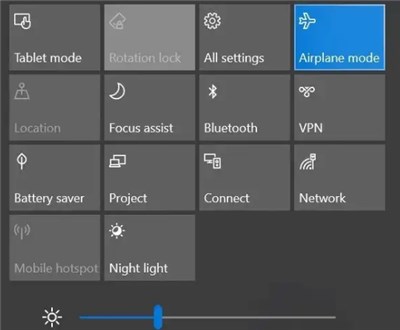
Enable Airplane Mode
Troubleshooting Missing Apps
If you encounter the issue of the Prime Video app not appearing in Microsoft Store, check your Windows Region settings. The app is geo-restricted; ensure your PC’s region matches your Amazon account location. For example, if your Amazon account is US-based, your Windows region must be set to “United States.”
Method 2: Download Prime Video to PC Permanently (Advanced)
This method is for users who find the standard download limit rules too restrictive. Specifically, Amazon enforces a rule where downloads expire 48 hours after you press “Play,” and titles are automatically removed from your device after 30 days.
If you need to keep a library for longer than a month, or if you want to back up purchased content, software like Keeprix Prime Video Downloader offers a solution. Note that this is a paid software tool. While it offers a trial version, full functionality requires a license. It works by recording the stream in high speed and saving it as a standard video file.
Why Use an External Downloader?
- Avoid Expiry: If you have encountered downloads expiring after 30 days, this eliminates the issue.
- Bypass Amazon Download Limits: Amazon limits you to downloading titles on only four devices at once. Keeprix Video Downloader exports Prime videos in MP4 or MKV formats, allowing you to move them to any device (iPad, Android tablet, or a USB stick for your Smart TV) without counting toward your limit.
- Reliable 1080p: It ensures the file is saved in 1080p Full HD quality, whereas the official app sometimes downgrades resolution to save data.
How to Archive with Keeprix Video Downloader:
Step 1. Launch and Log In:
Open Keeprix Video Downloader and log into your Amazon account via the built-in browser. This acts as a bridge between the stream and your hard drive.
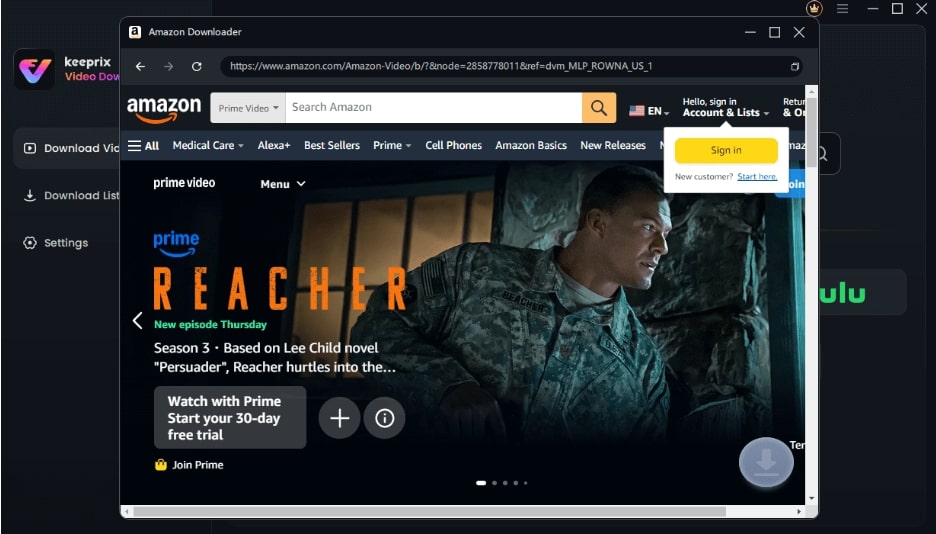
Sign Into Prime Account
Step 2. Select Quality and Format:
Configure your settings. You can select your preferred audio tracks and subtitles (supporting up to 13 languages). Ensure “MP4” is selected for maximum compatibility.
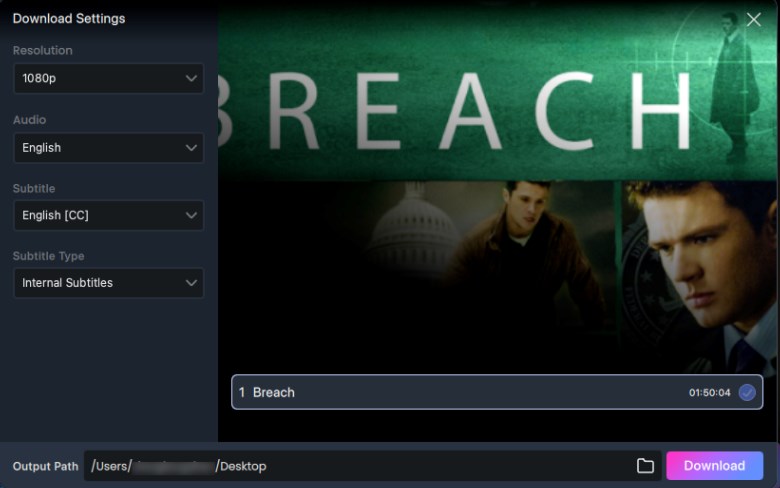
Adjust Download Settings
Step 3. Queue and Download:
Search for your movie or series. Click the download icon to process the file. The software will re-encode the stream into a file that sits on your hard drive permanently.
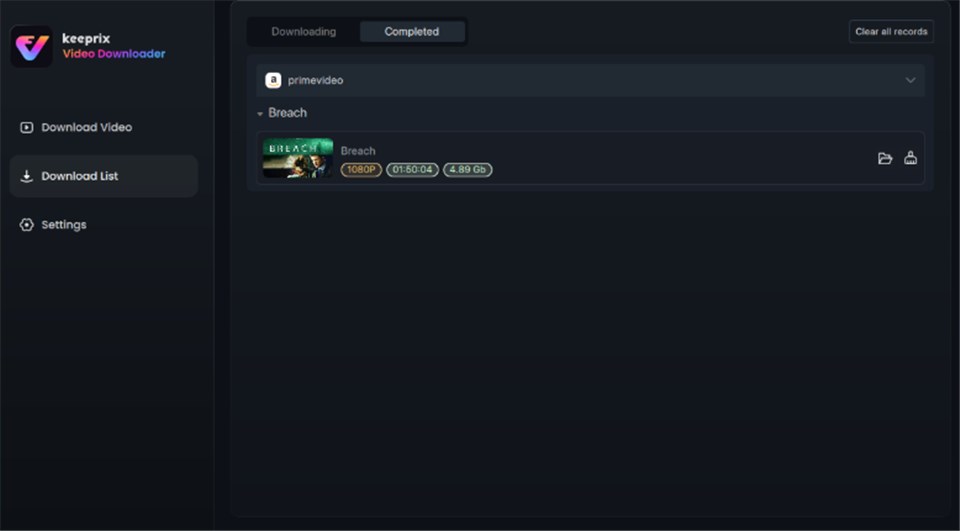
Prime Video Successfully Downloaded
Troubleshooting: Where Are Downloads Stored & Common Errors
A frequent question users ask is: “Where are Prime Video downloads stored on Windows 10?” You might expect to find a neat folder of MP4 files, but the reality is messier due to DRM restrictions Windows imposes.
Understanding the Hidden Storage Path
Expert Insight: Prime Video offline downloads on Windows 10 work exclusively through the Microsoft Store app because Amazon uses an encrypted DRM container. This means the app splits the video, audio, and subtitles into separate, unreadable files stored in a protected data directory. This prevents users from copying the files to a flash drive to share with friends.
Typically, these hidden files are buried deep in your AppData folder:
%LocalAppData%\Packages\AmazonVideo.PrimeVideo_…\LocalState\…
Visual Proof: If you navigate to this folder, you won’t see “TheAvengers.mp4.” You will see a folder full of random alphanumeric files (like 4f5a-2b3d.mvr) that cannot be opened by VLC or Windows Media Player.
Common Fixes for App Issues
- Error 4914: This usually indicates a download interruption. Delete the partial file within the app’s “Downloads” section and retry on a stronger connection.
- Storage Limits: If the app claims you have no space, check your Windows Prime Video storage settings within the app. You can often toggle the download location to a secondary drive (D: or E:) if your main partition is full.
- App Freezing / Crashing: If the app becomes unstable, you may need to reset it.
WARNING: Go to Windows Settings > Apps > Prime Video > Advanced Options > Reset. Be aware that “Resetting” the app will delete all currently downloaded movies on your device. Only do this if you are at home with a fast internet connection to re-download your content. Do not do this on hotel Wi-Fi.
Why You Can’t Download Prime Video in Chrome or Edge
Many users waste hours searching for browser extensions or hidden settings to save streams, but this effort results in frustration. When you attempt to download Amazon Prime Video Windows 10 through a web browser like Chrome, Firefox, or Edge, you will never find a download option.
This limitation is intentional. Browsers are designed to stream content using real-time decryption keys, but they lack the secure, persistent storage environment required by Amazon’s Digital Rights Management (DRM) protocols for offline caching. Amazon blocks browser downloads to prevent piracy, as browsers cannot guarantee the file will expire or delete itself after the rental period ends.
Consequently, Prime Video offline viewing Windows capabilities are strictly locked to the application layer. No browser extension can legally or functionally bypass this. To achieve offline playback, you must utilize the official Prime Video Windows app (which enforces the DRM locally) or dedicated software designed to handle the conversion process.
Frequently Asked Questions
Q1. Does the Prime Video Windows app support offline viewing?
Yes. The official app allows you to download movies and TV shows for offline playback. However, you must have an active Amazon Prime subscription, and not all titles are available for download due to licensing agreements.
Q2. Is Keeprix Video Downloader free?
No, Keeprix Video Downloader is a paid software solution. It usually offers a trial version (often limited to the first few minutes of a video) so you can test compatibility, but downloading full movies generally requires a purchased license.
Q3. Why is the Prime Video app not showing in Microsoft Store?
If you cannot find the Prime Video app Windows 10 download, your Windows Region settings likely do not match your Amazon account’s region. Go to Windows Settings > Time & Language > Region and ensure it is set correctly. Rebooting the Store app often resolves this visibility issue.
Q4. How long do downloads last on Windows 10?
Standard downloaded titles Windows generally remain on your device for 30 days. However, once you press play on a downloaded title, you typically have 48 hours to finish watching it before it expires and requires an internet connection to renew the license.
Q5. Will resetting the Prime Video app delete my downloads?
Yes. Using the Windows “Reset” function clears the app’s cache and data, which includes your offline library. You will need to sign in and download your movies again after the reset.
Conclusion
Don’t let a poor internet connection dictate your entertainment schedule. We have explored why browsers fail and verified that the Prime Video Windows app is the best solution for 90% of users—especially travelers like Kevin who just need a movie for the flight. It is free, legal, and easy to use.
However, for archivists tired of downloads expiring after 30 days or those struggling with restrictive device limits, third-party tools offer a robust alternative. By using a dedicated tool like Keeprix Video Downloader, you pay for the privilege of regaining control over your media, ensuring crisp 1080p quality and permanent file ownership.
Choose the method that fits your budget and lifestyle today, secure your library, and enjoy your movies anywhere—even at 30,000 feet.