How to Record Amazon Prime Video Without Black Screen

Key Takeaways
- The Root Cause: Amazon Prime Video uses DRM (Digital Rights Management) and HDCP to block screen capture, resulting in a black screen.
- The Quick Fix: Disabling “Hardware Acceleration” in your browser is the most effective free method to bypass the black screen.
- The Professional Fix: Using a dedicated Prime Video downloader allows you to save videos directly as MP4s without the quality loss or time consumption of screen recording.
- Mobile Limitations: Screen recording apps on mobile are strictly blocked by OS-level DRM; the official download feature is the best mobile alternative.
Encountering a black screen when trying to record your favorite Amazon Prime movies is a frustrating experience caused by strict copyright protections. Fortunately, with a few simple browser tweaks or the right software tools, you can bypass these restrictions. This guide details every working method to record Prime Video successfully.
Record Amazon Prime Video Without Black Screen
Why Does Amazon Prime Video Records Show Black Screen?
Before diving into the solutions, it is helpful to understand why this happens. When you hit “Record” and see the video player turn black while the audio continues to play, you are encountering High-bandwidth Digital Content Protection (HDCP).
Streaming services like Amazon Prime Video, Netflix, and Disney+ utilize this encrypted protocol to prevent unauthorized duplication of their content. HDCP creates a secure handshake between your video source (the browser or app) and your display (the monitor). When you introduce a screen recording tool into this chain, the browser detects a potential breach in that secure connection.
To protect the copyright of the content, the browser immediately cuts the video feed to the display, rendering a black layer over the video player. This is why your mouse cursor and the player controls (play/pause buttons) remain visible, but the movie itself disappears.
Most screen recorders cannot penetrate this layer because they capture the “surface” of the desktop. However, the black screen mechanism often relies on Hardware Acceleration—a feature where the browser offloads video rendering to your computer’s Graphics Processing Unit (GPU). By disabling this feature, you force the browser to render video using the CPU (software rendering), which often bypasses the HDCP block and allows screen recorders to capture the footage.
You may also like: How to remove Amazon Prime Video DRM
How to Record Amazon Prime Video Without Black Screen
The most reliable way to screen record Amazon Prime Video for personal use involves two steps: preparing your browser and setting up your recording software.
Method 1: Disable Hardware Acceleration (Crucial Step)
This is the magic trick that fixes the issue for 90% of users. You must do this before you start playing the video or opening your recording software.
For Google Chrome Users:
- Open Chrome and click the three vertical dots (Menu) in the top-right corner.
- Select Settings from the dropdown menu.
- On the left sidebar, click on System.
- Find the toggle switch labeled “Use graphics acceleration when available” and turn it OFF (the toggle should turn grey).
- Click the Relaunch button that appears to restart Chrome.
For Mozilla Firefox Users:
- Open Firefox and click the three horizontal lines (Menu) in the top-right corner.
- Click Settings.
- Scroll down to the Performance section.
- Uncheck the box that says “Use recommended performance settings.”
- Additional options will appear. Uncheck the box “Use hardware acceleration when available.”
- Restart Firefox.
For Microsoft Edge Users:
- Click the three dots in the top-right corner and select Settings.
- In the left menu, click on System and Performance.
- Under the “System” section, find “Use graphics acceleration when available” and toggle it OFF.
- Click Restart to apply changes.
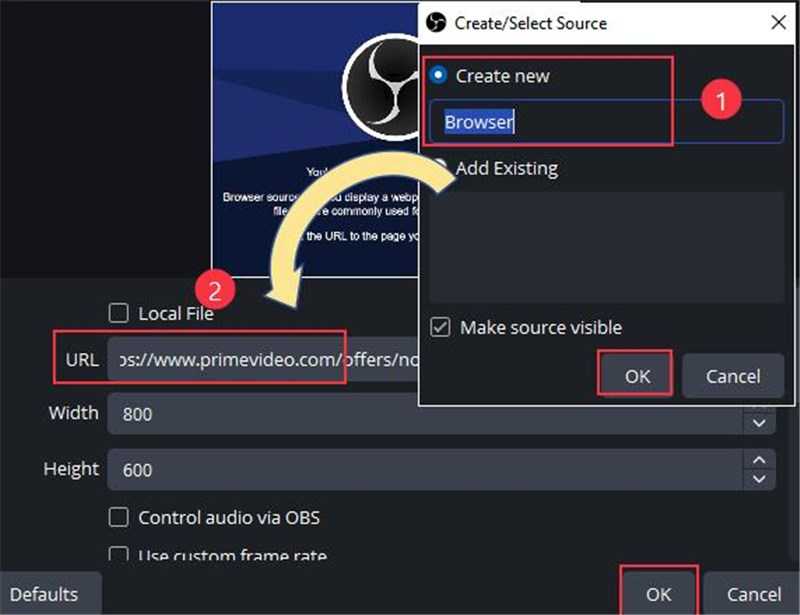
Method 2: Recording with OBS Studio (Free)
Once hardware acceleration is disabled, you need a reliable recorder. OBS Studio is the industry standard for free recording, but it requires specific settings to avoid the black screen.
Step-by-Step Guide:
- Download and Install: Get OBS Studio from the official website and install it.
- Set Up a Scene: Open OBS. In the “Scenes” box (bottom left), click the + to create a new scene.
- Add a Source: In the “Sources” box (next to Scenes), click the +.
- Recommended: Select Window Capture. This usually works better than Display Capture for streaming services.
- Select your browser window.
Note: If Window Capture shows a black screen, try “Display Capture” instead, but ensure your desktop is clean of private info.
- Audio Setup: Ensure “Desktop Audio” is not muted in the Audio Mixer so the movie sound is captured.
- Start Recording: Click Start Recording in the controls dock.
- Play Video: Go to Amazon Prime, play your movie in Full Screen.
- Finish: When the movie ends, click Stop Recording in OBS.
Record Amazon Prime Video in OBS
Method 3: Using Commercial Screen Recorders (EaseUS / PlayOn)
If OBS is too technical, paid software like PlayOn offers a more user-friendly interface. These tools often have “Enhanced Mode” or “Online Video” modes specifically designed to hook into the video stream better than standard recorders.
- Launch the recorder.
- Select “Full Screen” or “Region” mode.
- Ensure “System Sound” is on and “Microphone” is off (to avoid recording background noise).
- Because you have already disabled hardware acceleration (Step 1), these recorders should now capture the video perfectly without the black screen.
Cons of Screen Recording: While these methods work, they have significant downsides:
- Time-consuming: You must let the video play from start to finish. A 2-hour movie takes 2 hours to record.
- Quality Loss: Screen recording captures your screen resolution, not the raw video file. Buffering, lag, or email notifications popping up can ruin the recording.
- Audio Sync Issues: Long recordings often suffer from audio drifting out of sync with the video.
A Better Way to Save Videos from Amazon Prime
While screen recording is a functional workaround, it is inefficient and prone to quality errors. If you want to watch Amazon Prime videos offline in high quality without sitting through the entire playback, the superior solution is to download the source file directly using a specialized tool.
We recommend Keeprix Downloader as the best-in-class solution for saving Amazon Prime content.
Why Choose Keeprix Downloader?
Unlike screen recorders that capture pixels on your monitor, Keeprix connects directly to the streaming server to download the original video file. This eliminates the “black screen” issue because the video is not being rendered on your screen during the process.
Key Features of Keeprix:
- Original Quality (1080p Full HD): Keeprix downloads videos in their native resolution, ensuring crisp visuals that screen recorders often blur. It supports up to 1080p for Prime Video.
- Batch Downloading: You can add an entire season of a TV show to the queue. Keeprix will download all episodes simultaneously in the background—something impossible with screen recording.
- High-Speed Download: A 2-hour movie can be downloaded in just 10-15 minutes, saving you hours compared to the 1:1 recording ratio of screen capture.
- Keeps Multilingual Subtitles & Audio: Screen recorders burn subtitles into the video (hardcoded). Keeprix allows you to save subtitles as separate .SRT files or remux them into the video, giving you the option to turn them on/off.
- Permanent Offline Access: Videos downloaded via the official Amazon app expire after a certain period. Videos downloaded with Keeprix are standard MP4/MKV files that never expire and can be transferred to any device (iPad, Android, TV, PS5).
How to Use Keeprix to Download Amazon Prime Video
1. Install Keeprix: Download and install Keeprix on your Windows or Mac computer.
2. Select Service: Launch Keeprix and select Amazon Prime Video from the VIP Services interface.
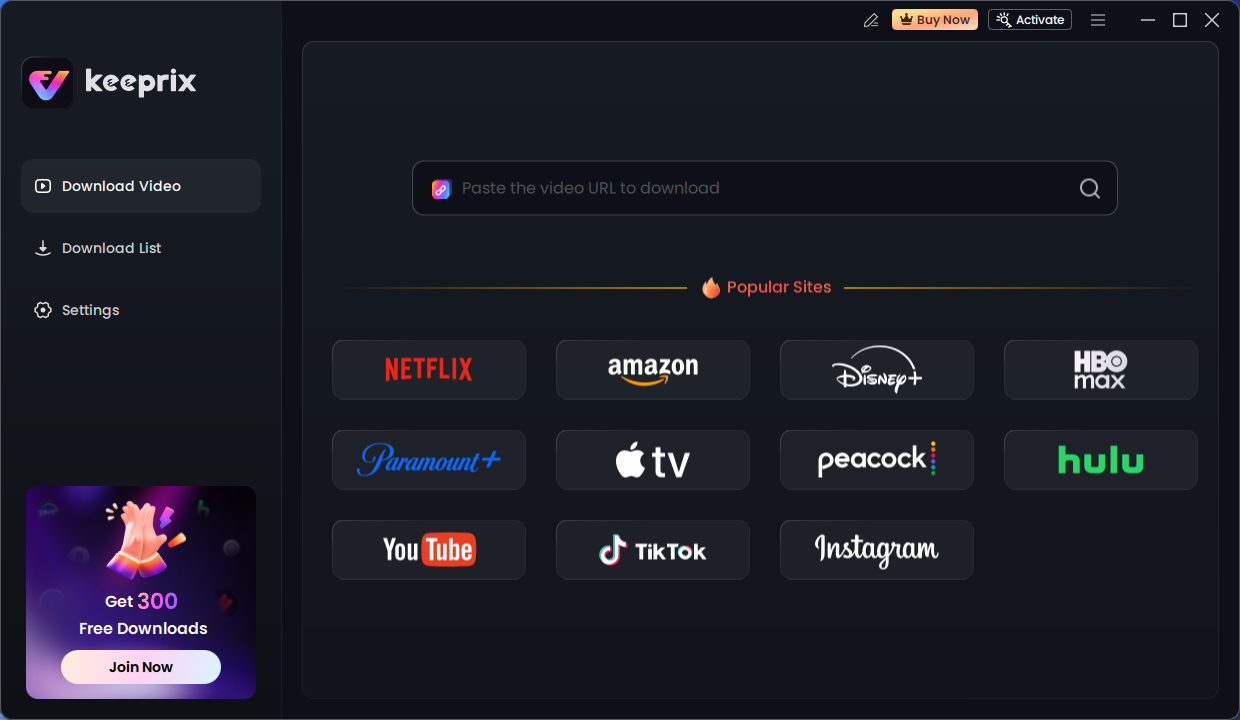
Keeprix Downloader Main Screen
3. Log In: Sign in to your Amazon Prime account within the built-in browser (this is safe and required to access your subscription).
4. Choose Video: Search for and play the video you wish to save. Keeprix will automatically analyze the URL.
5. Customize Download: A window will pop up asking for your preference. Select your desired resolution, Audio Codec, and Subtitle language.
6. Download: Click “Download Now”. The video will be saved to your local drive without any black screen issues.
FAQs About Recording Videos from Amazon Prime
1. Does Amazon Prime prevent screen recording?
Yes. Amazon Prime utilizes DRM (Digital Rights Management) technologies, specifically HDCP, to detect screen recording software. When detected, the video feed is blocked, resulting in a black screen with audio only. This is done to prevent piracy and protect intellectual property.
2. How to record Amazon Prime Video without a black screen mobile?
Recording on mobile (iOS/Android) is extremely difficult due to OS-level security.
- iPhone/Android Screen Recorder: These built-in tools will almost always result in a black screen.
- The Solution: The only reliable method on mobile is to use the official Download feature inside the Amazon Prime Video app.
- Open the Prime Video app.
- Find your movie.
- Tap the “Download” icon (downward arrow). Note: These downloads are encrypted and can only be viewed within the Prime app; they expire if you cancel your subscription.
3. Is there a way to record Amazon Prime Video?
Yes, there are two main ways:
- Screen Recording: By disabling hardware acceleration in your browser (Chrome/Firefox/Edge) and using software like OBS Studio. This saves the video as it plays on your screen.
- Downloading (Ripper/Downloader): Using software like Keeprix Downloader to extract the video file directly. This is generally preferred for quality and speed.
Conclusion
Recording Amazon Prime Video without a black screen is entirely possible once you understand how to bypass the hardware acceleration restrictions in your browser. For casual users, disabling this setting and using OBS Studio is a free, albeit time-consuming, solution. However, for those seeking the highest quality and convenience, we recommend using Keeprix Downloader. It offers a seamless, black-screen-free experience that saves your favorite movies and shows permanently.