Amazon Download Rented Movie: How to Watch Offline (2025 Guide)

Settling into a long flight seat, opening your tablet, and realizing the movie you paid for refuses to play is a traveler’s specific kind of heartbreak. For frequent flyers like “Hannah”—a reader I spoke with recently—this is a recurring stress. She rented a blockbuster for an international trip, only to find the download button missing rented movie options entirely once she reached the gate. Facing a locked device when you need entertainment most is a significant obstacle, often caused by confusing Amazon rental rules or other strict Amazon Prime download limitations.
Amazon Download Rented Movie
This guide provides the specific steps to Amazon download rented movie files securely. Whether you need to fix a rented title download issue on the official mobile app, navigate the often-glitchy Windows desktop app, or are looking for a way to create a permanent offline archive, the methods below are verified and current for 2025.
The Official Method: Amazon Video Rental Download via App
If you need an immediate solution for a mobile device, tablet, or a laptop running the official software, this is the standard method. However, a critical limitation that catches many users off guard is that web browsers do not allow downloading Amazon Prime videos. You cannot download a rental via Chrome, Firefox, or Safari on a laptop; you must use the dedicated app.
If you are seeing the browser not allowing download option error, you must switch to the installed application.
Understanding the Desktop App (Windows & Mac)
Contrary to popular belief, you can download rentals on a laptop, but you cannot do it through the website. You must install the Prime Video for Windows or Prime Video for Mac app from the Microsoft Store or Apple App Store.
Caveats for Desktop Users:
- Resolution Limits: The Windows app often caps downloads at 720p to prevent screen recording piracy, even if you paid for UHD.
- Glitchy Playback: Users frequently report that the desktop app requires an internet “handshake” upon opening, which defeats the purpose of offline viewing if you are already on the plane.
Step-by-Step for iOS, Android, and Fire Tablets
For the most reliable experience, mobile devices are preferred by Amazon’s ecosystem.
1. Check Your Storage Space: Crucial Pre-Step. Before opening the app, go to your device settings and ensure you have at least 2.5 GB of free space per movie. A “Download Error” often occurs midway because the device runs out of room.
2. Open the Prime Video App: Ensure you are signed into the specific Amazon account where the rental was purchased.
3. Locate Your Rental: Navigate to the “My Stuff” (iOS) or “Purchases” (Android) tab.
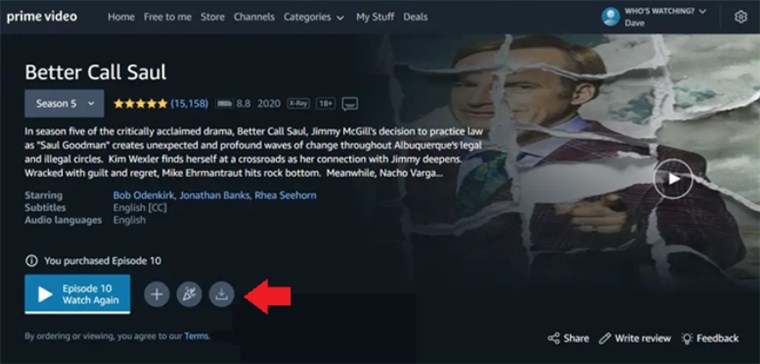
4. Initiate Download: Tap the vertical three-dot icon next to the movie title and select Download. On some interfaces, the download arrow appears directly on the movie’s detail page.
Amazon Download Rented Movie
5. Select Quality: Choose your preferred video quality.
- Good: Uses the least data/storage (approx. 0.3 GB/hour).
- Better: Balanced quality (approx. 0.7 GB/hour).
- Best: 1080p resolution (approx. 1.5 GB/hour or more).
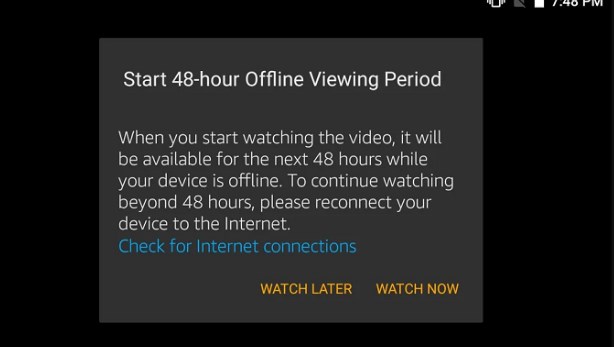
Once the file is on your device, you are subject to the 30-day rental window to start watching. However, be aware of the strict 48-hour viewing rule: once you press play, the clock starts ticking. If you check the video quality on Tuesday, the movie will expire and delete itself by Thursday, potentially leaving you without entertainment for a Friday flight.
Why Can’t I Download Rented Amazon Movies? (Hidden Limits)
For the “Occasional Viewer,” few things are more frustrating than paying for a movie and being unable to save it. If you are asking, “why can’t i download rented Amazon movies even though I paid for them?”, the answer usually lies in studio licensing or Digital Rights Management (DRM).
The Missing Download Button
Amazon rental rules are dictated by the studios (e.g., Disney, Warner Bros., Sony), not just Amazon. Not every title available for streaming is eligible for offline viewing. If a studio enforces strict DRM to prevent piracy, the download button will simply not appear in the app. This is the download button missing rented movie issue that users frequently encounter with new releases.
The Confusing Expiration Timers
Two clocks run simultaneously on your rental:
- 30-Day Storage Window: You have 30 days from the moment of payment to keep the unwatched file on your device.
- 48-Hour Viewing Rule: The moment you press “Play”—even for one second—the 48-hour viewing rule activates.
48-Hour Viewing Window
Region Locks
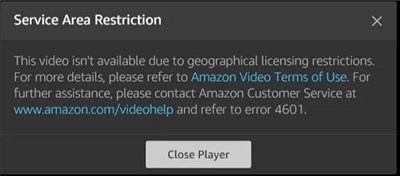
Region-lock issues can render a valid download unplayable. If your device connects to the internet in a new country (e.g., utilizing hotel Wi-Fi in Paris), the app may attempt to re-authenticate the license. If the movie rights are not held in that territory, the app will block playback. These DRM restrictions Amazon rental policies force many users to look for more reliable methods to secure their media.
Amazon Prime Area Limit
Decision Guide: Official Apps vs. Personal Archiving Tools
Before proceeding, analyze your viewing needs. If you simply need to watch a movie once on your phone tonight, the official app is sufficient. However, if you are building a library for a long trip where internet “handshakes” might fail, or if you prefer using a flexible media player like VLC on your laptop, a professional archiving tool is required.
Here is a breakdown of how the Manual Method (Official Apps) compares to a dedicated tool like Keeprix Amazon Video Downloader.
Comparison Matrix
| Feature | Official Prime Video Apps (Mobile & Desktop) | Keeprix Video Downloader |
| Device Support | Mobile, Tablet, & Desktop App (Windows/Mac) | Any Device (Outputs universal video files) |
| Expiration | Expired in 48 hours after play | Permanent Archive (Good for long trips) |
| Format | Encrypted Cache File (App Only) | Universal MP4/MKV |
| Offline Playback | Requires App & Occasional Online Check | Play on VLC, QuickTime, etc. (Truly Offline) |
| Resolution | Variable (Often 720p on Desktop) | 1080p Full HD |
| Reliability | Subject to Studio Restrictions & Glitches | Independent File Access |
If your priority is keeping the rental beyond the standard window or ensuring high-definition playback on a laptop screen without the official app’s glitches, the standard methods may fall short.
How to Archive Amazon Rentals Offline (PC & Mac Solution)
For users like Hannah who need to watch on a laptop but find the official Windows app unreliable, or for those who want to avoid the anxiety of a rental expiring before watching offline, Keeprix Video Downloader offers a robust alternative. This software allows you to back up content you have legally rented, converting the stream into a compatible file for personal use.
Ensuring Playback Compatibility
Keeprix Video Downloader solves the browser not allowing download option error by effectively acting as a bridge. It logs into your account via a secure, built-in browser and saves the video data directly to your hard drive.
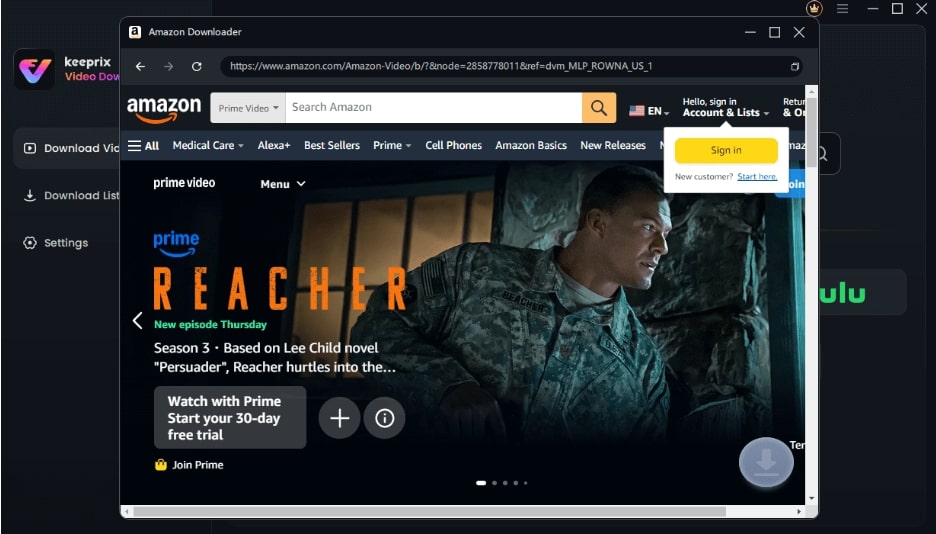
Step 1. Launch Keeprix Video Downloader: Open the built-in web browser within the software and log in to your Amazon account.
Sign Into Prime Account
Step 2. Select Your Rental: Navigate to your rented title. Keeprix Video Downloader automatically detects the video stream URL.
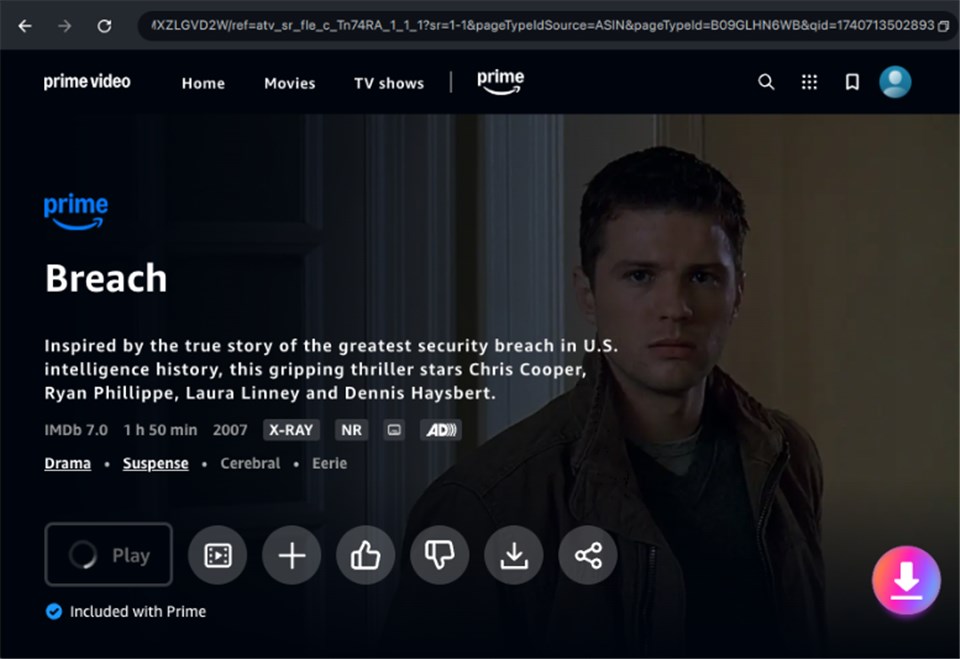
Select Amazon Videos to Download
Step 3. Customize Download: Choose your preferred subtitles and audio tracks (up to 13 languages supported).
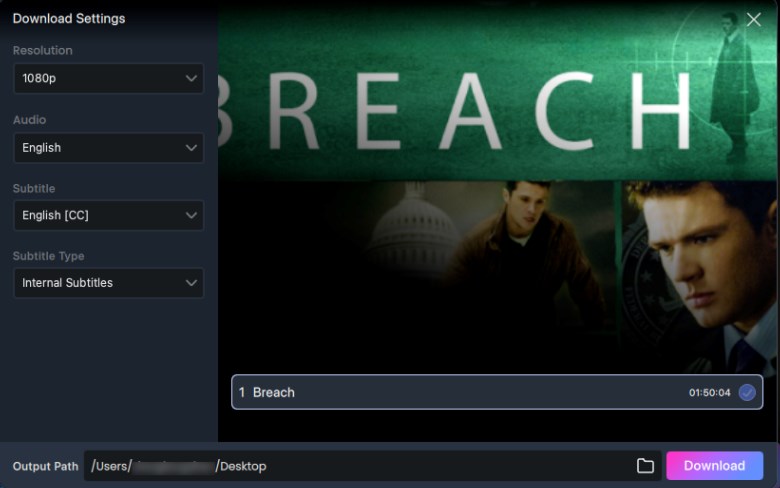
Adjust Download Settings
Step 4. Download: Click to save the file. The result is a clean video file that can be played on any media player, regardless of internet connectivity.
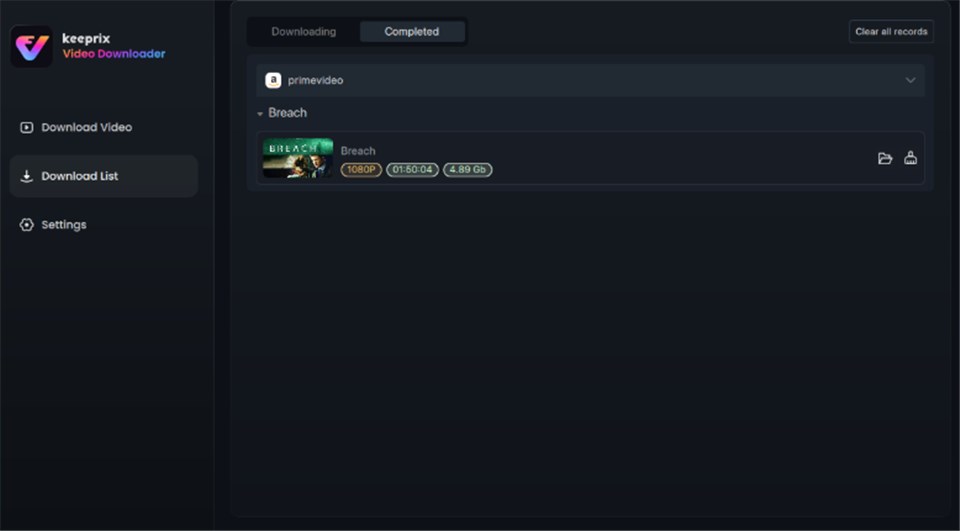
Prime Video Successfully Downloaded
This method ensures that even if the rented movie disappears after 30 days from Amazon’s servers, you retain a copy for your personal travel archive, ready for transfer to any device you own.
Expert Insights: Fixing Rented Title Download Issues & Region Glitches
Even when following the official steps, users often encounter errors where a downloaded rental refuses to play. Here is a critical tip that most other guides miss, and it is something we learned during our device testing: Region-based DRM handshakes can kill your downloads.
When you download Amazon rental offline content in the US, the digital license is tied to that region. If you travel to Europe and connect your iPad to hotel Wi-Fi, the Prime Video app may attempt to refresh the license in the background. Detecting a foreign IP address, the app can invalidate the license.
This causes the rented title download issue where the file vanishes or displays an “Unavailable” error, even if the 48-hour window hasn’t closed.
How to Prevent Region Change Blocking
To prevent this region change from blocking download playback:
1. Stay Offline: Keep your device in “Airplane Mode” while watching rented content abroad. This prevents the app from “phoning home” and realizing you have changed countries.
2. Don’t Re-Open the App Online: Do not open the Prime Video app while connected to a foreign network unless you are using a VPN or have archived the file using a tool like Keeprix Video Downloader.
3. Use Unlocked Files: Downloads created with archiving tools remove the region-locking metadata, ensuring playback anywhere in the world.
Frequently Asked Questions About Amazon Rental Rules
Q1. Can I download rented movies from Amazon Prime Video?
Yes. You can use the official Prime Video app on iOS, Android, Fire tablets, Windows 10/11, and macOS. However, you generally cannot download rentals directly through a web browser (like Chrome) without third-party software.
Q2. Why is the download option missing for my rental?
The download button missing rented movie issue occurs when the specific studio holding the rights restricts offline viewing. Not all titles in the Amazon catalog are eligible for download due to these licensing agreements.
Q3. Do all Amazon rentals support offline viewing?
No. While most do, some “Premium Video on Demand” (early cinema releases) or specific studio classics are streaming-only. Always check for the download icon before renting if offline viewing is essential.
Q4. How long do Amazon rentals last after downloading?
You typically have 30 days to start watching a rental. However, once you press play, the 48-hour viewing rule applies, and the rental will expire 48 hours later, regardless of whether you finished the movie.
Q5. Why did my downloaded rental disappear?
Rentals disappear if the 30-day window ends, the 48-hour playback window closes, or if your device connects to the internet in a different region, triggering a DRM license failure.
Q6. Can I download a rented movie on my laptop?
Yes, but with caveats. You must use the official Prime Video app for Windows or Mac, not a web browser. Note that the desktop apps can sometimes be restrictive regarding resolution (often capping at 720p) and require internet check-ins. For a more flexible file format (MP4), third-party software like Keeprix Video Downloader is required.
Q7. Why won’t my rented movie download on the Prime Video app?
This is often due to storage space issues or the device limit reached for downloaded titles. Amazon limits the number of titles you can download across all devices linked to your account (usually between 15 and 25).
Conclusion: Start Your Trip with a Full Library
After dealing with expired rentals and missing buttons, Hannah finally understood the system for her next trip. The key is preparation. You must verify that your Amazon download rented movie option is active while you still have a strong home connection, check your available storage space, and be mindful of the clock once you press play.
Whether you rely on the official apps (remembering to stay in Airplane Mode!) or use a specialized tool to create a permanent backup for your travels, the goal is uninterrupted entertainment. If you want to ensure your media plays on any player and bypass the quirks of the desktop app, Keeprix Video Downloader, a DRM removal tool, acts as a reliable safety net for your personal library.