Prime Video Not Downloading on iPhone? 2026 Fixes

Facing a Prime Video not downloading iPhone error moments before a flight is a traveler’s nightmare. You expect to settle into your seat and watch a new series, only to find the progress bar stuck at 0% or the app claiming you have no storage space.
Prime Video Not Downloading on iPhone
If you are reading this, you are likely already stressed and need a solution immediately. This guide isolates the specific error preventing your Amazon Prime video download—whether it is a hidden iOS permission, “ghost” data clogging your storage, or a licensing restriction—and helps you fix it.
| Quick Troubleshooting Triage: Where are you right now? |
| 1. I am traveling or on mobile data: Jump to Immediate iOS Fixes. (Use this if you are at the airport, on a train, or away from your computer.) |
| 2. I am at home with a computer: Jump to Permanent Download Solutions. (Use this if you want to bypass expiration dates and download limits before you leave.) |
Author Suggestion: “We verified every solution below using the latest version of the Amazon Prime Video app (v3.0+) on both Wi-Fi and 5G cellular networks.”
Troubleshooting iOS Connectivity: Wi-Fi and Cellular Settings
If you are currently holding your iPhone and staring at a stalled download, the issue is likely a conflict between the Prime Video app and Apple’s aggressive data-saving permissions. Even if your 5G signal is strong, iOS often blocks large background downloads to save battery or data.
Step 1: Verify “Local Network” and Data Permissions
Most users check their mobile data settings but miss the Local Network permission. If this is disabled, the app may struggle to handshake with servers or cast content, which can indirectly freeze the download queue.
- Open your iPhone’s main Settings.
- Scroll down to find Prime Video.
- Ensure Mobile Data is toggled ON (Green).
- Ensure Local Network is toggled ON (Green).
If you recently updated iOS, these permissions often reset to “Off” automatically.
Step 2: Disable “Low Data Mode”
This is the most common cause of Prime Video stuck downloading iOS errors. When enabled, this mode pauses all background syncs and non-essential downloads.
- Go to Settings > Mobile Data > Mobile Data Options.
- Ensure Low Data Mode is OFF.
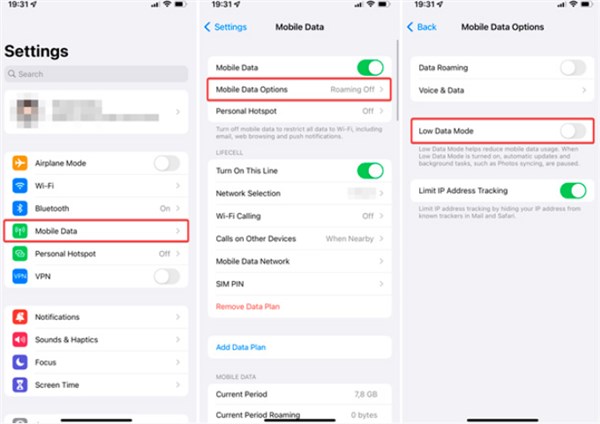
Disable Low Data Mode
Crucial Step: If you are connected to public Wi-Fi (like at an airport), go to Settings > Wi-Fi. Tap the blue ‘i’ icon next to the network name and ensure Low Data Mode is off there as well.
Step 3: Adjust In-App Download Rules
Once the system permissions are clear, tell the app it is allowed to use them.
- Open the Prime Video iOS app.
- Tap the My Stuff icon (bottom right) > Gear Icon (top right).
- Select Streaming & Downloading.
- Locate “Download on Wi-Fi Only.” Turn this OFF if you need to use cellular data.
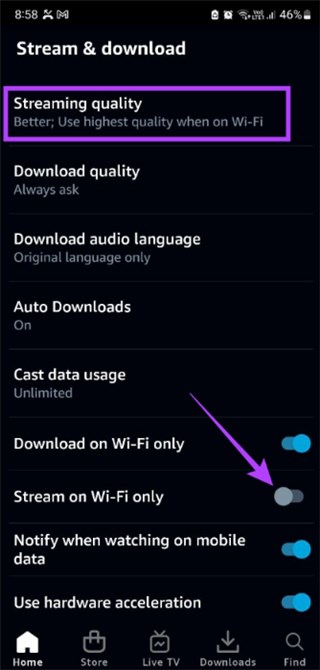
Turn off Download on Wi-Fi Only
If downloads are still stalling, try lowering the Download Quality from “Best” to “Good.” This creates smaller files that are easier to complete on unstable networks.
Step 4: Check Your VPN
Are you using a VPN for privacy or to access content from another country? Amazon detects VPN usage aggressively. If the app detects an IP address proxy, it may hide the download button or freeze the download to prevent region-hopping.
The Fix: Temporarily disconnect your VPN, restart the Prime Video app, and try the download again.
Resolving iPhone Storage Conflicts and “Ghost Data”
A critical misunderstanding often causes the iPhone storage full Prime Video error: the difference between iCloud storage and internal device storage.
You might have 200GB of free space in iCloud, but if your physical iPhone is full, Prime Video cannot save a single byte of data. Offline videos must reside on the actual hardware of your phone.
How to Audit Internal Storage
- Go to Settings > General > iPhone Storage.
- Ignore the banner at the top of your Apple ID settings. Look specifically at this local storage graph.
If the bar is full (often red or dark grey), you must delete photos, apps, or large message attachments.
Clearing “Ghost Data” (The App Reset)
Sometimes, the Prime Video storage settings iPhone menu shows the app taking up gigabytes of space even though you have deleted all your downloads. This is “ghost data”—corrupt cache files that the app hasn’t released.
If your storage is full of this corrupt data, simply tapping “Clear Cache” inside the app rarely works. You need a clean slate.
- In the iPhone Storage menu, scroll down to Prime Video.
- Check the “Documents & Data” size. If it is large (e.g., 5GB) but your “Downloads” tab in the app is empty, the database is corrupt.
The Fix:
- Tap Delete App (not just offload). This wipes the corrupt cache completely.
- Reinstall the app from the App Store. You will need to sign in again, but this often resolves persistent download failures instantly.
Why Is the Download Button Missing?
Sometimes, the issue isn’t a technical failure but a licensing feature. If you search for a specific movie and cannot find the download arrow, you are likely facing DRM limitations Prime Video enforces.
1. Studio Licensing Restrictions
Not every title on Prime Video is available for offline viewing. Studio agreements vary by region and specific movie. If the download button is absent, Amazon does not have the legal right to let you save that file to your iPhone. This is common with new releases or content from third-party channels (like Max or Paramount+) subscribed to via Prime.
2. The Browser Barrier
A critical detail that confuses many users is why you cannot download Prime Video on iPhone using browsers like Safari or Chrome.
Prime Video downloads rely on strict Digital Rights Management (DRM). Mobile browsers on iOS cannot handle the secure, encrypted container required for offline playback. The ecosystem is designed to force you into the app, where it can verify your subscription status and device ID in real-time. You must use the official app; the browser player is for streaming only.
The Pro Solution: Planning Ahead with Keeprix Video Downloader
Use this section if you are at home preparing for a trip and want to bypass the limitations of the mobile app entirely.
If you travel frequently, you know the native app has inherent weaknesses: downloads expire 48 hours after you start watching, and you are often limited to 15-25 titles across all devices. For users who want a permanent library—like a parent loading up an iPad for a long-haul flight—Keeprix Prime Video Downloader offers a robust alternative.
Keeprix Video Downloader is desktop software (Mac/Windows) that downloads Prime Video content as standard MP4 files. Because these are actual video files rather than cached rentals, they never expire.
Quick Comparison: App vs. Desktop Downloader
| Feature | Native Prime Video App | Keeprix Video Downloader |
| Offline Duration | Temporary (48-hour watch window) | Permanent (Keep forever) |
| Device Limits | 15-25 Titles (Region dependent) | Unlimited Downloads |
| Success Rate | High failure rate on weak Wi-Fi | High stability (Ethernet/PC based) |
| File Type | Encrypted Cache (Unreadable) | MP4/MKV (Universally compatible) |
How to Transfer Keeprix Video Downloader Downloads to iPhone:
Since Keeprix Video Downloader runs on your computer, you need to move the files to your iPhone to watch them. Here is the fastest way to do it without complex syncing:
Option A: The “Files” App (Wired or Wireless)
Download the show using Keeprix Video Downloader on your computer.
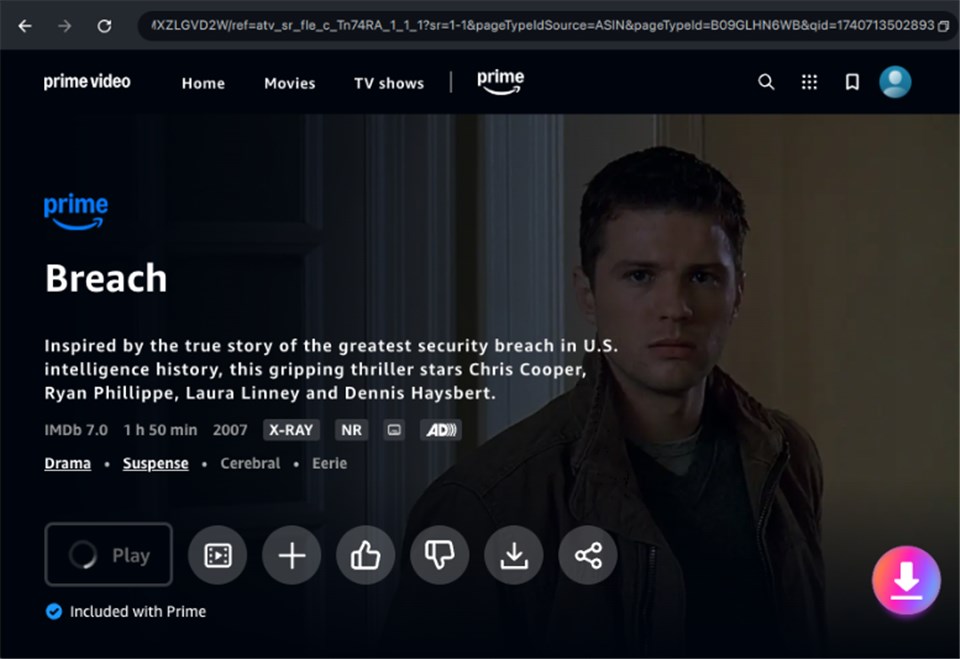
Download Amazon Videos
- Mac Users: Use AirDrop to send the MP4 file instantly to your iPhone. It will save to your Photos app or Files app.
- Windows Users: Connect your iPhone via USB. Open iTunes (or “Apple Devices” app). Drag and drop the MP4 file into a file-manager app like VLC for Mobile or the native Files app via the “File Sharing” tab.
Option B: Cloud Drive
Upload the MP4 file to iCloud Drive, Google Drive, or Dropbox from your computer. Open the corresponding app on your iPhone and tap “Make Available Offline.”
This method ensures you have high-quality, ad-free video that will not disappear or require an internet “handshake” to play.
Frequently Asked Questions About Prime Video on iOS
Q1. Why are my downloads stuck at 0% on iPhone?
This is typically a handshake failure. It happens if you switch from Wi-Fi to data mid-download without enabling “Cellular Downloads,” or if a VPN is interfering. Toggle your Wi-Fi off and on, check the Local Network permission in Settings, and ensure your VPN is disconnected.
Q2. Why do downloaded titles disappear from my iPhone?
Prime Video downloads are temporary rentals. Most titles have a 30-day storage limit, but once you press play, a 48-hour viewing timer begins. After this window, the Prime Video error codes relating to expiration trigger, and the file deletes itself or requires an internet connection to renew the license.
Q3. Why is Prime Video not downloading even with storage space?
If you have local storage space but downloads still fail, the app’s internal database is likely corrupt. The fastest solution is to Delete the App (not offload) and reinstall it. This forces the app to build a new, clean directory for your downloads.
Conclusion
Whether you are troubleshooting a Prime Video iOS download fail at the boarding gate or building a permanent library at home, the key is understanding where the failure is happening.
For immediate fixes, always check your Local Network permissions and ensure Low Data Mode is off. These hidden settings are the most common culprits for silent failures. If you have the time to plan ahead, tools like Keeprix Video Downloader can bypass Amazon Prime Video download limits entirely. By auditing your settings now, you ensure that your next “offline mode” experience is actually offline, giving you the entertainment you need without the technical headache.
Author Suggestion: “Keeprix Video Downloader receives regular updates to maintain compatibility with new Prime Video DRM changes, ensuring your ability to download remains consistent regardless of app updates.”