Amazon Prime Video Download iPad Guide: How to Watch Offline (2025 Update)

You are packing for a trip, flight mode is about to go on, and you need entertainment for the next six hours. You open your tablet to check your movie list, only to find the “Watch Now” button greyed out or a “Preparing” error that never finishes. For a mobile viewer, there are few things more annoying than a blank screen when you have hours to kill.
Whether you are struggling with a download button missing on iPad, confusing storage errors, or the limitations of a Child Profile, the frustration is real. Unlike streaming Amazon Prime on a Smart TV, managing media on an iPad requires navigating Apple’s storage rules and Amazon’s licensing restrictions.
Amazon Prime Video Download iPad
This guide provides a verified procedure for Amazon Prime Video download iPad successfully. We cover the standard app method for temporary access, explain how to bypass restrictions like Child Profiles, and introduce a permanent archiving method for those preparing their library from home using a computer.
(Note: We tested these download methods on the latest version of the Prime Video app (v3.0+) as of January 2025 to ensure all menu steps are accurate.)
Method 1: The Official App (Best for Quick Trips)
For most subscribers, the standard Prime Video iOS app is the most direct way to save content for Prime Video offline iPad viewing. This method is included with your subscription and works perfectly for watching content within the next few days.
However, simply tapping “Download” isn’t always efficient. To maximize your storage—especially on 64GB iPads—you need to manage quality settings before you start.
How to Download Step-by-Step
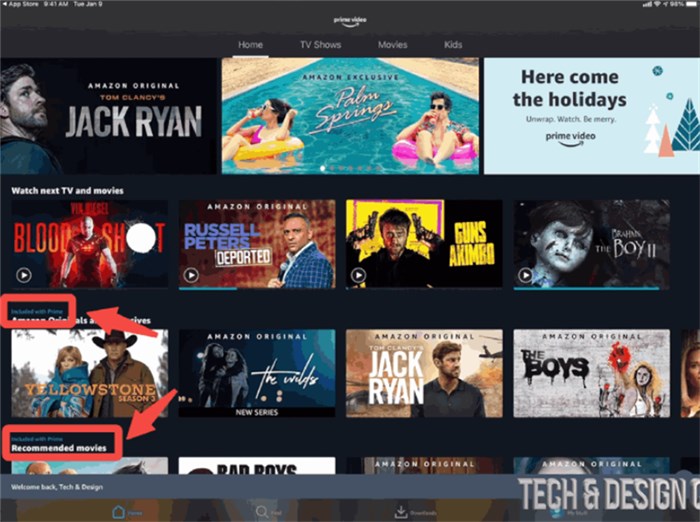
1. Locate Your Content: Open the Prime Video app and tap on the movie or TV show episode you wish to watch.
Amazon Prime Video Download on iPad
2. Identify the Icon: Look for the downward-pointing arrow icon.
- Movies: Usually located under the “Watch Now” button.
- TV Shows: A separate download icon appears next to each specific episode. You cannot download a whole season with one tap; you must queue episodes individually.
3. Select Quality (Crucial Step): Upon tapping the icon, a prompt will ask you to choose your video quality. This decision significantly impacts your available space.
Understanding Storage Usage
Many users encounter iPad not enough storage prime errors because they default to “Best” quality. Here is a breakdown of what that actually means for your device memory based on our tests:
- Data Saver: Uses approx. 0.14 GB per hour.
Verdict: Good for cartoons or older sitcoms; looks grainy on Retina displays.
- Good: Uses approx. 0.27 GB per hour.
Verdict: The balanced choice for standard drama or comedy.
- Better: Uses approx. 0.46 GB per hour.
Verdict: Recommended for action movies or visually dark scenes.
- Best: Uses approx. 1.0 GB+ per hour.
Verdict: Only use this if you have ample space (256GB+ models) and care about 1080p detail.
Why Downloads Fail: DRM, Child Profiles, and Hidden Rules
Sometimes, you follow the steps perfectly, but the download fails, or the button simply isn’t there. This is rarely a glitch; it is usually a restriction.
The “Child Profile” Restriction
A frequently overlooked issue for families is the Amazon Kids (Child Profile) limitation. If you are browsing under a specific Kids profile, you may find that the download button is missing entirely for certain titles, or that downloads are blocked to prevent storage clutter.
The Fix: You cannot override the download restriction from within the Child interface on some iPadOS versions. You must:
1. Switch to the Adult/Main Profile.
2. Download the content.
3. In some cases, the content is then accessible via the “Downloads” tab regardless of the active profile, provided the content rating matches the child’s age filter.
The “Hidden” File System & Expiry
Prime Video downloads on iPad are governed by strict app sandboxing. iPadOS hides these video files from you. You cannot see them in your “Files” app, and you cannot move them to an SD card or external SSD. You must watch them inside the Prime Video app.
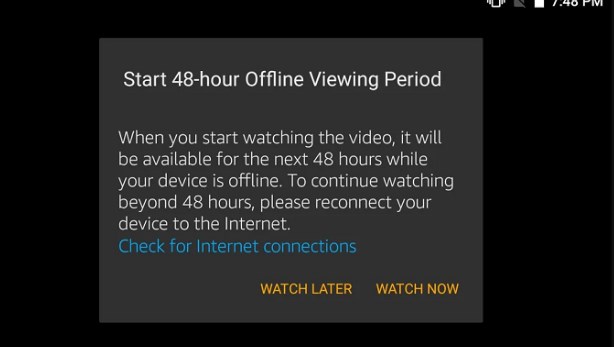
Furthermore, these files are temporary rentals.
- 30 Days: The time you have to keep the file stored.
- 48 Hours: The time you have to finish the video once you press “Play.”
48-Hour Viewing Window
If you start a movie at the airport and don’t finish it, it may expire before your return flight, requiring a Wi-Fi connection to renew.
You may also like: How Long Do Amazon Prime Downloads Last >
Method 2: The Permanent Archive (Requires PC/Mac)
If you are planning a long trip, moving to a region with poor internet, or simply want to build a library that never expires, the official app will restrict you.
For this solution, you will need a computer. Tools like Keeprix Prime Video Downloader allow you to download Prime Video content as standard MP4 files on your PC or Mac, which you then transfer to your iPad. This bypasses the 48-hour expiration rule and the “sandboxed” storage limit.
App vs. Keeprix Video Downloader: Which Fits Your Scenario?
| Feature | Official Prime App | Keeprix Video Downloader |
| Best For | Weekend trips & daily commute | Long vacations & flight archiving |
| Prerequisites | iPad only | Computer + Cable required |
| Expiration | 48 hours after playing | Never expires |
| File Access | Hidden/Locked in App | Open MP4 (Use any player) |
| Setup Time | Instant | Takes time to transfer files |
Step-by-Step: From Computer to iPad
If you choose this route, do this at home before you travel.
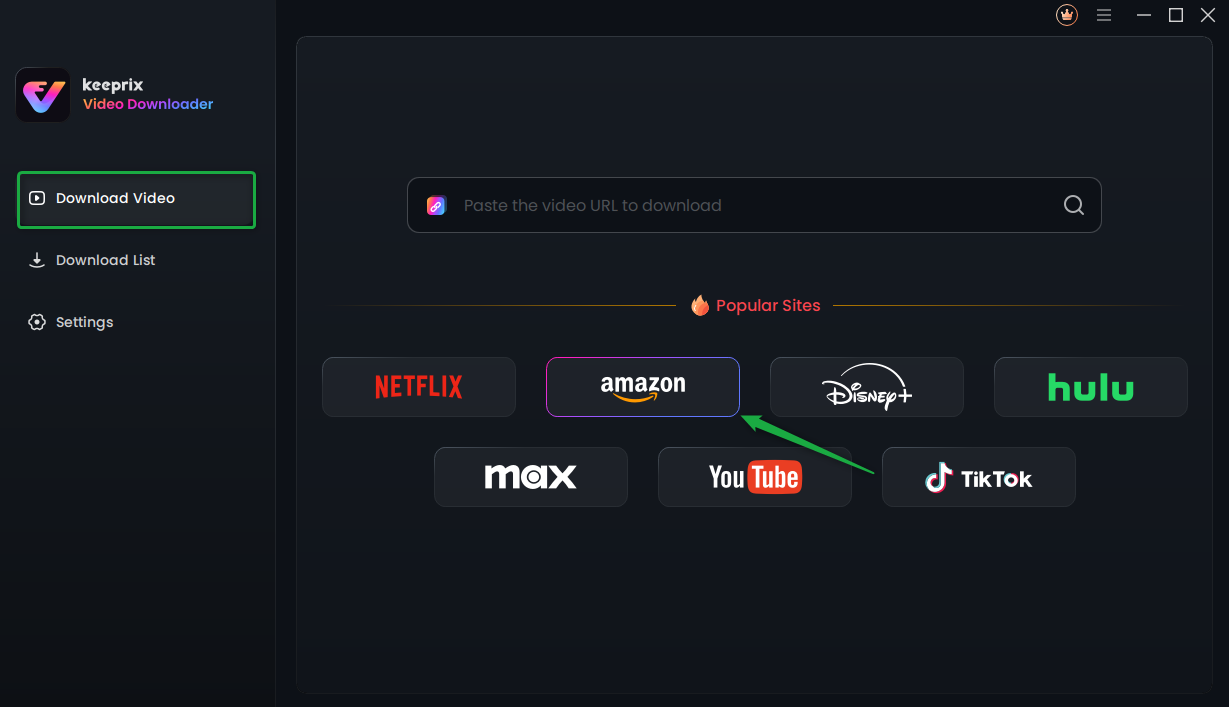
1. Download & Install: Install Keeprix Video Downloader on your Windows or Mac computer. Choose Amazon Prime platform.
Choose Amazon Platform
2. Download Video: Use the built-in browser within Keeprix Video Downloader to select your video. Choose MP4 format and 1080p resolution. The software will remove the ads and DRM, saving a clean file to your computer’s hard drive.
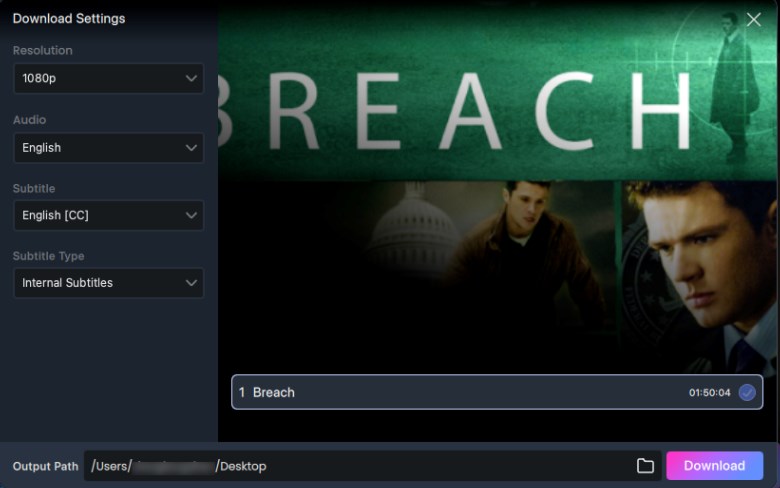
Adjust Download Settings
3. Prepare for Transfer: Connect your iPad to your computer using a USB cable.
4. The Transfer Process (The Tricky Part):
- On Windows (via iTunes): Click the small “Device” icon near the top left. Look at the left sidebar and select File Sharing (not “Movies”). Select a video player app (like VLC or PlayerXtreme) from the list. Drag and drop your MP4 files from your desktop into the “Documents” box on the right.
- On Mac (via Finder): Open a Finder window and select your iPad from the “Locations” sidebar. Click the Files tab in the top menu bar. Drag and drop your MP4 files onto a compatible app (like VLC or Infuse).
We recommend installing a third-party player like VLC for Mobile (free) on your iPad to play these files easily.
Troubleshooting: Fix “Download Failed” Errors
If you are sticking with the official app and encountering errors like “Prime Video Download Failed” or “Preparing… 0%,” the issue is usually tied to local cache or settings.
Check iPad Storage (Be Precise)
Going to Settings > General > iPad Storage is your first stop. A 2-hour HD movie needs roughly 1.5GB to download, but the app often needs double that space temporarily to process the file. If you have 2GB free, the download will likely fail. Aim to have at least 4GB to 5GB of free space before downloading a batch of movies.
Toggle “Download on Wi-Fi Only”
If you are trying to download using a 5G/LTE connection, the app blocks this by default to save data.
- Go to Prime Video Settings > Streaming & Downloading.
- Toggle Download on Wi-Fi Only to OFF.
Warning: This will consume your mobile data plan rapidly.
Clear Corrupt App Data
If a specific file is stuck at “Preparing,” the database entry for that file might be corrupt.
- Cancel the download.
- Force close the app (swipe up from the bottom of the screen).
- Restart your iPad.
- If that fails, go to the App Settings and select Delete All Downloads to reset the cache.
Frequently Asked Questions
Q1. Why is Prime Video not downloading on my Child Profile?
Child profiles have strict content filters and interface limitations. Often, the download button is hidden to prevent children from filling up storage. You usually need to switch to the main adult profile to manage downloads.
Q2. Can I download Prime Video in Safari on iPad?
No. Browsers on iPadOS (Safari, Chrome, Firefox) do not support offline downloading for streaming services due to DRM protection. You must use the official app or the Keeprix PC transfer method.
Q3. How much space does a movie take on iPad?
On “Best” quality, expect about 1.8GB to 2.5GB for a standard 2-hour movie. On “Data Saver,” that same movie might only take 300MB, though the visual quality will be significantly lower.
Q4. Do I need a cable to transfer files from Keeprix to iPad?
Using a cable with iTunes/Finder is the fastest method. However, you can also transfer MP4 files wirelessly using AirDrop (Mac to iPad) or by uploading the file to iCloud Drive/Google Drive and downloading it via the iPad “Files” app, provided you have a fast internet connection.
Conclusion
A “Watch Now” button that doesn’t work is a traveller’s worst nightmare. By understanding the DRM download rules and storage requirements, you can avoid the Prime Video download fail iPad loop.
For most users, the official app works well—provided you verify your storage space and understand that files expire in 48 hours once played. However, if you need to build a permanent library for your kids or a long-haul flight without expiration anxiety, the Keeprix Video Downloader (used via your computer) offers the reliability of downloading Amazon Prime videos and owning your files forever.
Choose the method that fits your timeline, and ensure your iPad is loaded before you head out the door.