Prime Video Download Location: Where Are Amazon Prime Downloads Stored? (2025 Guide)

Finding the exact Prime Video download location is often the first step for users attempting to manage their offline media libraries. Whether you are trying to free up space or back up your favorite shows before a flight, understanding where does Prime Video save downloads is critical. However, unlike standard file transfers, Amazon’s system is complex and varies significantly by device.
Many users assume that once a movie is downloaded to a laptop, they can simply drag-and-drop the file to an external hard drive. Instead, you are likely staring at a confusing list of folders or, in some cases, unable to find any files at all. Facing a locked library when you need it most can be a significant obstacle.

Prime Video Download Location
This guide is the result of hands-on testing on a Samsung Smart TV, Fire TV Stick 4K, and Xbox Series X, alongside file analysis on iOS 17, Android 14, and Windows 11. We tracked the data creation process across these platforms to provide you with verified file paths and actionable advice on managing your storage.
Quick Reference: Download Locations by Device
If you are looking for the immediate location of your files, use this cheat sheet. Note that access levels vary heavily by operating system.
| Device/OS | Path/Location | Accessibility | File Type |
| Windows 10/11 | %LocalAppData%\Packages\AmazonVideo… | Hidden Folder (Accessible) | Encrypted Fragments |
| Android | /data/data/com.amazon.avod… | System Root (Restricted) | Encrypted .pv / .blob |
| macOS | ~/Library/Containers/com.amazon… | Sandboxed (Difficult) | Encrypted Data |
| iOS (iPhone/iPad) | App Sandbox | Inaccessible | Encrypted Data |
| Fire Tablet | Internal Storage > Android > Data | Restricted | Encrypted Segments |
The Reality Check: Managing Files vs. Owning Them
Before digging into system directories, it is vital to distinguish between finding a cache file and owning a media file. Even when you locate the specific folder using the paths above, the content is useless outside the Prime Video app. The Prime Video encrypted files you find on your drive are not standard video files; they are fragmented data readable only by the Amazon app.
Why You Can’t Just Play These Files
When you navigate to these folders, you won’t find a clean MovieName.mp4 file. Instead, you will see a directory structure filled with files named something like 4f7a2b9c-audio.blob or segment_001.pv.
This is the “Cache vs. Ownership” reality. If your goal is simply to delete files to clear space, finding the folder manually works (though we recommend a safer method below). However, if your goal is playback on other devices, looking for the folder will not yield a playable result.
Locating the Prime Video Download Folder on Windows 10/11
If you are technically inclined and wish to verify disk usage manually, you can locate the Prime Video Windows download location through File Explorer. However, be aware that Windows hides these folders by default to prevent accidental modification.
Step 1: Reveal Hidden Items
Before navigating, you must ensure you can see the AppData folder.
- Open File Explorer.
- Click on View in the top menu.
- Select Show > Hidden items.
Step 2: The Windows Directory
Navigate to the following directory. Important: You must replace [YourUsername] with the actual name of your user profile on your PC.
C:\Users\[YourUsername]\AppData\Local\Packages\AmazonVideo.PrimeVideo_[random_string]\LocalState\offline\actions
In this folder, you will not see recognizable movie titles. Instead, you will find a series of folders with meaningless, randomized filenames representing the Prime Video encrypted files. These are the proprietary containers that the Windows app reads to assemble the video during playback.
The macOS Situation
Finding the Prime Video Mac download folder is significantly more difficult due to the macOS sandbox environment. The native Prime Video app for Mac stores downloads within a deeply nested container in the User Library:
~/Library/Containers/com.amazon.amazonvideo.primevideo/Data/Library/Application Support/
Similar to Windows, these files are heavily obfuscated. You cannot drag these files to a media player. This confirms that for the purpose of playback or transfer, locating the directory provides no functional benefit other than verifying that space is being consumed.
You may also like: How to Download Amazon Prime Video on Windows 10 >
Prime Video Android Download Path & Fire Tablet Storage
Mobile platforms impose even stricter controls on the Prime Video Android download path. Unlike PC environments, mobile operating systems sandbox applications to prevent cross-app data access. This means that for most users, the internal storage path is invisible without modifying the device.
Android Internal Storage
On standard Android devices, the device storage Prime Video data is typically located here:
/data/data/com.amazon.avod.thirdpartyclient/files/downloads
Warning: This directory is located in the system root. You generally cannot access it using a standard file manager unless your device is “rooted.” Rooting your device voids your warranty and can expose you to significant security risks. We strongly advise against rooting simply to view these files, as they remain encrypted and unplayable even if accessed.
Fire Tablet and SD Cards
Users frequently ask about the SD card download path on Fire Tablets. While Amazon allows you to save downloads to an SD card to save space, the file system behavior is unique.
When you insert an SD card into a Fire Tablet, the OS formats it as “Internal Storage” strictly for app use. It does not treat the card as a portable drive.
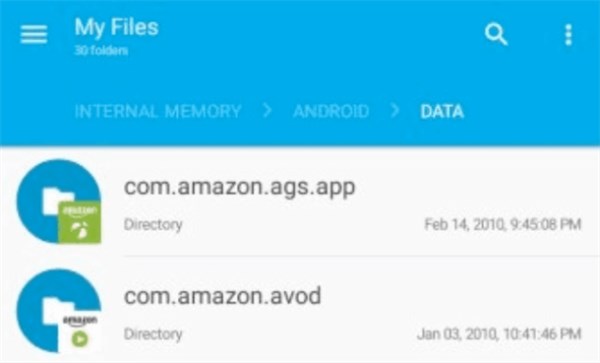
SD Card Download Path
Here is a critical detail that often causes confusion: Even when you toggle “Download to SD Card,” the files are stored as encrypted segments. You cannot remove the SD card and plug it into a computer to watch the movies. The computer will likely not even recognize the file system, or it will see the card as empty.
Why You Can’t Play or Move These Files (The DRM Wall)
The moment of frustration for most users isn’t just about finding the file—it is the confusion of finally finding a large file, double-clicking it, and seeing an error message. This experience is by design. The reason lies in the DRM download container technology used by streaming giants.
The Hardware Lock
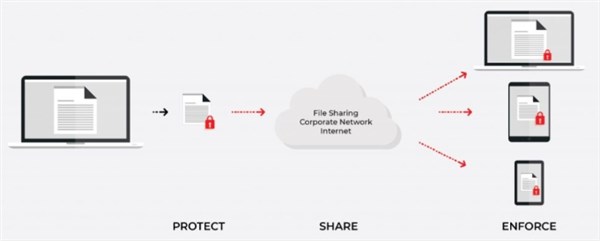
To understand why copying files fails, you must understand the “Handshake.” Prime Video downloads are stored as encrypted DRM containers unique to each device.
When you download a movie, three things happen:
- Container Creation: The video is chopped into encrypted pieces (often .pv or .blob files).
- Key Assignment: A digital decryption key is generated that matches your device’s unique Hardware ID (HWID).
- App Sandboxing: The Prime Video app acts as the only bridge between the key and the container.
If you copy that folder to another computer, the new computer has a different HWID. The key doesn’t match, and the files remain locked. This is why you cannot simply back up your library to a USB drive manually.
Hardware Lock
How to Download Prime Video as Permanent MP4 Files
Since manual transfer is impossible due to the HWID locks described above, external software is the only way to download Amazon Prime videos and decrypt these files for transfer. For users who need their media on a USB drive or a different device, tools like Keeprix Amazon Prime Video Downloader provide the necessary workaround.
This tool bypasses the encrypted cache system entirely. Instead of searching for a hidden offline video directory, Keeprix Video Downloader downloads the stream directly from the source and converts it into a standard, DRM-free file.
Breaking the Storage and Playback Limits
Many users struggle because they cannot transfer downloads to external storage using the official app. Keeprix Video Downloader resolves this by allowing you to save content directly to any location, including external hard drives or SD cards, as MP4 or MKV files.
Key Capabilities:
- True Portability: Save files to a USB stick and play them on a Smart TV, game console, or a laptop that doesn’t have the Prime Video app.
- High Fidelity: It retains 1080P Full HD Quality, ensuring that moving your library offline doesn’t mean sacrificing visual clarity.
- Batch Efficiency: You can queue entire seasons for download, effectively creating a personal media server.
How to Download Subbed Amazon Prime Videos with Keeprix Video Downloader:
Step 1. Open Keeprix Video Downloader, paste the Amazon Prime video URL into the address bar, and choose Amazon Prime as the platform.
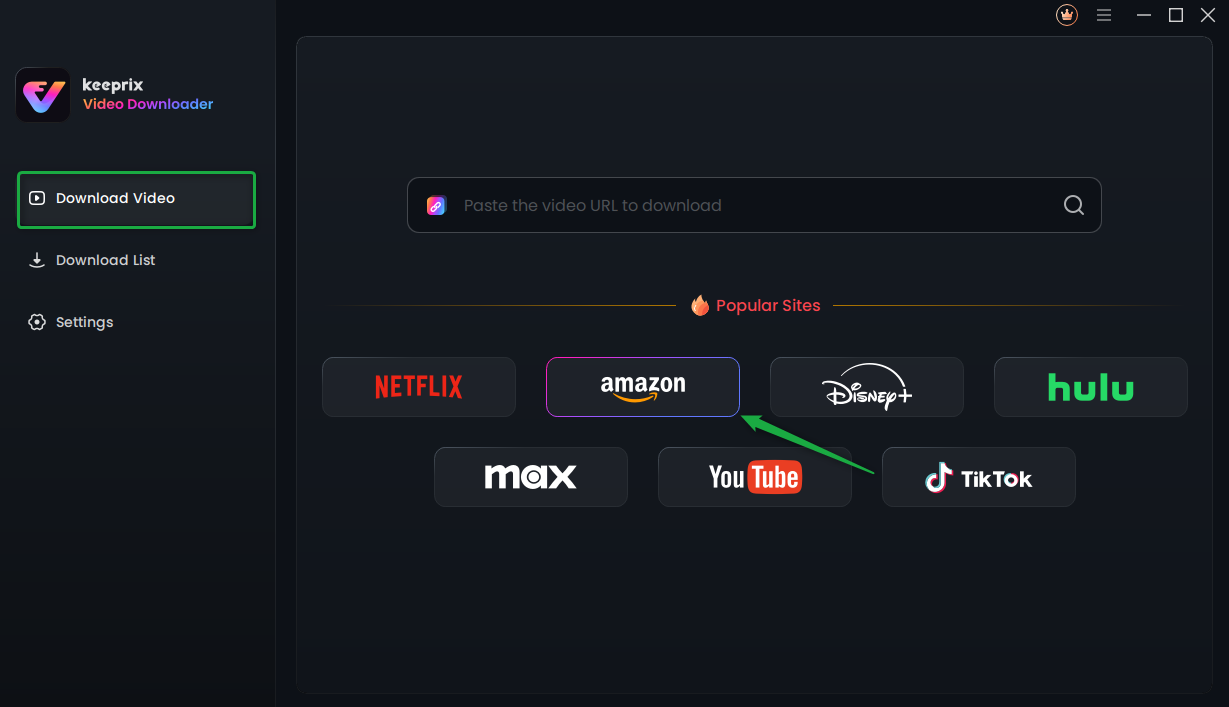
Choose Amazon Prime Platform
Step 2. Sign in to your Prime Video account through the tool’s built-in browser.
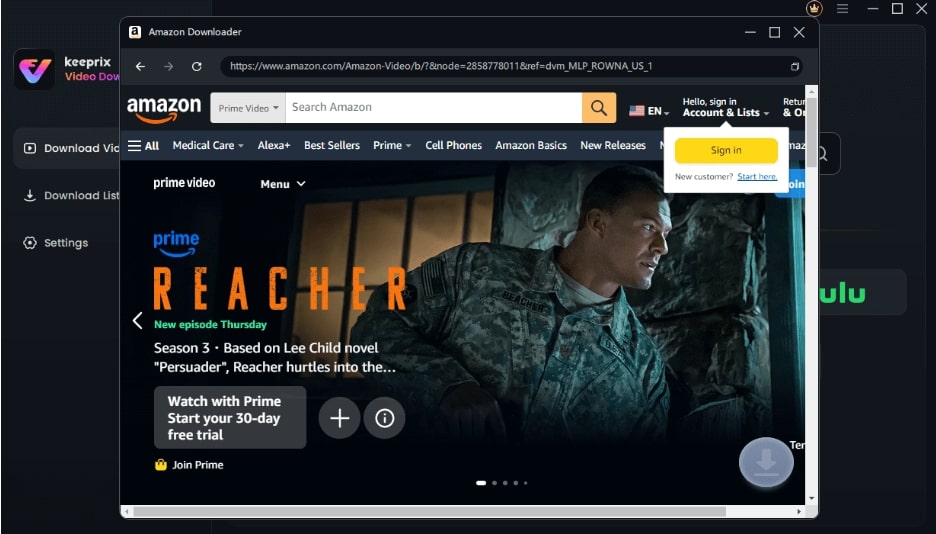
Sign Into Prime Account
Step 3. Find the video you want, start playing it, and click the Download icon. Waiting for the download process to be completed.
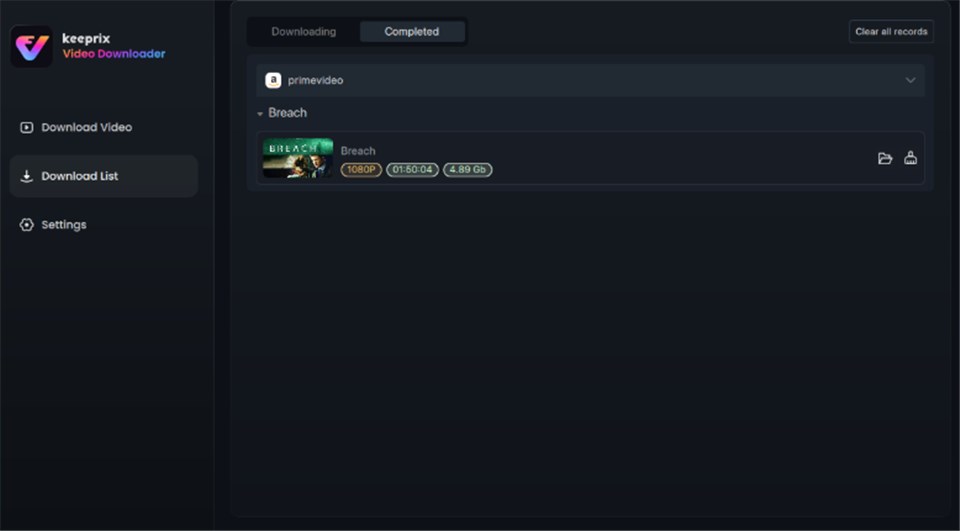
Prime Video Successfully Downloaded
Storage Management: Freeing Space Without Breaking Downloads
If your primary goal is simply freeing up space on a crowded device, you do not need third-party tools, but you must be careful. While it might be tempting to navigate to the Prime Video download location in File Explorer and hit “Delete,” this is a risky procedure.
Manually deleting files from the offline video directory often results in database corruption. The Prime Video app keeps an internal index of what is downloaded. If you delete the files via Windows Explorer or Android File Manager, the app still “thinks” the video is there. This leads to crashes or “Corrupted File” errors when you try to re-download or play content later.
The Correct Way to Delete
Always manage your storage through the Prime Video download settings within the application:
- Open the Prime Video App.
- Navigate to ‘Downloads’ (usually a bottom tab or side menu).
- Select ‘Edit’ or long-press the video title.
- Tap ‘Delete Download’.
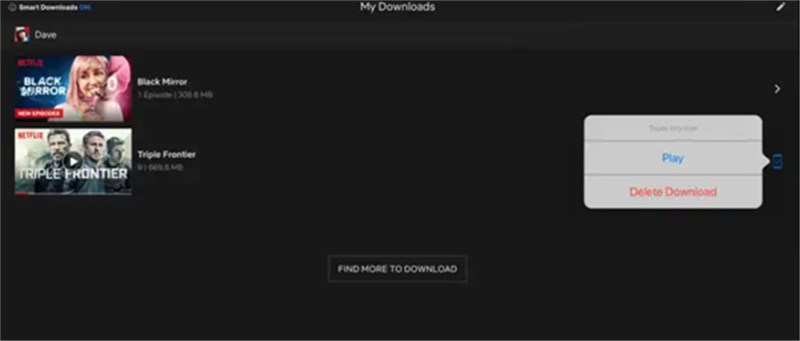
Delete Amazon Downloads
This method ensures the app clears both the video data and the decryption keys associated with it, keeping your app stable.
Frequently Asked Questions About Prime Video Storage
Q1. Where does Prime Video store downloaded movies?
On Windows, they are stored in a hidden AppData folder (%LocalAppData%\Packages…). On Android, they are in /data/data/com.amazon.avod…. On iOS, they are buried in the system sandbox and cannot be viewed. In all cases, the files are encrypted containers, not playable movie files.
Q2. Why can’t I find my downloaded Prime Video files?
If you cannot find the Amazon video download folder, it is likely because your system hides protected app data by default. Amazon designs it this way to protect copyright (DRM). Even if you reveal hidden folders, the filenames are often randomized strings of characters rather than recognizable movie titles.
Q3. Can I move downloaded movies to a USB drive?
Not with the official app. Official downloads are locked to the hardware they were downloaded. To move movies to a USB drive or external storage for playback on other devices, you must use a third-party solution like Keeprix Video Downloader to convert the video into a standard MP4 file.
Q4. How do I delete Prime Video downloads to free space?
Do not delete the files via File Explorer. Open the Prime Video app, go to the Downloads tab, and delete the titles from there. This ensures the database updates correctly and prevents app errors.
Conclusion
Understanding the Prime Video download location solves one mystery but reveals a larger limitation: Amazon’s downloads are designed for temporary rental, not permanent ownership. While you can locate the Amazon video file path on Windows or Android, the encryption ensures these files remain useless on any other device. The frustration of running out of storage or being unable to move files to a USB drive is a built-in feature of the official app to enforce copyright protections.
If you simply need to clear space, always use the in-app delete function to avoid corruption. However, if you want to regain control over your media library and move files freely, the most effective method is to bypass these hidden folders entirely. Tools like Keeprix Amazon Prime Video Downloader provide the freedom to download Amazon content as MP4 files, allowing you to watch your movies anywhere, anytime, without expiration dates or internet checks.