Fix Amazon Video Not Downloading: The Verified 2025 Troubleshooting Guide

If you are standing at the departure gate with a ten-hour flight ahead of you, a few things create immediate panic, like opening your app to find the Amazon Video not downloading error. Perhaps the Prime Video download button is missing entirely for the movie you just rented, or your queued episodes are stuck indefinitely at 0%.
For travelers and commuters, this is not just a technical glitch; it is a disruption of your plans. When you rely on offline media, a “download failed” notification is a major source of frustration. Whether you are facing insufficient storage errors, regional blocks, or the confusing device download limit reached alert, the problem usually stems from Digital Rights Management (DRM) conflicts or strict licensing rules.
Fix Amazon Video Not Downloading
This guide provides a verified troubleshooting roadmap. We will help you determine if you can fix the official app with a quick setting change—like the critical “Force Stop” method on Android—or if you are facing a permanent restriction that requires an alternative approach.
Quick Decision: Troubleshoot the App or Bypass Limits?
Before you dive into complex settings menus, you need to make a strategic decision based on your immediate needs. Are you dealing with a temporary app glitch that can be fixed in the airport lounge, or are you fighting a permanent restriction enforced by Amazon?
Users facing a Prime Video download not working scenario generally have two options.
Method 1: Manual App Troubleshooting (Start Here)
This involves clearing cache partitions, resetting permissions, and managing storage on your specific device.
Best for: Users who need to watch a movie once within the next 48 hours and simply need the app to function as intended.
Success Rate: Variable. Fixes often work for “stuck” downloads, but cannot overcome licensing restrictions where the download button is removed by the studio.
Restrictions: Files expire after 30 days (or 48 hours once play begins).
Method 2: Permanent Library Solution
This method uses external software to secure the video file directly, bypassing the Prime Video app’s internal download manager and DRM restrictions.
Best for: Users building a permanent library, travelers needing guaranteed access for long trips, or those hitting the “Device Download Limit.”
Success Rate: High. It operates independently of the app’s cache system.
Restrictions: Requires third-party software (Keeprix Video Downloader).
Mobile & Tablet Fixes: Why Prime Video Download Failed on iOS/Android
If you prefer sticking to the official app on a smartphone or tablet, you must address the operating system permissions that often trigger a Prime Video download not working alert. The most common culprit on Android 10–14 and iOS 14–17 is a conflict between the app’s cached data and the device’s storage management system.
Clear Corrupt Cache Data (Android)
When a download fails or gets stuck, residual “ghost data” often prevents a retry. Crucially, you must stop the app process before clearing the cache, or the error may persist.
1. Force Stop the App: Go to Settings > Apps > Prime Video. Tap Force Stop at the bottom right. This clears the active RAM and stops any hung background download processes.
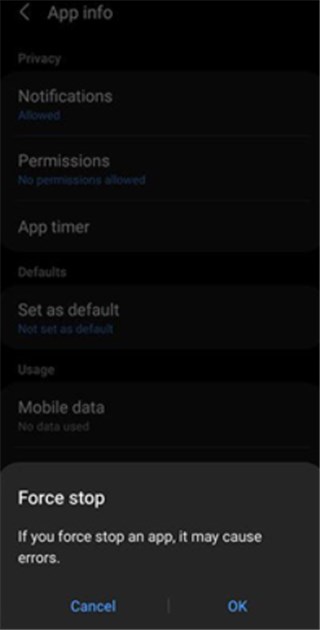
Force Stop Prime Video App
2. Clear the Cache: On the same screen, tap Storage & Cache.
3. Select Clear Cache.
Do not select “Clear Data” unless you are prepared to log out and reset all customized settings.
4. Restart: Open the Prime Video app and attempt the download again.
Offload the App (iOS)
iOS does not allow direct cache clearing in the same way Android does. Instead, you must refresh the app binary.
1. Go to Settings > General > iPhone Storage > Prime Video.
2. Tap Offload App. This removes the potentially corrupted app files but keeps your login details and documents intact.
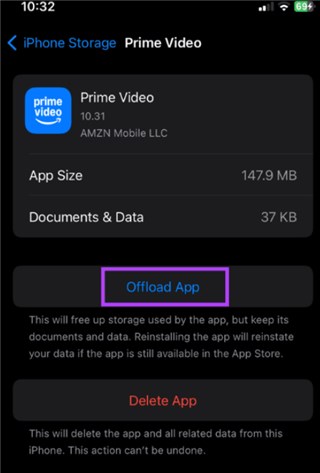
Offload Prime Video App
3. Tap Reinstall App. This frequently restores missing download functionality by forcing a clean connection to the server without deleting your account data.
Audit Registered Devices
If you receive the “Device download limit reached” error, it is not a storage issue; it is an account limit. Amazon restricts offline viewing to a specific number of devices per account.
1. Open the Prime Video app and go to Settings > Registered Devices.
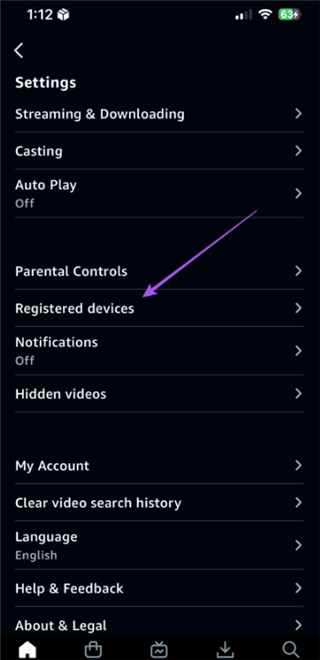
Tap Registered Devices
2. Deregister old phones or tablets you no longer use. This frees up “slots” for your current device to download content.
Fire Tablet Special: Fixing SD Card and Storage Glitches
Owners of Amazon Fire Tablets often face a unique contradiction: they have a brand-new, empty SD card inserted, yet they still receive “insufficient storage” errors. This is a common oversight in configuration, not a hardware failure.
A critical insight that many users miss is that Fire Tablets require explicit SD card configuration, specifically within the Prime Video app; simply mounting the card in the system settings is not sufficient to authorize encrypted downloads.
How to Enable SD Card Downloads on Fire OS:
1. Verify System Recognition: First, ensure the Fire Tablet recognizes the card by going to Settings > Storage. It should be listed as “Portable Storage” or “Internal Storage.”
2. Toggle the App Setting: Open the Prime Video App (do not rely on the main device settings).
3. Access Streaming & Downloading: Tap on the user icon, then the gear icon for Settings. Select Streaming & Downloading.
4. Activate “Download to SD Card”: You will see a toggle switch labeled Download to SD Card. If this is off, the app will continue trying to force downloads onto the nearly full internal memory, causing failures.
If the toggle is greyed out or the SD card is not recognized by app, unmount and physically reinsert the card while the device is powered on to force a re-scan of the storage bus.
Browser Limitations: Why You Cannot Download Amazon Video on Laptop
A frequent source of confusion for PC and Mac users is the search for a download button that simply does not exist. If you are trying to resolve a Prime Video offline download issue while using Chrome, Safari, Edge, or Firefox, the solution is to stop looking within the browser.
Expert Insight: Laptop browsers are fully blocked from downloading due to DRM (Digital Rights Management) container restrictions. Browsers are designed to stream open web standards, but they lack the secure, encrypted “sandbox” environment required by studios to store offline video files. Consequently, Amazon disables the download feature entirely on the web player interface.
To download content on a laptop, you must install the dedicated app:
- Windows: Install the Prime Video app from the Microsoft Store (Windows 10/11).
- Mac: Install the Prime Video app from the Mac App Store (macOS Big Sur or later).
This app creates the secure environment necessary to cache files temporarily. If you prefer to have a permanent file that you can move to a USB drive or play in VLC, you will need to look at the alternative solution discussed below.
Understanding the ‘Why’: Hidden Limits and Error Codes
Even with a perfectly functioning device, you may still encounter blocks where Amazon Video is not downloading. Understanding the underlying rules can save you from unnecessary troubleshooting steps. These issues are rarely technical glitches; they are deliberate restrictions enforced by studio contracts.
Why the Download Button is Missing on Certain Titles
It is crucial to understand that Prime Video applies title-specific DRM licensing. This means not all movies or shows allow offline downloading—even if you subscribe to Prime. Studios often withhold offline rights for new releases or specific third-party content to prevent piracy. If the button is absent, no amount of app resetting will fix it; the restriction is tied to the content itself.
Decoding the “Device Download Limit”
Amazon enforces a cap on how many titles can be saved offline across your entire account, typically ranging between 15 and 25 videos depending on your region and subscription tier. This is an aggregate total. If you have 10 movies on your iPad and 15 on your Fire Tablet, you will be blocked from downloading anything new on your phone. To resolve this, you must delete content from one device to free up a license slot for another.
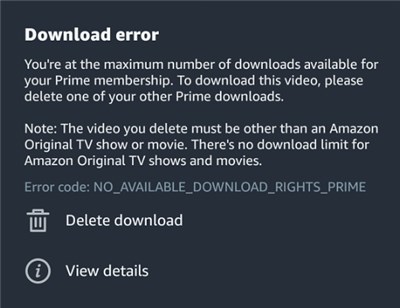
Amazon Download Error
Region Restrictions Blocking Downloads
Your ability to download is tied to your IP address and the region of your Amazon account. If you are traveling internationally, your “Home” content may still appear in the app, but will fail to download because you are physically outside the licensed region.
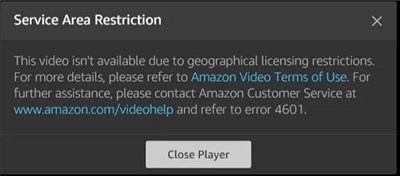
Amazon Prime Area Limit
How to Check Your Region Settings:
1. Go to Amazon Management page (you may need to log in).
2. Click the Preferences tab.
3. Click Country/Region Settings. If this does not match your current physical location or your billing address, downloads may fail.
The “Nuclear Option”: Bypassing Restrictions Permanently
If you have tried the manual fixes above and still face issues—or if the content you want simply does not have a download button due to licensing—there is a third-party alternative. For users who need guaranteed access to their media without expiration dates or device limits, a tool like the Keeprix Prime Video Downloader serves as a robust solution.
This approach is different from troubleshooting the app; it replaces the app’s download mechanism entirely.
When to Consider This Method
- The “Stuck at 0%” Loop: If the official app repeatedly fails to handshake with Amazon’s servers, Keeprix Video Downloader bypasses this by recording the stream directly.
- Breaking the 15-25 Title Cap: If you want to store entire seasons of a show locally on a hard drive, this tool removes the account-wide aggregate limit.
- Eliminating Expiration Timers: Standard downloads expire. Keeprix Video Downloader converts Prime files to MP4 or MKV format, meaning your media remains accessible forever, even if your subscription status changes or you are offline for months.
By shifting from a temporary cache to a permanent file transfer, you eliminate the anxiety of “random” download failures before a trip.
How to Download Subbed Amazon Prime Videos with Keeprix Video Downloader:
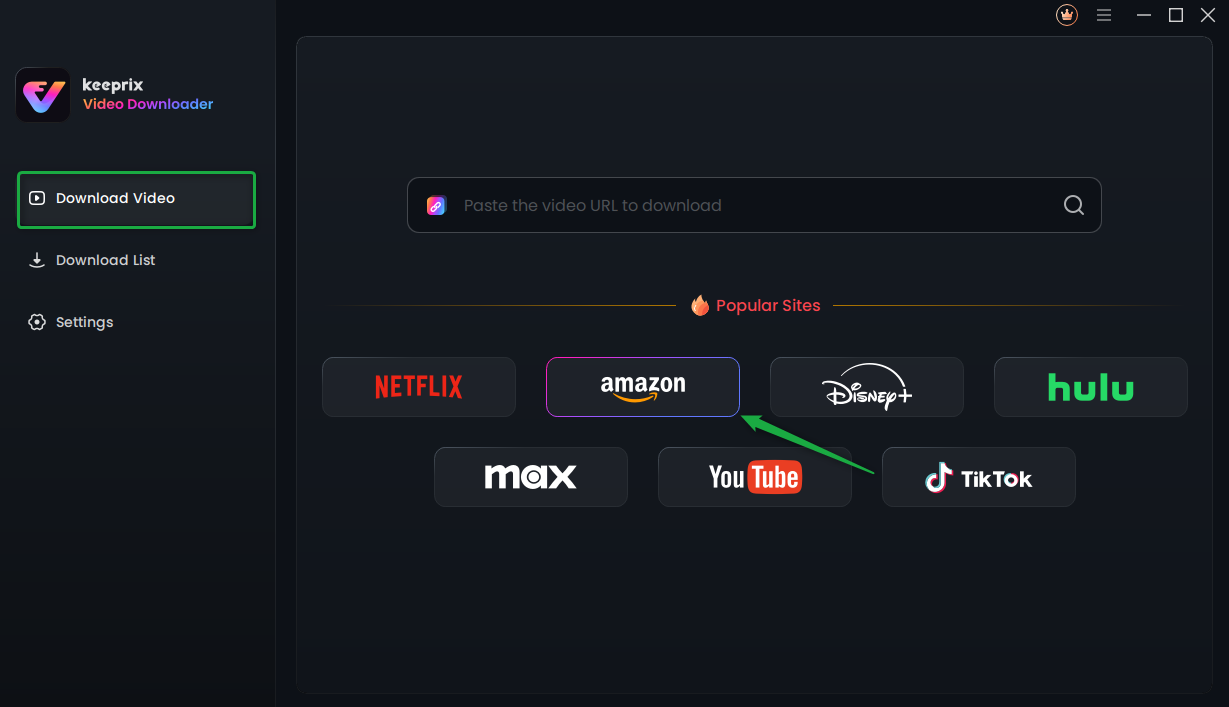
Step 1. Open Keeprix Video Downloader and choose Amazon Prime as the platform.
Choose Amazon Prime Platform
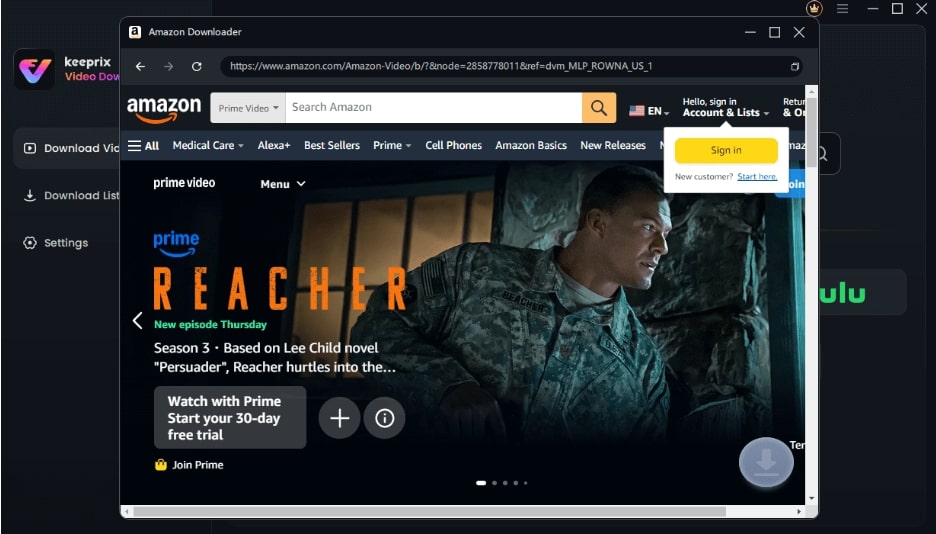
Step 2. Sign in to your Prime Video account in Keeprix Video Downloader with your credentials.
Sign Into Prime Account
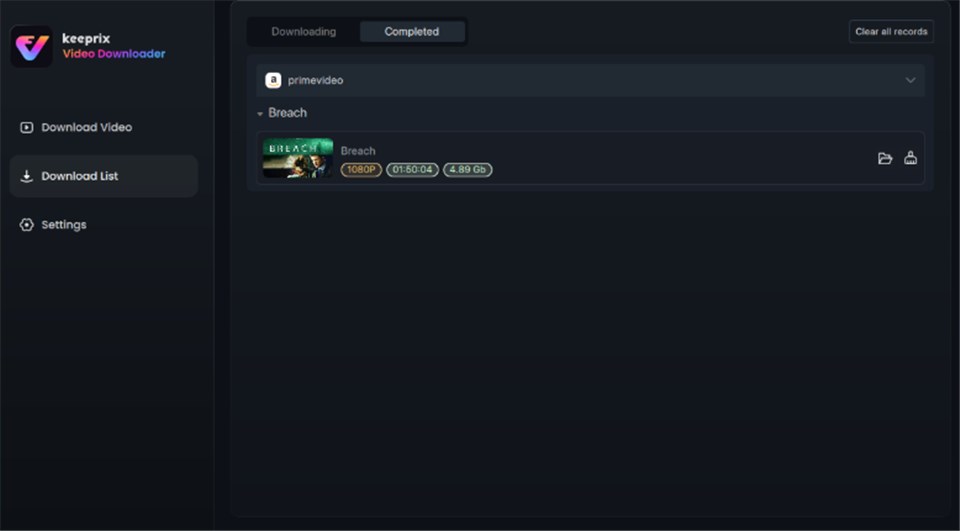
Step 3. Find the video you want, start playing it, and click the Download icon. Waiting for the download process to be completed.
Prime Video Successfully Downloaded
Frequently Asked Questions About Prime Video Downloads
Q1. Why is Amazon Prime Video not downloading on my device?
This is usually caused by one of three factors: insufficient storage space, an outdated app version, or a poor Wi-Fi connection. On mobile devices, ensure you have allowed the app permission to access local storage. On laptops, verify you are using the official app, not a web browser.
Q2. Why are my downloads failing or stuck at 0%?
Downloads stuck at 0% typically indicate a corrupted cache file or a “handshake” failure with Amazon’s DRM servers. To fix this on Android, force-stop the app and then clear the cache. On iOS, try offloading the app. If the issue persists, the title may be temporarily unavailable due to licensing updates.
Q3. Why do downloads disappear or expire?
Amazon applies strict download expiration rules. Most downloaded titles expire 30 days after download. However, once you press play, a 48-hour viewing window begins. After this window closes, the download is deleted or locked, requiring you to reconnect to the internet to renew the license.
Q4. Why does Prime Video say a title cannot be downloaded?
This message appears when the content studio has restricted offline rights for that specific title. It is not an error with your device. To bypass this title-specific restriction, you would need to use external software to save the file permanently.
Conclusion
Facing a Prime Video offline download issue immediately before a trip is a stressful experience, but it is usually solvable. For most users, the manual fixes—specifically the Force Stop method on Android and the SD Card toggle on Fire Tablets—will restore functionality quickly. These steps clear out the “ghost data” that confuses the app and allow you to get your movies offline within minutes.
However, if you are running into the hard limits of DRM—such as Amazon videos download limit or missing buttons on specific titles—troubleshooting the app will not work because the app is behaving exactly as Amazon intends. In these cases, moving to a permanent downloader like Keeprix Video Downloader is the only way to gain total control over your media library, ensuring you have the content you need, regardless of licensing restrictions or internet availability.