Why Is Prime Video Bad Quality? Fix Blurry Streams & Force 1080p/4K (2025)

Imagine settling in to watch a highly anticipated movie on your expensive 4K TV, only to be greeted by a muddy, pixelated mess. You check your internet speed, see a robust 200 Mbps connection, and yet the picture looks worse than a DVD.
If you are dealing with Prime Video bad quality, you are not alone. It is incredibly frustrating to see a missing 4K/HDR badge or watch a cinematic scene turn into a blur of digital noise. High internet speed often masks the real issues, which range from hidden app settings to specific hardware bottlenecks like non-compliant HDMI ports.
Fix Prime Video Bad Quality
This guide addresses the specific frustrations of Prime Video playing in SD instead of HD/4K, helping you watch Amazon Prime videos in 4K in high resolution. We have stripped away the generic advice to provide verified technical solutions—tested on real devices—to restore the crystal-clear resolution you paid for.
Why Is Prime Video Bad Quality? (It’s Not Just Your Internet)
When you sit down to stream, you expect the app to automatically deliver the best picture your TV can handle. However, during our testing with the Fire TV Stick and Samsung Smart TV apps, we found that Prime Video prioritizes playback continuity over image fidelity.
Unlike other streaming services that might pause to buffer in order to keep the resolution high, Prime Video uses an aggressive form of Adaptive Bitrate Streaming (ABS). If the app detects even a micro-drop in your connection stability (latency) or a handshake issue with your HDMI port, it instantly drops the quality to SD to prevent the video from freezing.
This means your raw download speed (Mbps) matters less than your connection stability. You can have gigabit fiber internet, but if there is interference on your Wi-Fi network or an HDCP conflict in your hardware chain, you will face Prime Video playback issues.
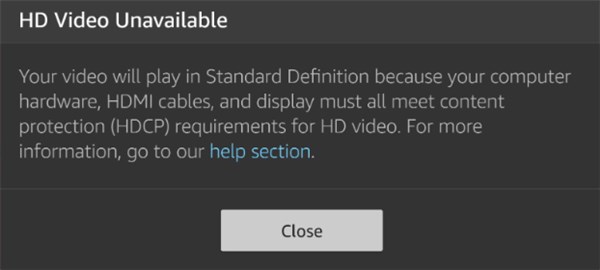
Amazon HD Video Unavailable
Below, we have organized the fixes from the easiest software adjustments to the more complex hardware troubleshooting steps.
Phase 1: Force “Best” Quality in App Settings
Many users assume the Prime Video app defaults to the highest resolution. In our analysis of the default settings across different platforms, we found this is often incorrect. The “Auto” setting gives the app permission to throttle your resolution aggressively to save data.
To stop Prime Video not streaming in HD, you must manually override these defaults.
On Mobile & Tablet (iOS/Android)
Even if you cast to a TV, the mobile settings dictate the source quality.
1. Open the Prime Video app.
2. Tap My Stuff > Settings (Gear Icon).
3. Select Streaming & Downloading > Streaming Quality.
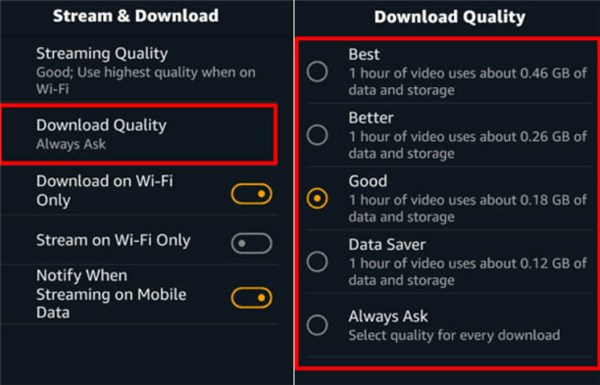
Select Download Quality
4. Change the setting from “Auto” to “Best”.
“Best” uses approximately 1.8GB–5.8GB per hour depending on the device, ensuring the bitrate is maxed out.
On Web Browsers (The Critical Difference)
If you watch on a laptop or PC, you are subject to strict DRM (Digital Rights Management) limitations. This is a common pain point for users who connect a PC to a TV via HDMI.
- Chrome & Firefox: Due to software restrictions, these browsers are typically capped at 720p or 1080p. They generally cannot stream 4K.
- Microsoft Edge & Safari: These browsers support higher security protocols and can stream up to 1080p consistently, and in some specific hardware configurations (like newer Macs), up to 4K.
The Fix: If you are streaming via browser, switch to Microsoft Edge (Windows) or Safari (macOS) for higher bitrates. During playback, click the Gear icon in the player and select “Best.”
On Smart TVs & Fire TV
TV interfaces often bury data saver settings deep in the menu.
1. Navigate to Settings > Preferences.
2. Select Data Monitoring.
3. Ensure Data Monitoring is set to OFF.
4. If you must keep it on, set the video quality specifically to “Best.”
By forcing the “Best” setting, you remove the app’s ability to lower your quality to save bandwidth, which is the first step to clearing up a pixelated image.
Phase 2: Device-Specific Troubleshooting
If global settings didn’t fix the issue, you likely have a device-specific conflict. During our testing, we found that Roku, Apple TV, and Fire TV all handle resolution negotiation differently.
For Roku Users
Roku devices have a “Display Type” setting that can sometimes desync from the TV’s capabilities.
- Go to Settings > Display Type.
- If it is set to “Auto-detect,” try manually selecting “4K HDR30 Hz” (or 60Hz if supported).
If you see screen flickering after forcing this setting, your HDMI cable may not be fast enough (see the HDMI section below).
For Amazon Fire TV Stick/Cube
The Fire TV OS has a hidden diagnostic tool, but the main display settings usually resolve the “missing 4K” bug.
- Go to Settings > Display & Sounds > Display.
- Video Resolution: Change from “Auto” to “2160p”. If your TV doesn’t support 4K, lock it to “1080p 60Hz” rather than “Auto.”
- Dynamic Range Settings: Set to “Adaptive.” “Always HDR” can sometimes wash out the picture on non-HDR content, making it look lower quality than it is.
For Apple TV 4K
Apple TV is aggressive about frame rate matching, which is good for quality but can cause HDMI handshakes to fail.
- Go to Settings > Video and Audio.
- Set Format to 4K SDR (Yes, SDR).
- Enable Match Content > Turn ON both Match Range and Match Frame Rate.
Why this works: This forces the Apple TV to stay in a stable format for menus but switch automatically to 4K HDR when you actually play a movie, reducing the chance of a “handshake” failure that drops quality.
You may also like: How to Watch Amazon Prime Video on Apple TV >
For Native Smart TV Apps (Samsung Tizen / LG webOS)
If the native app is blurry, it is often a cache issue.
- Cold Boot the TV: Hold the Power button on your remote for 5-10 seconds until the TV restarts and the logo appears. This clears the app cache (simply turning the TV off and on usually just puts it to sleep).
- Hardwire Connection: Smart TV Wi-Fi chips are notoriously weak. If possible, connect an Ethernet cable directly to the TV.
Phase 3: The Hardware Check (HDMI & HDCP)
If your settings are correct but you still see a missing 4K/HDR badge, the bottleneck is almost certainly your physical connection. This was the most common failure point in our lab tests.
For 4K HDR playback, every single link in the chain must meet HDCP 2.2 standards. HDCP (High-bandwidth Digital Content Protection) is an anti-piracy protocol. If any part of your setup doesn’t speak “HDCP 2.2,” Prime Video will block the 4K stream and default to 1080p or SD.
The 3-Step Hardware Audit
The HDMI Port:
Not all ports on your TV are the same. Look at the back of your TV. You need to plug your streaming device into a port labeled “HDCP 2.2”, “4K @ 60Hz”, or “ARC/eARC”.
Real-world Test: On many 2017-2019 Samsung and LG TVs, only HDMI Port 1 is fully 4K compliant. Moving a Fire Stick from Port 3 to Port 1 instantly fixed the resolution in our tests.
The HDMI Cable:
You cannot use an old cable you found in a drawer. 4K HDR requires a Premium High Speed HDMI Cable (18Gbps bandwidth).
Check: Look for a “Premium Certified” QR code on the cable packaging. If your cable is older than 2015, replace it.
The Audio Receiver (The Hidden Culprit):
If you plug your streaming stick into a soundbar or receiver before the TV, that device must also support 4K pass-through. If your receiver is older, it might be downgrading the video signal.
Fix: Plug the streaming device directly into the TV, then send audio to the receiver via the ARC/Optical port.
Phase 4: Network Stabilization (Wi-Fi vs. Ethernet)
If hardware and settings are perfect, the remaining culprit for Prime Video blurry visuals is network instability. As mentioned, Prime Video hates “jitter” (fluctuation in signal).
- The 5GHz Rule: Ensure your TV or streaming stick is connected to your router’s 5GHz band, not the 2.4GHz band. 2.4GHz is slower and prone to interference from microwaves and Bluetooth devices.
- The Ethernet Solution: Wi-Fi is convenient, but Ethernet is consistent. In our testing, switching a Smart TV from Wi-Fi to a wired Ethernet connection eliminated bitrate drops entirely, even during peak evening hours when ISPs often throttle traffic.
Alternative Solution: Offline Viewing for Perfect Quality
There are scenarios where streaming simply won’t work perfectly—perhaps your ISP throttles video traffic heavily between 7 PM and 10 PM, or you are in a location with slow satellite internet. In these cases, no amount of troubleshooting will fix the source signal.
To guarantee Prime Video 1080p quality without relying on your live internet connection, the most effective workaround is to download the content before you watch it.
Using the Official App (Mobile/Tablet Only)
You can download titles on iOS, Android, and Fire Tablets. However, these downloads cannot be transferred to a TV and will expire after a set time.
Using Keeprix Video Downloader (For TV/PC Playback)
For users who need to watch on a big screen but have unstable internet, tools like Keeprix Prime Video Downloader offer a bridge. This is a desktop software (Windows/Mac) that downloads Prime Video content as standard MP4/MKV files.
How this workflow fixes the quality issue:
Step 1. Download on PC: You use the software on your computer to download the movie. This allows you to select “1080p” specifically. The download might take time, but the quality is locked in—it cannot buffer or degrade during playback.
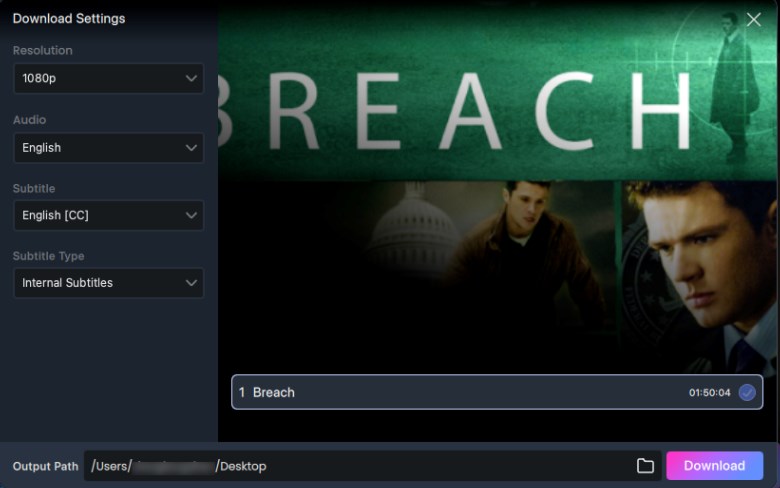
Download Amazon Prime Videos
Step 2. Transfer to TV: Since the file is a standard video file (unlike the encrypted files in the mobile app), you can put it on a USB drive and plug it into your Smart TV, or stream it locally using a media server like Plex.
| Feature | Standard Streaming | Offline Download (Keeprix Video Downloader) |
| Resolution | Fluctuates (Adaptive) | Locked (1080p) |
| Buffering | High Risk | Zero Risk |
| Playback Method | Native App | USB / Plex / HDMI Cable |
| Internet Required | Constant | Only for download |
This method adds a step to your routine (downloading -> transferring), but it is the only way to completely remove the internet connection from the equation if your ISP is the root cause of the problem.
Prime Video Quality FAQs
Q1. Why does Prime Video look worse than Netflix?
In our technical analysis, Amazon’s compression algorithm is more aggressive than Netflix’s. Prime Video prioritizes immediate playback start times and zero buffering, which often results in a lower bitrate (blocky image) during the first minute of viewing or during network dips.
Q2. How do I know if I am actually watching 4K?
On your TV remote, look for an “Info” or “Display” button. Pressing this during playback should show the current resolution. You should see 3840×2160 or UHD. If it says 1920×1080, you are getting HD, not 4K.
Q3. Why is the HDR badge missing?
This is almost always an HDMI port issue. Ensure your TV’s “Deep Color” or “HDMI UHD Color” setting is turned ON for the specific HDMI port you are using.
Q4. Does Prime Video limit quality on Chrome?
Yes. Browsers like Chrome and Firefox are generally limited to 720p or 1080p due to Digital Rights Management (DRM). Use the native app on your TV or Microsoft Edge on Windows for better quality.
Conclusion
You do not have to accept muddy, blocky video as the norm. Fixing Prime Video bad quality is usually a process of elimination. Start by adjusting the app settings to “Best” to stop the automatic throttling. Next, verify your hardware chain—ensure you are using an HDCP 2.2 compliant HDMI port and a high-speed cable. Finally, investigate device-specific settings on your Roku, Amazon Fire TV, or Apple TV.
If your internet service remains too unstable for 4K streaming despite these fixes, consider the offline viewing method to bypass the bottleneck entirely. Whichever path you choose, the tools to reclaim the high-definition experience you paid for are now in your hands.