Amazon Prime Video Download on Laptop: The 2025 Guide for Offline Viewing

You open your laptop, connect to the spotty public Wi-Fi at the airport or train station, and launch Chrome or Safari to load the latest season of The Boys. You look for the download icon, but it isn’t there. For users like Lara, our “Laptop Commuter” persona, this realization often hits at the worst possible moment. You pay for the subscription, yet you cannot watch Amazon Prime offline because of a simple browser limitation.
Amazon Prime Video Download on Laptop
The reality is that Amazon Prime Video download on laptop functionality does not exist within web browsers like Chrome, Firefox, or Edge. If you are seeing the Prime Video download button missing, it is not a glitch; it is a Digital Rights Management (DRM) feature. Browsers cannot store encrypted video files securely, so Amazon disables the feature entirely on the web.
However, you are not out of luck. You have two distinct paths: using the official desktop app (best for temporary viewing) or using a professional downloader (best for permanent libraries). This guide provides the specific steps for both, tested on the latest Windows and Mac operating systems.
Quick Decision Guide: Official App vs. Professional Downloader
Before installing any software, it is vital to choose the method that aligns with your viewing habits. Most users will find the official app sufficient for a weekend trip. However, if you need to keep files forever or transfer them to other devices, you will need a specialized tool.
Comparison: Which Method Fits Your Needs?
| Feature | Official Prime Video App (Standard) | Keeprix Video Downloader (Professional) |
| Primary Use | Ad-Tier Support | Archiving / Offline Library |
| Cost | Free (Included with Prime) | Paid License (Free Trial Available) |
| File Ownership | Temporary (Rented/Cached) | Permanent (Owned) |
| File Format | Encrypted Hidden Files | Open MP4 / MKV |
| Expiration | 48 hours after play start / 30 days total | Never Expires |
| Storage Impact (1hr) | ~0.8GB (Good) to ~2.4GB (Best) | ~1.0GB (High Quality MP4) |
| Device Transfer | Restricted to downloading device | Transferable (USB, TV, Console) |
| Ad-Tier Support | Downloads may still contain ads | Removes ads from downloads |
If you just need a movie for a flight tomorrow, skip to Section 3 (The Standard Method). If you are building a media server or need to watch on a device that doesn’t support the Prime app, Section 5 (The Unlimited Method) is the better choice.
The Standard Method: Download Prime Video on Windows 10 & 11
For 90% of users, the Amazon Prime Windows app is the correct solution. It allows you to download content directly to your laptop. This method requires Windows 10 or 11; be aware that you cannot perform a Prime Video offline laptop download using Windows 7 or 8.
Step-by-Step Installation
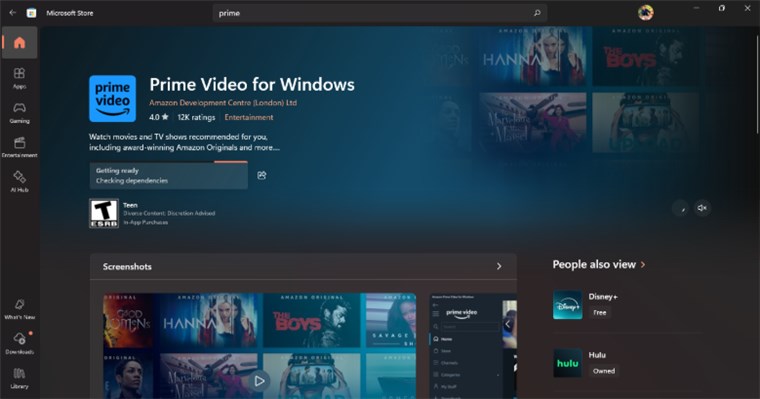
1. Access the Store: Open the Microsoft Store on your PC and search for “Prime Video for Windows.”
Download Amazon Prime on Laptop
2. Install: Click the “Get” or “Install” button.
3. Sign In: Launch the app and log in with your Amazon credentials.
4. Locate Content: Browse to your desired movie or show. Look for the downward arrow icon labeled “Download.”
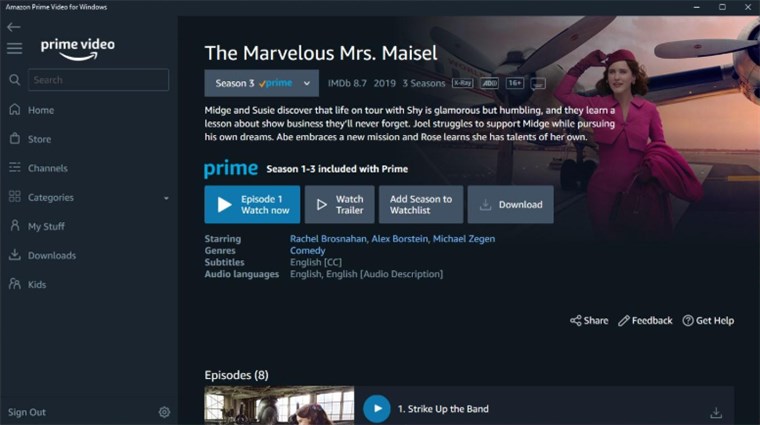
Download Amazon Prime Videos on Laptop
For TV shows, you can download individual episodes or often the entire season at once.
5. Select Quality: A prompt will ask for your preferred video quality.
- Best: Uses about 2.4GB per hour of video.
- Better: Uses about 1.1GB per hour.
- Good: Uses about 0.5GB per hour (Data Saver).
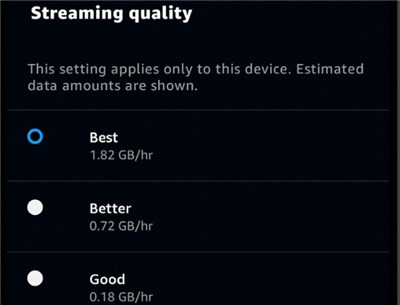
Select Streaming Quality
If you are watching on a standard 13-inch laptop screen, “Better” is usually indistinguishable from “Best” and saves significant space.
Troubleshooting: App Freezing or “Missing” Button
A common obstacle users face is the Prime Video app Microsoft Store entry failing to load or the download button appearing greyed out.
- Reset Store Cache: If the install button doesn’t work, press Win + R on your keyboard, type wsreset.exe, and hit Enter. This clears the cache and often fixes the glitch.
- Check Region Settings: Ensure your Windows region matches your Amazon account region. Mismatches can cause the Prime Video Windows app missing or unavailable error.
- Update Windows: The app relies on specific DRM (security) components that are only present in fully updated versions of Windows.
The Mac User Guide: Prime Video App for macOS Download
Mac users often encounter confusion because Prime Video macOS support is relatively recent. If you are searching for Prime Video Mac laptop download options, you must first verify your operating system version. The official app is only compatible with macOS Big Sur (11.0) and later versions.
Installation via App Store
1. Open the Mac App Store.
2. Search for “Amazon Prime Video.”
3. Click “Get” to install the application.
4. Once installed, the interface mirrors the iPad version. Navigate to your target video and tap the “Download” icon.
Dealing with Regional Restrictions (The “Missing App” Issue)
A frequent frustration for international travelers is finding the app unavailable. You might land in a new country, open the App Store, and find the Mac app not available in certain countries.
How to Fix It:
Your ability to download the app depends on your App Store Region setting, not necessarily your physical location.
1. Check Settings: Go to your Apple ID settings in the App Store.
2. Region Consistency: Ensure your region is set to your home country (e.g., US or UK) where the account is registered.
3. Download First: Ideally, download the app before you travel. Once installed, it will generally work for offline viewing regardless of where you are, provided you downloaded the content prior to leaving Wi-Fi range.
The Unlimited Method: How to Download Prime Video to PC as MP4
For the “Multi-Device Watcher” who encounters the frustration of downloads expiring after 30 days or 48 hours of playback, the official app can be limiting. If you need to keep a movie for longer than a rental period, or if you need to transfer the file to a projector or USB drive, you will need a third-party tool like Keeprix Prime Video Downloader.
This software bridges the gap by converting Amazon Prime videos into MP4 files, bypassing the storage limits on Windows/macOS devices imposed by Amazon.
Why Use a Professional Tool?
- Eliminate Expiry Dates: The official app’s “48-hour viewing window” starts the moment you press play. Keeprix Video Downloader strips this timing mechanism, so your file works forever.
- Storage Efficiency: You can download a 1080p movie as a high-efficiency MP4 (H.265 codec), which often looks better than the official app’s “Best” quality while taking up less space (approx. 1GB per hour).
- Ad-Free Viewing: Even if you are on the Prime Video Ad-Supported tier, Keeprix Video Downloader filters out the commercials during the download process.
Is It Safe to Log In?
A common concern with third-party tools is security. Keeprix Video Downloader utilizes an embedded secure browser for the login process.
How it works: You log in to Amazon exactly as you would in Chrome. The software does not “see” or store your password; it merely captures the video stream authorization token once the login is successful. This ensures your account credentials remain private.
Step-by-Step Procedure
1. Launch Keeprix Video Downloader: Open the software and select Amazon Prime Video from the VIP Services menu.
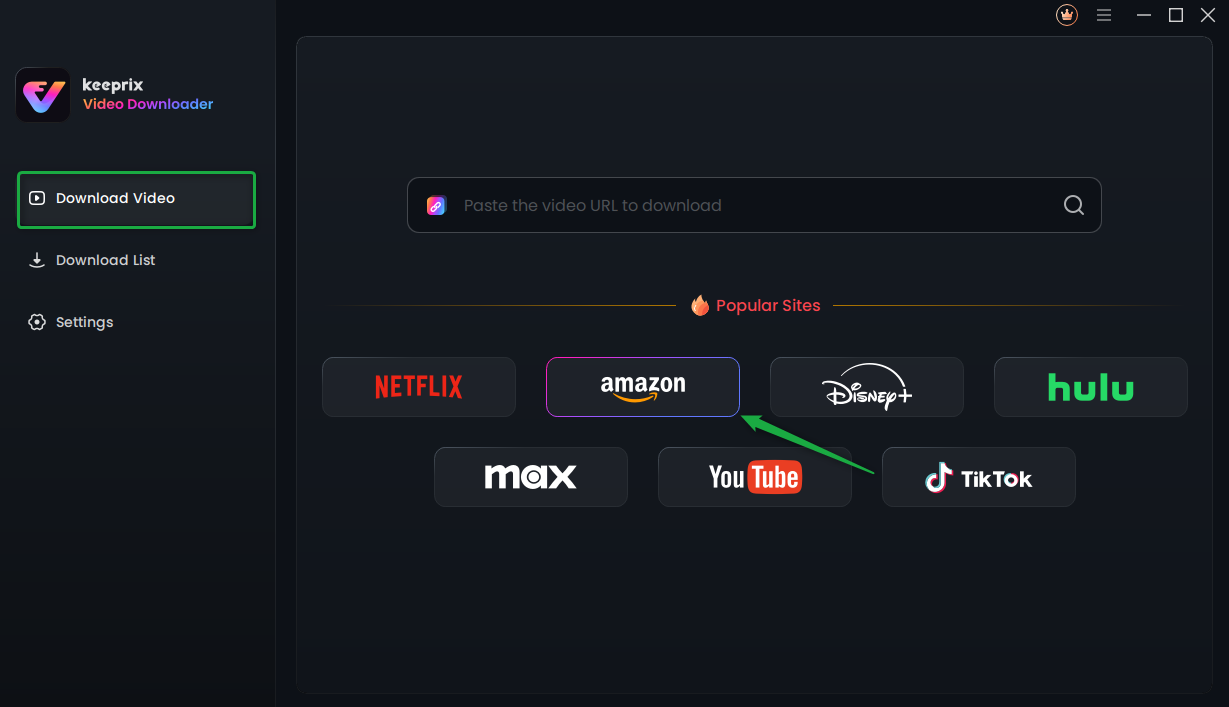
Choose Amazon Prime Platform
2. Log In: Sign in securely to your Amazon account within the built-in browser window.
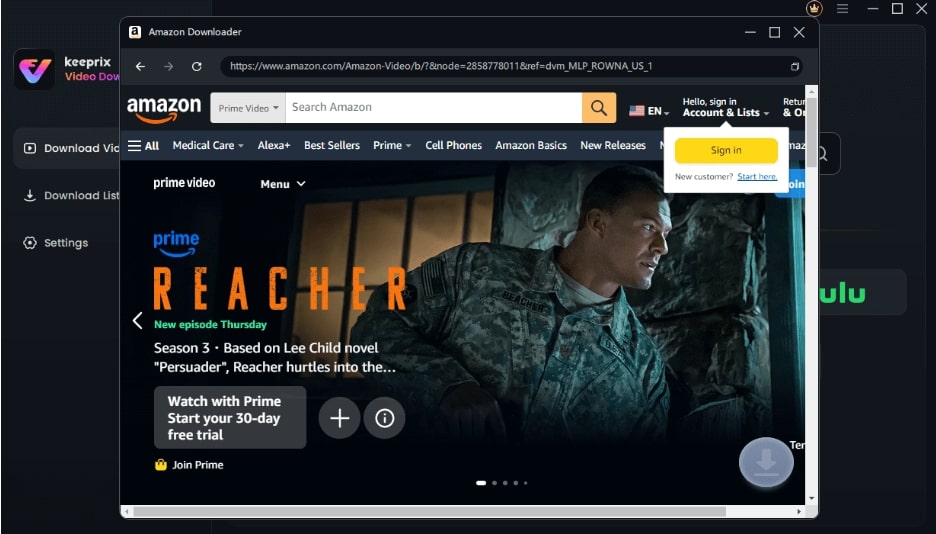
Sign Into Prime Account
3. Select Content: Navigate to the movie or show you wish to save. Play the video.
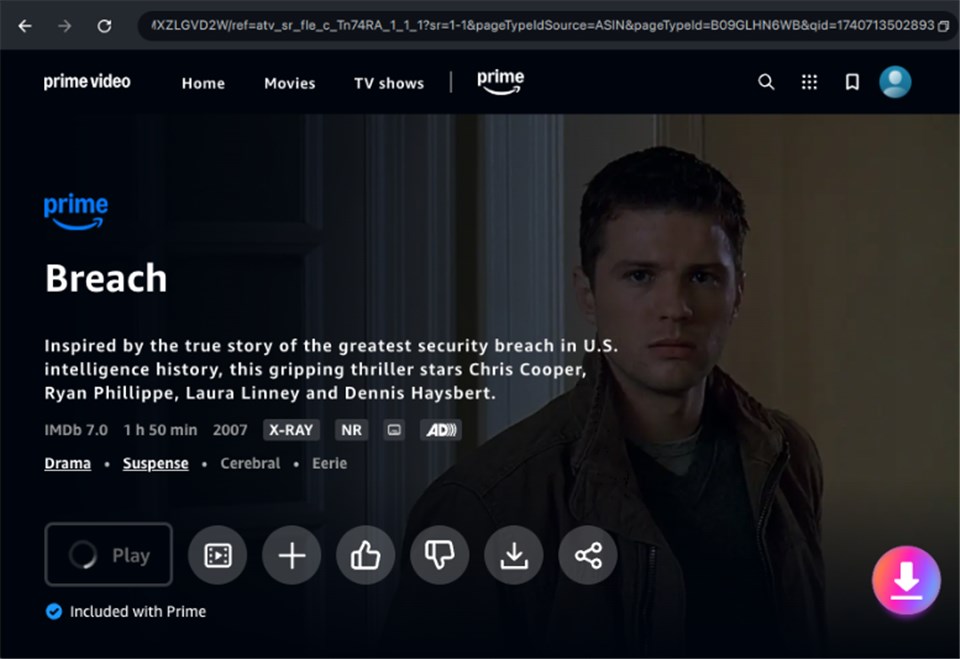
Download Amazon Videos
4. Configure Output: A settings window will appear. Choose “MP4” as the format and “1080p” for resolution. And you can check boxes for all the subtitle languages you need—perfect for language learners.
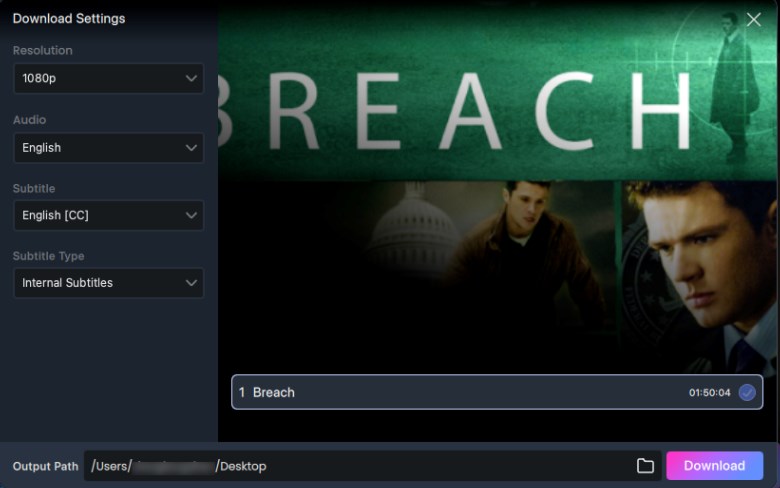
Adjust Download Settings
5. Download: Click Download Now. The file will save to your hard drive, ready to be moved to any device.
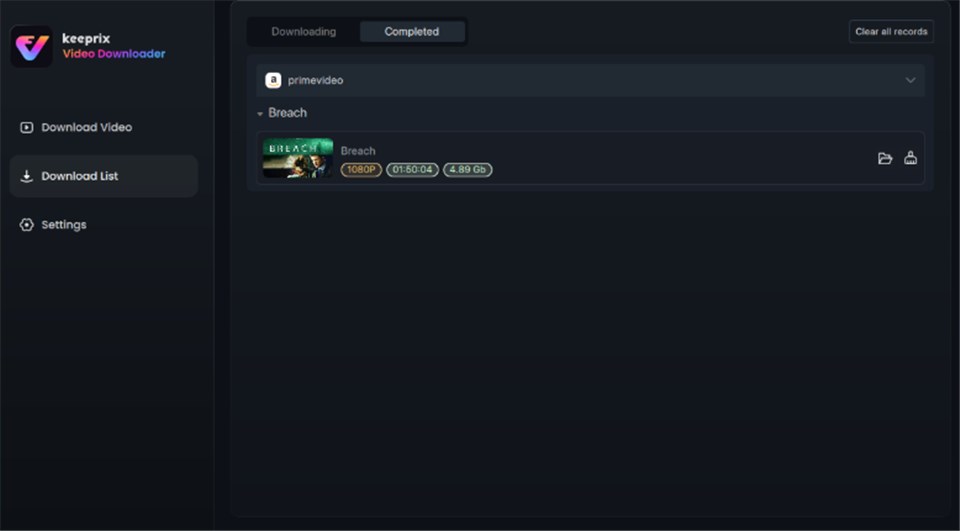
Prime Video Successfully Downloaded
Expert Insight: Why Browsers Fail & Where Files Hide
Many users ask, “Why can’t I just click ‘Save As’ in Chrome or Firefox?” The answer lies in digital security architecture.
The DRM Container Explained
Amazon Prime Video utilizes a secure DRM (Digital Rights Management) container that only the dedicated Windows and macOS apps can generate. Browsers (Chrome, Edge, Safari) cannot store encrypted offline content securely on your hard drive, which is why the Prime Video download button is missing the standard behavior for all web interface sessions.
Where are downloaded Prime Video files stored on laptops?
Even when you successfully download a movie using the official app, you cannot access the video file directly. Users often search for this file path, hoping to copy the movie to a friend’s computer.
On Windows, these files are buried deep in a hidden directory, typically following a path like:
C:\Users\[Username]\AppData\Local\Packages\AmazonVideo.PrimeVideo…\LocalState
The “Blob” Problem:
If you navigate to this folder, you won’t find a clean .mp4 file. Instead, you will see a folder full of fragmented, encrypted files (often called “blobs”) that are unreadable by players like VLC. This technical limitation is intentional. It prevents copying, exporting, or moving files to external drives.
This architecture highlights why software like Keeprix Video Downloader (discussed in Section 5) is required if your goal is to have a portable, playable video file.
FAQ: Solving Common Laptop Download Issues
Q1. Can I download Amazon Prime Video movies on my laptop?
Yes, but strictly through the Prime Video PC app for Windows 10/11 or the macOS app. You cannot download directly from a web browser like Chrome.
Q2. How much space do downloaded movies take up?
On the official app:
- Good Quality: ~0.5GB per hour.
- Better Quality: ~1.1GB per hour (Recommended for Laptops).
- Best Quality: ~2.4GB per hour.
Ensure you have enough free space on your internal drive, as the official app often restricts saving to external SD cards.
Q3. Why is the Prime Video download button missing on my laptop?
If you are using a browser, the button will never appear due to security restrictions. If you are using the App and the button is greyed out, it usually means that the specific title is not available for offline viewing due to licensing agreements from the studio.
Q4. Do Prime Video downloads expire on laptops?
Yes. With the official app, you typically have 30 days to start watching. Once you press play, a 48-hour timer begins. After 48 hours, the download expires and must be renewed with an internet connection.
Q5. Can I watch Prime Video offline on a Mac while traveling?
Yes, but you must install the app and download your content before you lose connectivity. Also, verify your App Store region is set to your home country to ensure the app remains accessible.
Conclusion
Trying to figure out how to download Amazon Prime movies on laptop browsers is a common hurdle, but the solution is straightforward once you move away from Chrome or Safari. For most users, the official Prime Video PC app is a capable, free tool that solves the immediate problem of entertainment on a flight or train ride. Just remember to manage your storage space and watch your downloads within the 48-hour window.
However, if Amazon Prime download restrictions—such as expiring downloads, hidden files, or the inability to use an external hard drive—prevent you from building the library you want, tools like Keeprix Video Downloader offer a robust alternative. By converting streams to MP4, you regain control over your media, ensuring it is ready whenever and wherever you are.