How to Watch 4K on Amazon Prime: The Ultimate UHD Settings Guide (2025)

You have the premium 4K TV. You have the high-speed internet plan. Yet, when you sit down to watch The Rings of Power or Fallout, the experience falls flat. Instead of the razor-sharp, cinema-quality visuals you paid for, you are met with a soft, grainy picture that looks more like a DVD than Ultra HD.
How to Watch 4K on Amazon Prime
If this sounds familiar, you are not alone. Amazon Prime Video is notorious for its strict hardware “handshake” protocols. Unlike Netflix, which often defaults to the highest resolution automatically, Prime Video requires specific settings across your entire hardware chain to trigger the UHD stream.
Are you seeing these symptoms?
- Missing Badges: The “UHD” or “4K” tag is absent from the movie description, showing only “HD.”
- Grainy Darks: Dark scenes look blocky, muddy, or “noisy” rather than deep black.
- The “Ramp-Up” Lag: The video starts blurry and takes minutes to clarify, or never clarifies at all.
- Washed Out Colors: The resolution looks okay, but the colors lack the “pop” of HDR.
If you recognize these issues, the problem is rarely your TV’s panel quality—it is a configuration mismatch. This guide covers the precise settings, cable requirements, and hidden menu options needed to force Prime Video into its highest quality tier.
The 4K Checklist: Mandatory Requirements for Prime Video UHD
To initiate a 4K stream, your setup must pass a digital verification check known as a “handshake.” If even one link in this chain fails—be it a cable, a port, or a setting—Prime Video defaults to 1080p (or lower) to preserve playback stability. Before digging into complex TV menus, verify these three fundamentals.
1. Sustained Bandwidth & The “Buffering Ramp-Up”
Amazon states 15 Mbps is the minimum for Ultra HD. However, in our testing, a stable 25 Mbps is the realistic baseline to maintain a 4K stream with HDR data without buffering.
The “Ramp-Up” Reality Check:
A critical detail often missed is how Prime Video buffers. Unlike other services, Prime Video almost always starts playback in low-resolution SD or HD to force instant start times. Do not panic if the image looks blurry for the first 60 seconds. It can take up to a minute for the app to buffer enough data to snap into full 4K.
If the image remains blurry after two minutes, your connection is likely unstable. Use a wired Ethernet connection to eliminate Wi-Fi fluctuations. Packet loss over Wi-Fi is the number one cause of the app refusing to switch gears into UHD.
2. Hardware Compliance (The HDCP 2.2 Bottleneck)
This is the most common failure point. Your TV and audio receiver must support HDCP 2.2 (High-Bandwidth Digital Content Protection). This is an anti-piracy protocol that secures the connection between your player and screen.
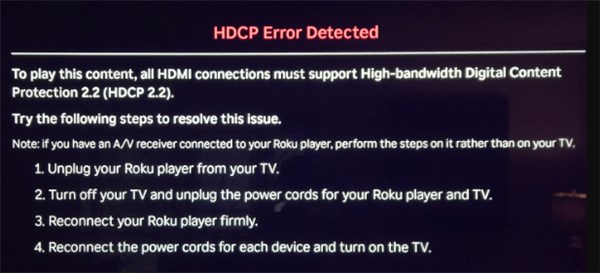
HDCP Error Detected
If you plug a modern Fire Stick 4K into an older HDMI port (common on TVs made between 2014–2016), you will get a picture, but it will be capped at 1080p.
- The Fix: Check your TV manual or the labels on the back of the TV. You must use an HDMI port explicitly labelled HDCP 2.2 or 4K @ 60Hz.
- The Switch Trap: If you route your signal through an HDMI switch, soundbar, or AVR, that intermediate device must also be HDCP 2.2 compliant. If it is not, the chain breaks, and you get HD.
3. HDMI Cabling & The “Handshake Reset”
You need a “Premium High-Speed” HDMI cable capable of 18Gbps bandwidth (HDMI 2.0 or 2.1). Older standard cables cannot carry the data volume required for 4K HDR at 60Hz.
Quick Fix: Force a New Handshake
If you have the right cable and port but still see “HD,” the devices might be stuck on an old verification token.
1. Turn on your TV and streaming device.
2. While both are ON, unplug the HDMI cable from the TV.
3. Wait 10 seconds.
4. Plug it back in.
This forces the devices to re-negotiate their capabilities, often clearing the error preventing the UHD flag from appearing.
Device Guide: Enabling 4K on TVs, Sticks, and Consoles
Even with the correct cables, manufacturers often ship TVs with “Eco” modes or “Standard” inputs enabled, which artificially restrict HDMI bandwidth to save power. You must manually unlock the full bandwidth of your ports.
Smart TVs (Samsung, LG, Sony)
Menu names vary by model year and software version. Look for similar terms if the exact path differs.
- Samsung (Tizen): Go to Settings > General > External Device Manager > Input Signal Plus (on older models, this is called “HDMI UHD Color”). You must check the box for the specific HDMI port you are using.
- LG (WebOS): Go to Settings > Picture > Additional Settings > HDMI Ultra HD Deep Color. Ensure this is toggled “On” for your port.
- Sony (Android/Google TV): Go to Settings > Watching TV > External Inputs > HDMI Signal Format. Change this from “Standard” to “Enhanced Format.”
You may also like: Why Is Amazon Prime Video Not Working on TV >
Streaming Sticks (Fire TV, Apple TV, Roku)
Dedicated streamers are often more reliable than built-in TV apps, but they still require configuration.
- Fire TV Stick 4K / Cube: Go to Settings > Display & Sounds > Display. Set Video Resolution to “Auto (up to 4K Ultra HD).” Crucially, run the Audio and Video Diagnostics tool in the menu; it will explicitly tell you if your TV allows HDCP 2.2.
- Apple TV 4K: Navigate to Settings > Video and Audio. Set Format to 4K HDR.
Crucial Step: Turn on Match Content (both Range and Frame Rate). This prevents “judder” (stuttering motion) and ensures the TV switches to the correct HDR mode (HDR10 or Dolby Vision) based on the movie, rather than forcing a fake HDR effect on everything.
- Roku: Go to Settings > Display Type. Select “Auto Detect.” Do not manually force 4K; let the Roku test the connection so it can verify the 60Hz capability of your specific port.
The PC Limitation (Browser vs. App)
If you are trying to watch 4K on a computer monitor, you will likely hit a wall.
- Web Browsers: Chrome, Firefox, and Edge are capped at HD (720p or 1080p) due to Digital Rights Management (DRM). Browser-based 4K is virtually impossible on Prime Video.
- Windows 10/11 App: The native app can technically support 4K, but it is highly inconsistent and hardware-dependent (often requiring specific Intel processors and monitors). For the vast majority of PC users, Prime Video will max out at 1080p. To guarantee 4K, you should use a dedicated streaming stick plugged directly into your monitor’s HDMI port.
Troubleshooting: Why the 4K Badge is Missing (HDR vs. UHD)
A common source of confusion is the distinction between resolution (4K/UHD) and dynamic range (HDR). You might be getting 4K resolution, but if the colors look washed out, the HDR handshake has failed.
Decoding the Badges
Amazon Prime Video is inconsistent with where it displays quality badges. You may need to press “Down” on your remote during playback or look at the “More Details” tab on the movie page.
- UHD / 4K: Indicates Resolution (Sharpness).
- HDR (High Dynamic Range): Indicates Color and Contrast.
- Dolby Vision / HDR10+: Premium HDR formats.
The “Muddy Black” Issue:
If the video is 4K but dark scenes look gray or pixelated, your TV might be trying to display HDR brightness levels it cannot handle.
- The Fix: Go to your TV’s picture settings and select a preset like “Cinema,” “Filmmaker Mode,” or “Movie.” Avoid “Vivid” or “Sports,” which artificially boost brightness and destroy shadow detail.
A Note on Audio (Atmos)
While audio doesn’t affect pixel count, it completes the experience. If you have a surround system but only see “Stereo,” check your TV’s audio output settings. Ensure it is set to Bitstream or Pass-Through. This allows the raw Dolby Atmos signal to bypass the TV and be decoded by your soundbar or receiver.
When 4K Streaming Fails: A Reliable Backup Plan
Sometimes, despite perfect settings and expensive cables, your internet connection simply cannot sustain the 25 Mbps constant stream required for 4K. If you live in an area with data caps, throttling, or unstable Wi-Fi, you may be stuck in a loop of constant buffering and pixelation.
In these specific cases—where the choice is between a “4K” stream that constantly freezes or drops to 480p, and a stable experience—switching to an offline library mindset is a practical alternative.
The Keeprix Video Downloader Trade-Off: Stability Over Resolution
For users battling poor connections, Keeprix Amazon Prime Video Downloader offers a way to bypass streaming instability entirely.
Important Distinction: Keeprix Video Downloader downloads content in 1080p Full HD, not 4K.
This is a downgrade in pure pixel count compared to a perfect UHD stream. However, a high-bitrate 1080p file often looks significantly better than a starved 4K stream that is full of compression artifacts and macro-blocking.
- Who is this for? This is for users who prioritise smooth playback and permanent ownership over raw resolution. If your internet causes Prime Video to stutter or look “blocky,” a clean 1080p local file will offer a superior viewing experience.
- Breaking Limits: Unlike the official Prime app, which expires downloads quickly, Keeprix Video Downloader allows you to keep files forever as MP4s or MKVs, downloading Amazon Prime on Mac. This solves the “content expiration” frustration and allows playback on any device, including those that don’t support the Prime app.
How to Download Subbed Amazon Prime Videos with Keeprix Video Downloader:
Step 1. Download and launch Keeprix Video Downloader, and choose Amazon Prime as the platform.
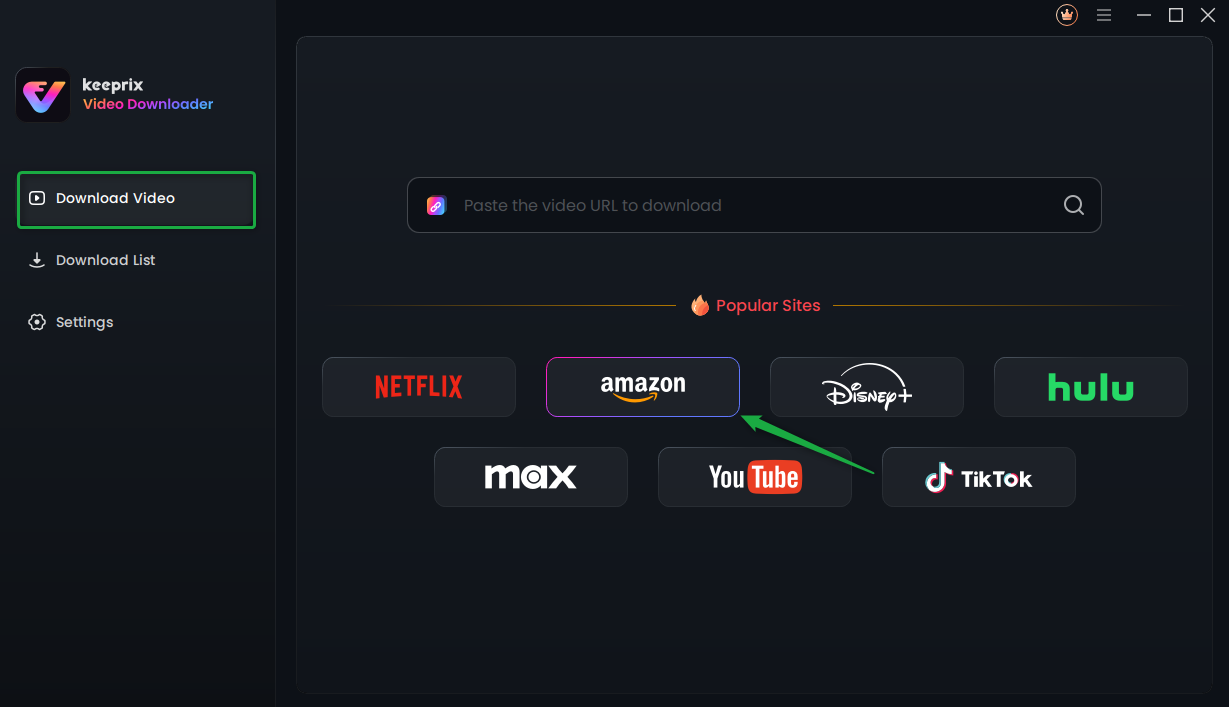
Choose Amazon Platform
Step 2. Sign in to your Prime Video account in Keeprix Video Downloader.
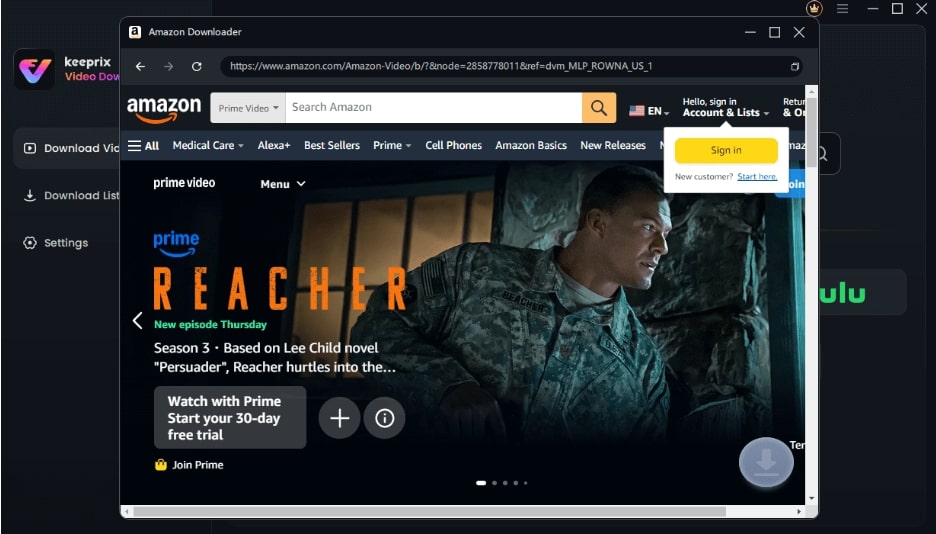
Sign Into Prime Account
Step 3. Find the video you want and click the Download icon. Waiting for the download process to be completed.
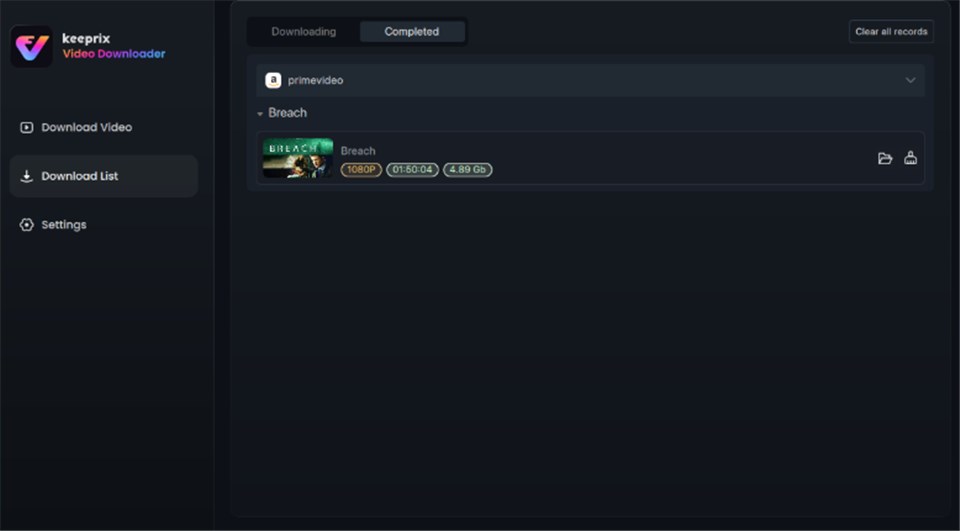
Prime Video Successfully Downloaded
Frequently Asked Questions (FAQ)
Q1. Why is the 4K badge missing on Prime Video?
The most common reasons are: 1) You are using an HDMI port that does not support HDCP 2.2. 2) Your internet speed is below 20-25 Mbps. 3) You are testing on a movie that is only available in HD (older titles).
Q2. Do I need to enable 4K in settings?
On most devices, it is automatic. However, on Fire TV Sticks, you should set video resolution to “Auto.” On Sony and Samsung TVs, you must manually enable “Enhanced Format” or “Input Signal Plus” for the specific HDMI port you are using.
Q3. Why does the picture look blurry at the start?
Prime Video uses adaptive streaming. It starts at a low resolution to load the video quickly, then “ramps up” to 4K as it buffers data. This usually takes 30 to 60 seconds.
Q4. Can I watch 4K on my PC?
It is very difficult. Browsers (Chrome, Edge, Safari) are capped at HD due to copyright protections. The Windows App is inconsistent. The best way to watch 4K on a monitor is to plug a streaming stick (like a Fire Stick 4K) directly into the monitor’s HDMI port.
Q5. Does the HDMI cable really matter?
Yes. You need a cable rated for 18Gbps (Premium High Speed). Standard HDMI cables from a few years ago cannot transmit the amount of data needed for 4K HDR at 60 frames per second.
Conclusion
Achieving a true 4K HDR experience on Amazon Prime Video is rarely as simple as pressing play. It requires a synchronized chain where your internet speed, HDMI cables, port standards, and TV software all agree to the same protocol. By following the checklist above—specifically verifying HDCP 2.2 compliance and enabling “Enhanced” HDMI signal formats—you can force your hardware to deliver the visual fidelity you paid for.
If you find that your network simply cannot keep up with the demands of UHD streaming, remember that stability is often more enjoyable than raw pixel count. Whether you optimize your network for the perfect 4K stream or use tools like Keeprix Video Downloader to build a stutter-free offline library, the goal is the same: watching Amazon Prime movies without internet and technical distractions.