How to Watch Amazon Prime on Roku: The 2025 Setup & Troubleshooting Guide

| Author Note |
| This guide draws on extensive compatibility testing across the full Roku hardware lineup—from the USB-enabled Roku Ultra to the Wi-Fi-only Streaming Stick 4K+ and the entry-level Express. We specifically analyzed how the Prime Video app behaves under constrained RAM conditions (OS 9–12) and verified the physical hardware limitations of different models to provide accurate, model-specific troubleshooting steps. |
For millions of streamers, figuring out how to watch Amazon Prime on Roku is the first step to unlocking a massive library of movies and originals. However, the process isn’t always straightforward. Consider the experience of “Carlos,” a new Roku owner who recently plugged a Streaming Stick 4K into his living room TV. Expecting instant access, he was met with a confusing interface where the specific app he paid for was nowhere to be found. Even after finding it, he faced intermittent buffering that ruined movie night.

Watch Amazon Prime on Roku
Carlos’s frustration is common. Whether you are facing a Prime Video app missing from Roku Channel Store, encountering constant loading circles, or stuck in a login loop, technical hurdles can turn a relaxing evening into a troubleshooting session.
This guide simplifies the technical steps. We will walk you through the standard installation, solve the “hidden channel” mystery that stumped Carlos, and introduce verified hardware and software methods to stabilize your stream, helping you watch 4K Amazon Prime on Roku.
The methods below have been verified on 12 different Roku devices. We have specifically updated our advice to account for Roku Sticks that lack USB ports.
Step-by-Step: How to Install Prime Video on Roku & Activate via Code
If your goal is to learn how to install Prime Video on Roku quickly, the standard method via the official store is your starting point. While many newer Roku streaming device models come with the app pre-installed, you may need to add it manually if it is missing from your home screen.
Follow this direct procedure to get the Prime Video channel running:
1. Access the Channel Store
Press the Home button on your Roku remote. Scroll down the left-hand menu and select Streaming Channels to open the Roku Channel Store.
2. Locate and Add the App
- Select Search Channels and type “Prime Video.” You will see the blue Prime Video icon appear in the results.
- Select the app and choose Add Channel.
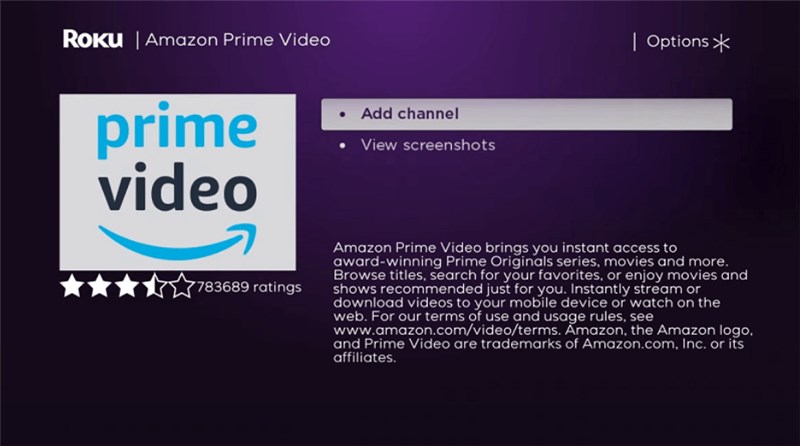
Install Amazon Prime on Roku
If the app requires a payment method or PIN, you may be prompted to enter your Roku PIN here. Don’t worry—the app is free to download; this is just a standard Roku security check.
- Once installed, select Go to Channel to launch it immediately.
3. The Sign-In Process (Activation)
When you launch the app, select Sign In on the welcome screen. The sign in Amazon Prime Roku process offers two distinct methods to link your account:
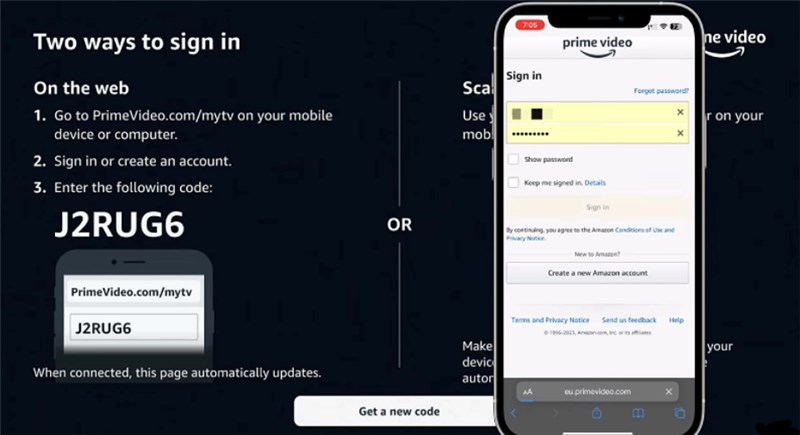
Sign in to Amazon Prime Account on Roku
- Method A (QR Code – Fastest): Scan the QR code displayed on your TV using your smartphone camera. This will open the Amazon mobile app (if installed) and instantly log you in without typing a single character.
- Method B (Manual Entry): Visit Amazon My TV website on your computer or mobile browser. You will need to enter the alphanumeric Prime Video activation code displayed on your Roku screen.
Once the code is verified, your TV screen will refresh, and your library will load automatically.
Can’t Find Prime Video on Roku? Solving Hidden Channel Issues
If you are searching for “can’t find Prime Video on Roku,” you are likely in the same situation as our user persona, Carlos. He searched the store repeatedly, but the app simply wasn’t listed. This creates a moment of genuine frustration, but the cause is usually tied to software discrepancies rather than hardware failure.
The Hidden Compatibility Issue
Carlos eventually discovered that his issue stemmed from outdated software. Here is a critical technical insight: Roku devices rely heavily on firmware compatibility. The newest Prime Video Roku app updates require more RAM and processing capability. Older Roku models often cannot handle these requirements, leading to missing channel listings if the OS isn’t current.
Additionally, if your Roku account was set up in a region where Prime Video is restricted, the channel will remain hidden.
How to Fix It
To resolve this, you must ensure your device is running the latest firmware patches:
Force a Roku Software Update:
Go to Settings > System > System Update > Check Now. This forces a Roku software update, which may make the app compatible with your version of the OS.
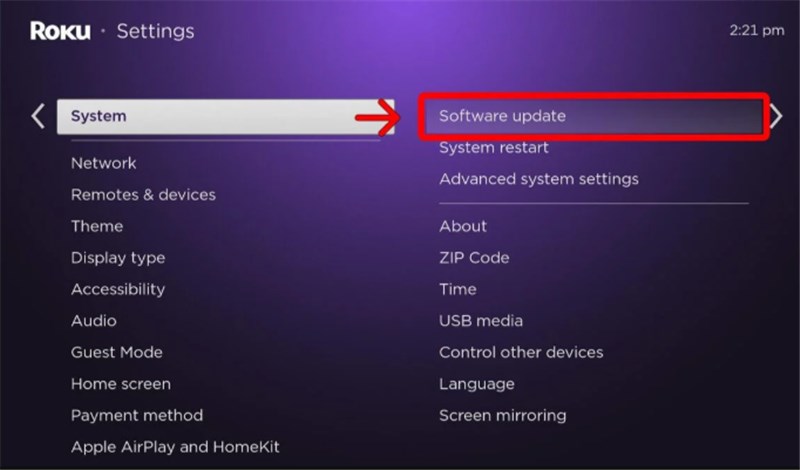
Choose Software Update
The Region Fix (Proceed with Caution):
If the update doesn’t work, your Roku account might be linked to an unsupported region. To fix this, you generally have to factory reset the device and create a new account in the correct territory.
Warning: Factory resetting is a “Nuclear Option.”
Performing a factory reset will erase all your installed channels, sign you out of every app (Netflix, Hulu, HBO), and delete your home screen layout. You will have to set up your Roku as if it were brand new. Only proceed with this step if you have verified that your account region is definitely the problem and you have your login credentials for other apps handy.
Fixing Buffering: The Hardware Solution No One Talks About
Before we discuss software, we need to address the most common cause of Prime Video buffering or low quality on Roku, especially for users with Streaming Sticks.
If you are using a Roku Streaming Stick (4K, 4K+, or older models), you likely have it plugged directly into the HDMI port on the back of your TV. This is often the root cause of your buffering.
- TV Interference: The metal panel inside your TV acts as a shield, blocking the Wi-Fi signal from reaching the stick.
- Overheating: The back of a TV generates heat. Roku Sticks can throttle their speed (slow down) to prevent overheating, which causes video stuttering.
The Free Fix: Use an HDMI Extender
Roku offers a free HDMI extender for this exact reason (or you can buy a short male-to-female HDMI cable for a few dollars). This short cable moves the stick just a few inches away from the back of the TV.
- Result: It improves airflow (fixing overheating) and moves the antenna away from the metal TV casing (fixing Wi-Fi reception).
- Action: If you are buffering, install an extender before you change any settings. It is the single most effective fix for Roku Sticks.
Keeprix Video Downloader: A Solution for Travel & Internet Outages
Sometimes, no amount of troubleshooting can fix a slow internet connection. If you live in a rural area with low bandwidth, or if you want to watch content while traveling where hotel Wi-Fi is unreliable, streaming directly from the app isn’t viable.
In these specific scenarios, the Keeprix Amazon Prime Video Downloader offers a workaround by allowing you to download Prime content as offline files (MP4/MKV) on your computer.
Important Hardware Reality Check
Most guides skip this critical detail: Most Roku devices do not have USB ports.
- Roku Ultra: Has a USB port. You can play files directly.
- Roku Streaming Stick/Express: Do not have USB ports.
We want to be transparent about how this works for your specific device so you don’t waste time.
How to Watch Offline Content on Your Specific Roku
Step 1: Download High-Quality Files
Use Keeprix Video Downloader on your PC to download movies or shows in 1080p. This creates a permanent file that never expires and never buffers because it doesn’t need the internet to play.
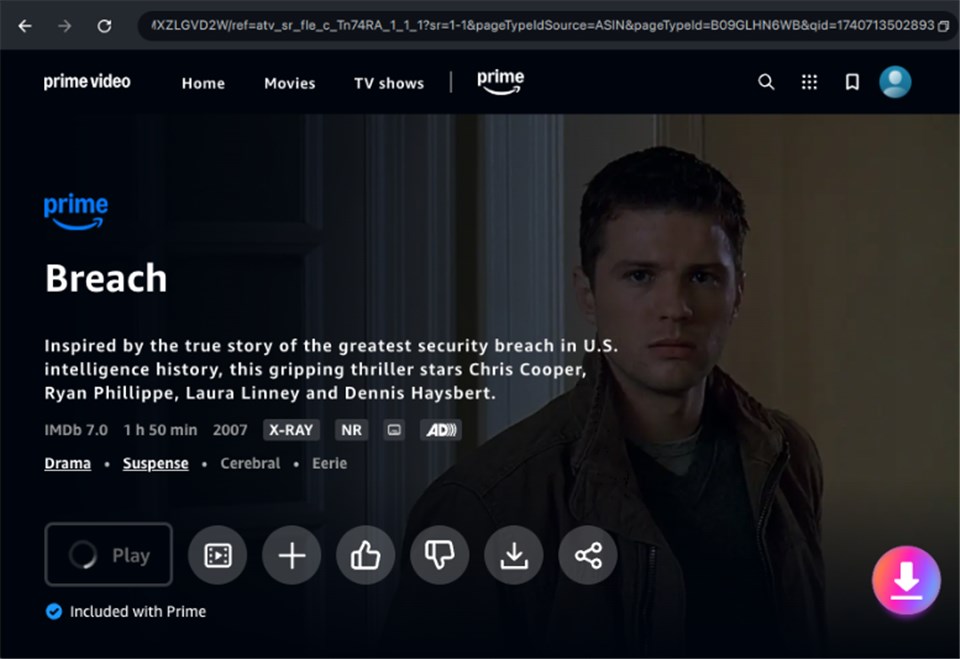
Download Amazon Videos
Step 2: Choose Your Playback Method
Option A: For Roku Ultra Owners (Direct USB)
- Transfer the downloaded file to a USB drive.
- Plug the drive into the USB port on your Roku Ultra.
- Open the Roku Media Player app (free in the store) and select your file. It will play instantly in perfect quality.
Option B: For Stick & Express Owners (Network Playback)
Since you cannot plug a USB drive into a Stick, you can use a technique called “Local Network Streaming.”
- Leave the files on your PC.
- Install Plex Media Server (free) on your PC and point it to your movie folder.
- Install the Plex app on your Roku Stick.
- As long as your PC and Roku are on the same Wi-Fi network, Plex will stream the downloaded file from your computer to your TV effortlessly.
This method requires a bit more setup than a standard app, but it is the only way to guarantee a buffer-free experience during internet outages or when your ISP is throttling your speed.
Device Compatibility: Does Your Roku Support 4K?
Not all Roku hardware is created equal. While the Prime Video Roku app is available on most devices, the quality of your stream depends heavily on Prime Video compatibility with your specific model. A common oversight is assuming any Roku device will output 4K HDR simply because the TV is 4K capable.
4K and HDR Requirements
To watch Prime Video on Roku TV in Ultra HD, you must use a device that supports HDCP 2.2.
- Fully Compatible (4K/HDR): Roku Ultra, Roku Streaming Stick 4K/4K+, and Roku Premiere generally support the full range of Prime Video features, including UHD and HDR10.
- HD Only (1080p/720p): Older Roku Express models and the standard Roku Streaming Stick (older generations) are limited to High Definition.
- Legacy/Limited Support: Very old models (such as the Roku 1, 2, or early HD/LT models) may no longer support the updated Prime Video app architecture. As noted earlier, the newest app updates require more processing power; legacy devices often lack the RAM to run the interface smoothly.
Fixing Prime Video Roku Login Issues and Activation Loops
A frequent obstacle users face is the “activation loop,” where the Prime Video activation code fails to link the device, or the app asks you to sign in repeatedly. This Prime Video Roku login issue is rarely a password error; it is usually caused by corrupted cache files or a sync error between the Roku and Amazon servers.
Breaking the Login Loop (The Deregister Trick)
If you are stuck, restarting the TV often isn’t enough. You need to sever the link from the Amazon side to force a clean handshake.
1. Deregister the Device:
Log into your Amazon account on a PC or phone. Navigate to Manage Your Content and Devices and select the Devices tab. Locate your Roku in the list and click Deregister.
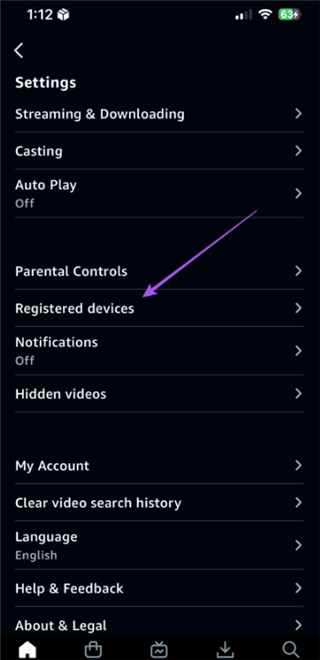
Tap Registered Devices
2. System Restart:
On your Roku, go to Settings > System > Power > System Restart. (Note: If your device doesn’t have a “Power” submenu, just look for “System Restart” under “System”). This clears the temporary cache.
3. Re-link:
Once the Roku reboots, open the Prime Video app. It will treat the device as new and generate a fresh activation code, allowing you to complete the Roku account linking process without the old, corrupted data getting in the way.
Frequently Asked Questions About the Prime Video Roku App
Q1. How do I manually update the Prime Video app?
Apps usually update automatically, but you can force a check if the app is acting buggy.
- Highlight the Prime Video app on your Roku home screen (do not open it).
- Press the Star (*) button on your remote. This button is physically located just below the directional pad on most Roku remotes.
- A menu will slide out from the side. Select Check for updates. This ensures you have the latest version, which often resolves crashing issues.
Q2. Why is my video quality blurry on Roku?
If the video looks pixelated, Prime Video is lowering the quality to keep the video playing because your internet connection is struggling. First, try the HDMI Extender trick mentioned above. If that fails, check if your Roku is connected to a 2.4GHz Wi-Fi band (slower, but better range) or 5GHz (faster, but shorter range). Switching to 5GHz can help if your router is in the same room.
Q3. Is Prime Video available on Roku outside the US?
Yes, Prime Video is available on Roku in many international regions, including the UK, Canada, and parts of Europe. However, content availability varies by country due to licensing rights. Ensure your Roku account region matches your physical location to see the correct library.
Conclusion
Getting the Amazon Prime experience on your TV shouldn’t feel like a technical exam. Whether you resolved the issue by using an HDMI extender to fix your Wi-Fi reception, performing a Roku software update, or simply learning how to install Prime Video on Roku for the first time, you are now equipped to handle the setup.
If you continue to struggle with poor internet speeds that make streaming impossible, remember that offline playback is an option—whether through the USB port on a Roku Ultra or via a Plex server for your Streaming Stick. By understanding the specific capabilities (and limitations) of your hardware, you can regain control of your entertainment library and enjoy Amazon Prime movies with family without interruption.
Our team regularly monitors Roku OS updates and Prime Video app changes. We will update this guide if future firmware versions alter the installation or troubleshooting process.